
You can use OneDrive both as the online version and as the desktop application. When your files are stored in the cloud, you can access and work on them regardless of location as long as you have an internet connection. Through OneDrive you can also share files with your fellow students or teachers.
You can edit Office files in the browser even without an installed Office suite. You can also save files other than Office files to OneDrive.
Using OneDrive
Creating or uploading a file
1. Open OneDrive via the M365 apps (Apps – OneDrive). You should pin OneDrive to the sidebar.
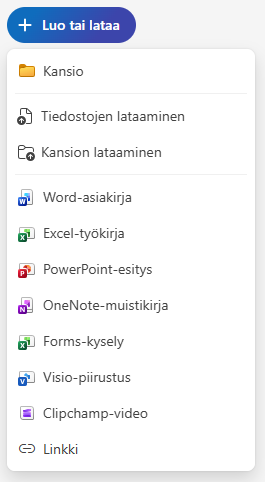
2. Click + Create or upload. Choose which file you want to create or upload a file from your computer using “Upload files”.
Sharing files and managing permissions
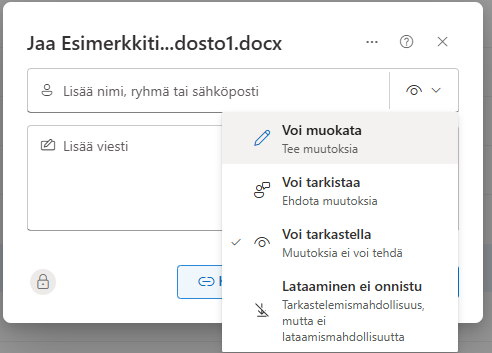
In OneDrive you can share your files and folders with others for viewing or editing. When sharing you can set the recipient’s permissions.
Files in OneDrive can be shared using File Explorer on your computer as well as via a web browser. In both ways you can choose the settings for the file or folder you want to share in similar dialog windows.
1. In OneDrive, select the file you want to share and click the Share icon.

2. Select the recipients and their permissions.
Problems and solutions
Sync issues
- Sync only what you need
- Make sure you are not trying to sync too many files at once
- Ensure you are not exceeding your storage quota
- Make sure different files do not have the same names
- Ensure your computer does not enter power saving or sleep mode
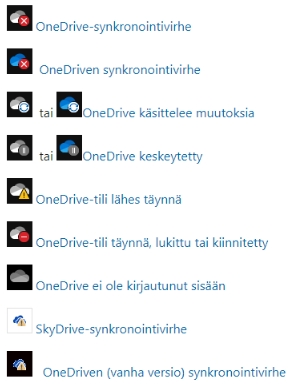
Solutions for sync issues
- Check that you can access your OneDrive account online
- Update to the latest OneDrive version
- Unlink OneDrive and run the OneDrive setup again
- Move some files out of the sync folder
- Make sure file names and file types are supported
- Disable Office updates
- Ensure you have the permissions for the file or folder
- You can find more detailed instructions from Microsoft’s site here.
Missing files
- Search for the file in the OneDrive web version
- Search for the file in the Recycle Bin
- Open the desired Microsoft app and check if the file appears on the Home page under Recent
You can find more detailed instructions on Microsoft’s site here.
From Microsoft’s site you can also find instructions on restoring a previous version of a file saved in OneDrive here.