
Have you forgotten your password? See the instructions Forgotten or expired password.
Changing your password via the IAM Portal
- Go to the IAM Portal: https://iam.laurea.fi
- Log in with your username by selecting the sign-in method “Sign-in using your Laurea ID”
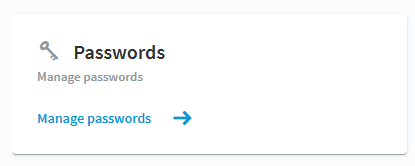
- Select “Password management” from the front page
- From the portal that opens, select “Password management” again
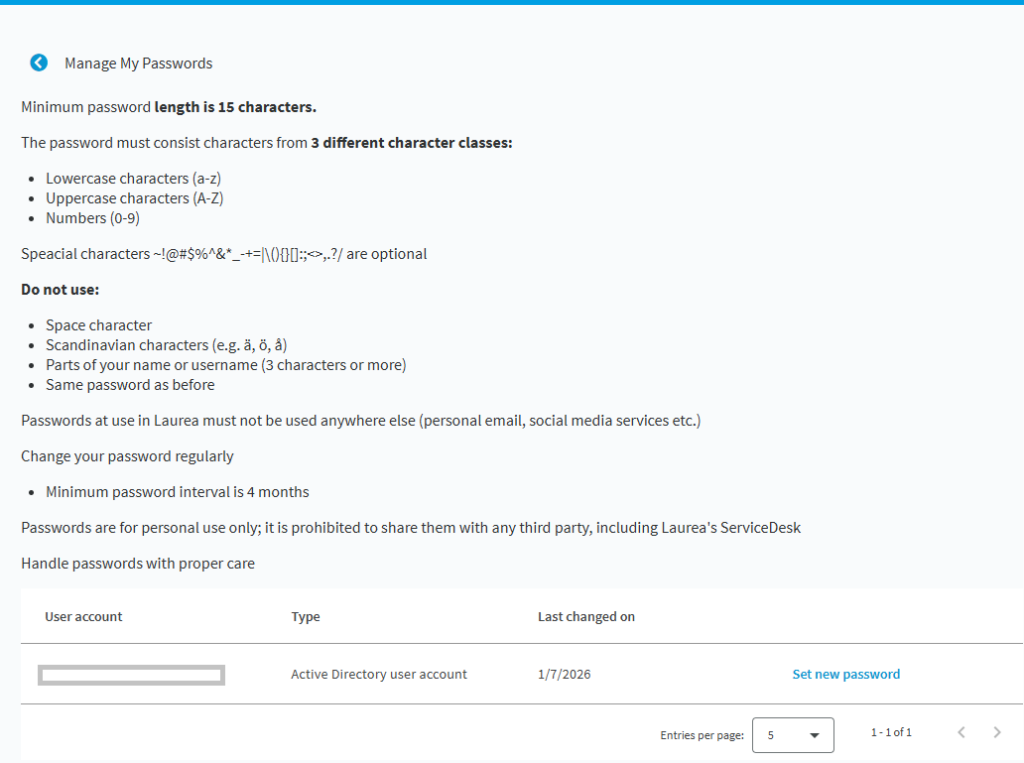
- On the next page you will see instructions for changing the password, under which the accounts you use are listed (one or more)
- Select “Set new password” on the right side of the account
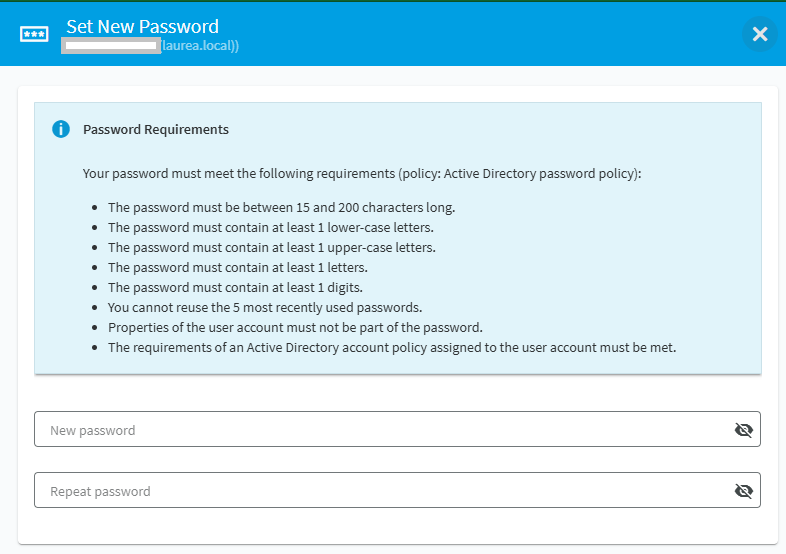
- Enter the new password twice and press “Save”
You will next be redirected back to the Password recovery portal front page. You can either sign out or return to the IAM Portal by pressing “Back to IAM Portal” on the front page.
General information about passwords
The user must change their password every 12 months. If the password is not changed within the deadline, the account will be locked. The user will be notified by email when the password expires. The password can also be changed before the forced change interval.
Password requirements:
- The minimum password length is 15 characters
- The password must contain at least one
- lowercase letter (e.g. a)
- uppercase letter (e.g. A)
- number (e.g. 1)
- The password may include the following special characters: ~!@#$%^&*_-+=|\(){}[]:;,.?/
- Do not use the following in the password:
- Space
- Scandinavian characters (e.g. ä, ö, å)
- Parts of your name or username (3 characters or more)
- The same password as before
Passwords used at Laurea must not be used anywhere else (for example in personal email or social media services).
Passwords are personal and must not be shared with anyone – not even Laurea ServiceDesk.
Protect your password – never share it!