
The video below demonstrates how a Biteable video is created.
You can order Biteable credentials from Laurea’s ServiceDesk (servicedesk@laurea.fi), after which you will receive instructions from Biteable.com by email on how to create your account within a few days. Remember to also check your spam folder if you don’t see the message.
Once you have logged in to Biteable.com, you can view the instructions for creating a video from the question mark icon in the top right corner.
Detailed instructions for creating a Biteable video
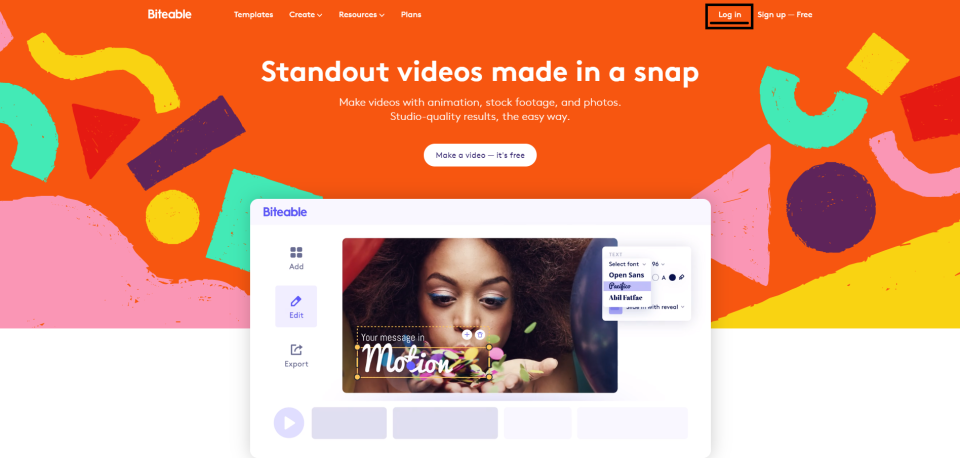
Log in to the service Biteable.com via the Log in button in the top right corner, using the credentials you created.
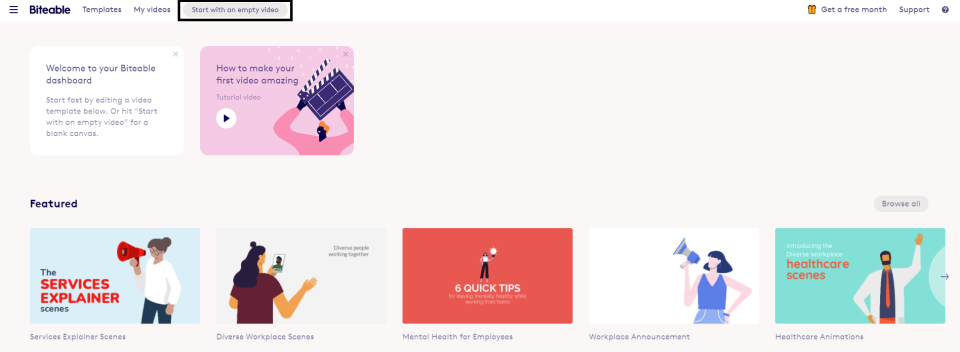
2. Select “Start with an empty video”.
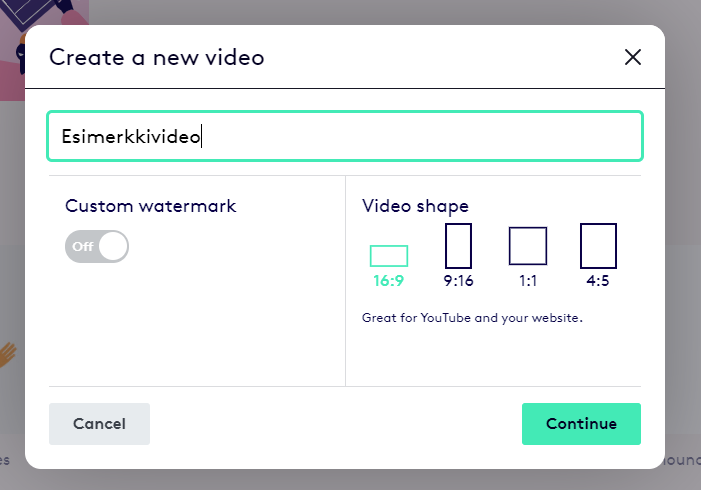
3. Give the video a name and choose your desired aspect ratio. You can also add a “watermark” to the video, for example a logo that will remain visible throughout the entire video.
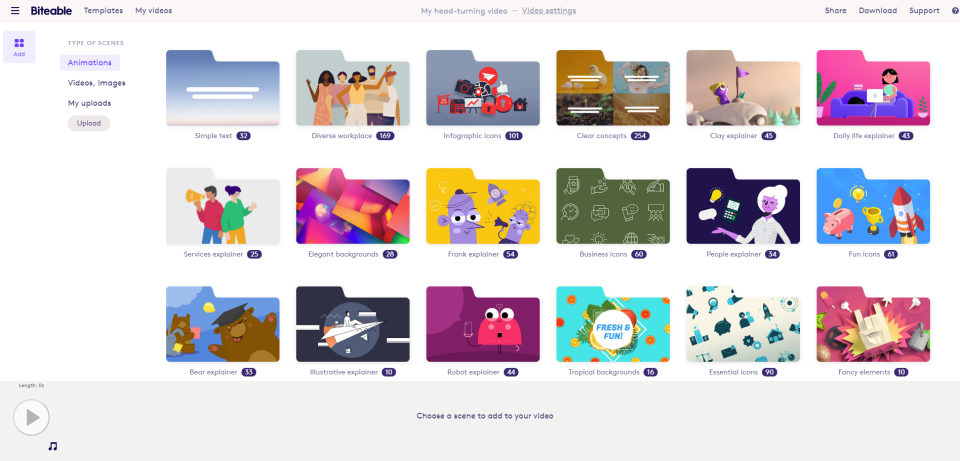
4. Choose the video clips or animations you want. From the “Type of scenes” list you can select animations, videos and images, or material you have uploaded yourself. When searching for videos and images you can use the search field in the top right to search by tags.
5. After selecting the videos you want, click the “Edit video” button in the lower right corner to access the editor.
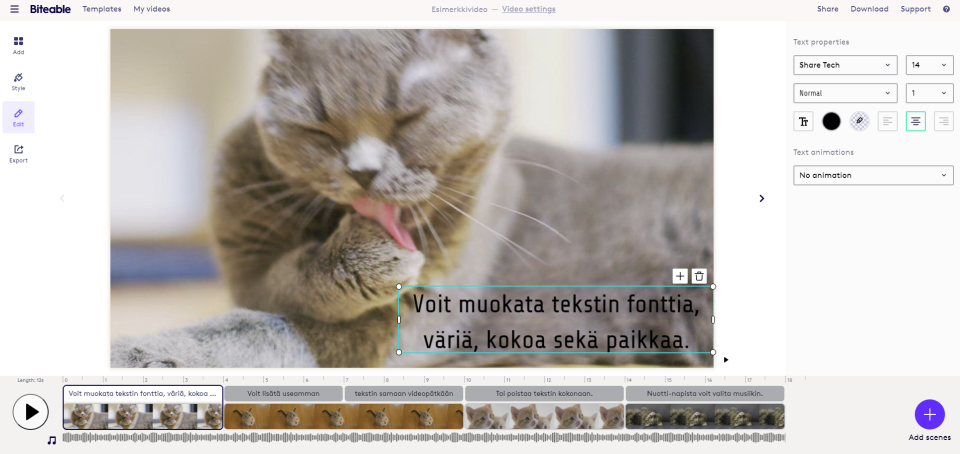
6. In the editor you can, for example, drag videos into the desired order with your mouse, edit and add/remove text, insert animations between scenes and into texts, or choose background music from the library by clicking the note icon. You can preview the whole video with the play button and add more material by clicking the “Add scenes” icon.
7. When you are ready, select “Export”, and from the window that opens choose “Build hi-res video”. This takes some time, depending on the length and settings of your video.
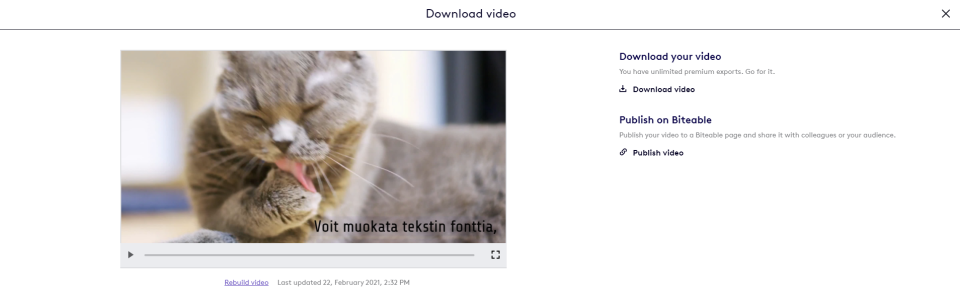
8. The video is ready and you can watch the finished video. By selecting “Download video” you can download the video to your computer, from where you can upload it, for example, to video.laurea.fi.
By selecting “Publish video” you can share the video on Biteable.com. Remember to choose “Hidden – Can only be viewed by people with the link” so that only people you share the link with can view the video. If you choose “Public”, the video will be openly visible to everyone via Biteable.com.