
The new version of Outlook was introduced in autumn 2025 and the application works with any browser’s latest version (Microsoft Edge, Mozilla Firefox, Apple Safari, Google Chrome). In addition, you can install the Outlook app on your phone or other mobile device and set up Laurea’s email account there. A student can also set email forwarding to their personal address if desired. If you send email to Laurea staff, we recommend using your Laurea email address so that messages do not end up in spam filters.
In the calendar you can make bookings and remote meetings for others as well. When you sync your email to your phone you can also sync the calendar to your phone. Attachments or other additional information can be added to the calendar event and a reminder can be set. You can also make a calendar event recurring for a specific period and at specified intervals.
When you mark your attendance to a calendar event, you can respond by choosing either “Accept”, “Decline”, “Tentative” or “Propose New Time”. When you select one of these, you will get a menu containing “Edit Response Before Sending”, “Send Response Now” and “Do not Send Response”.
Outlook instructions
Email on your phone
Install Outlook from your phone’s app store.
Add an account and sign in with your Laurea username
Your username is in the form abc1234@laurea.fi (not the student.laurea.fi email address!)
Select the Microsoft button
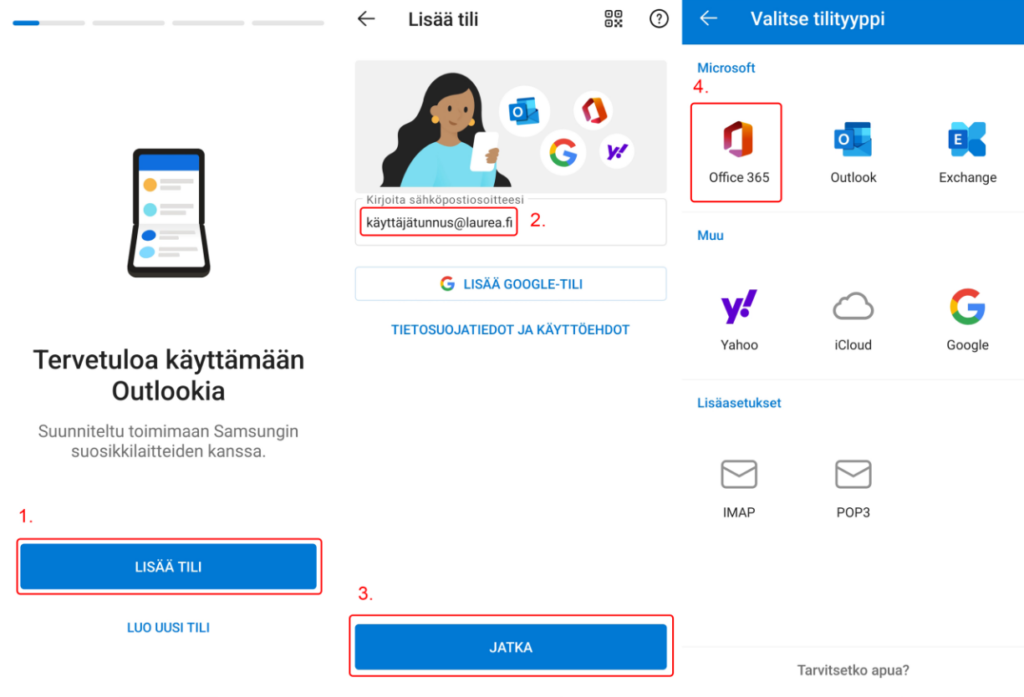
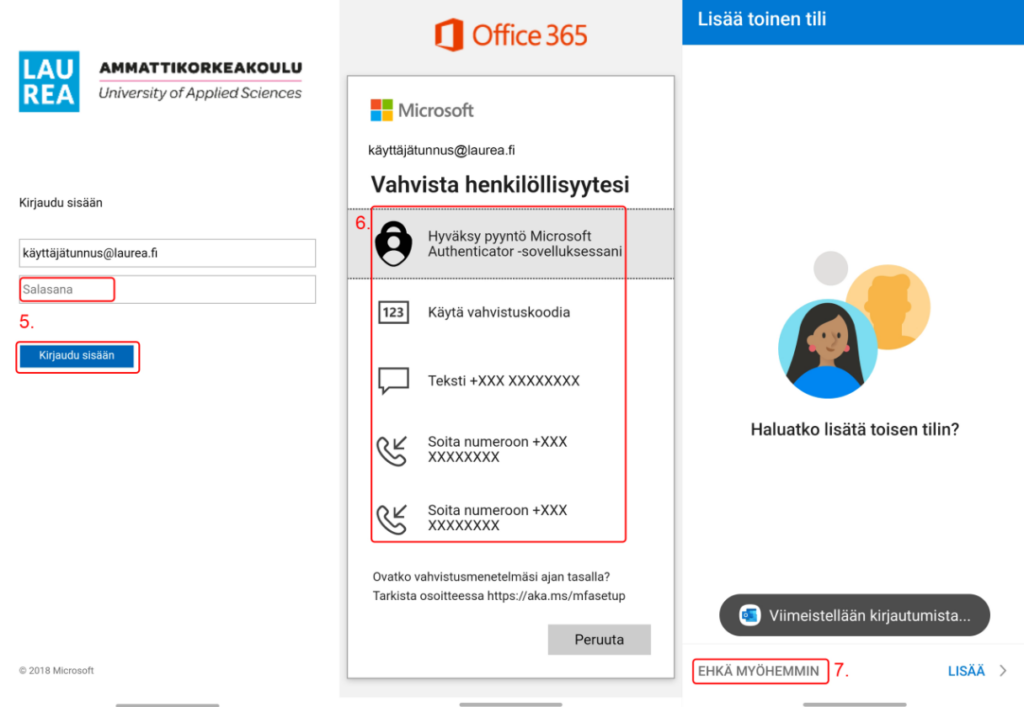
Sign in and choose Approve the request in the Microsoft Authenticator app
Problems and solutions
Outlook does not work on the phone
- Check that your phone has the latest updates
- Restart your phone
- Reinstall Outlook and add the Laurea account again
- At the turn of 2025-2026 there have been widespread issues on older Android phones or other phones that have not received the latest security updates
I cannot access my email
To sign in you use the Laurea username, which is in the form abc12345@laurea.fi, i.e. not an email!