
Microsoft Outlook
Microsoft Outlook is an email and calendar application that helps you manage study-related communication, meetings and deadlines in one place. Through Outlook you can efficiently plan your study schedules using calendar features and communicate with teachers and fellow students.

These instructions are based on Microsoft’s information. Check Microsoft’s website for the latest instructions before getting started:
Outlook help
Outlook for desktop
You can install Outlook on your computer from Microsoft’s website. Use your Laurea username in the form ABC00012@laurea.fi to sign in — i.e. not an email address with the @student.laurea.fi suffix.
Outlook requires working two-factor authentication. Instructions for setting up two-factor authentication and common problems can be found here.
Outlook for iOS devices
You can download the Outlook app from Apple’s App Store (direct link here) or you can add your Laurea email account to an iPhone or iPad as follows:
- On your phone go to Settings -> Mail -> Accounts -> Add Account -> Microsoft Exchange.
- The device will prompt you to enter your email and a description. Enter your username in the email field in the form username@laurea.fi; the description can be whatever you choose.
- After that you will be redirected to the Laurea login page, where you enter your password and complete two-factor authentication.
- Finally choose what you want to sync from your Laurea account (Mail, Contacts, Calendars, Reminders, Notes).
Outlook for Android phones
You can download the Outlook app from the Android app store (direct link here).
- In Outlook’s start view select Add account
- Enter your Laurea username in the field in the form username@laurea.fi
- Select Continue
- If asked for account type, choose Office 365
- Sign in with your Laurea username and password
- Complete two-factor authentication by selecting “Approve the request in my Microsoft Authenticator app”
- You can add another email account, but this is not required
- Your Laurea email account should now be added successfully
Sending an encrypted email
You can send an encrypted message in Outlook by going to the Options tab and clicking the Encrypt button; the message will then be encrypted and only the recipient you choose can open it.

If you also want to prevent the message from being forwarded, click the arrow at the bottom of the button and select “Do not forward”. The Do not forward setting prevents the message from being resent.
Note that this setting extends the rights restriction to attachments as well, so no one other than the recipient you specified will be able to open the attachments, even if they download them and forward them by other means! We recommend using the Encrypt-only setting, which is also the default when pressing the Encrypt button.
If you use another email program (e.g. on a phone) and do not see the Encrypt button, you can write “Luottamuksellinen” and/or “Confidential” in the message subject, which will also encrypt the message. In that case, make sure the word is spelled correctly! The word must be in the subject (Subject) field, not in the body of the message.
More information about Microsoft’s email encryption can be found on Microsoft’s site.
Opening an encrypted email
Messages encrypted with Message encryption can be read directly in Outlook’s desktop, browser, and mobile apps. The encryption is indicated by a lock icon on the message.
External recipients receive an email directing them to read the message in Microsoft’s portal. The recipient is authenticated either with a one-time code sent to their email or by signing in to the portal with their email provider’s credentials (e.g. Microsoft or Google sign-in).
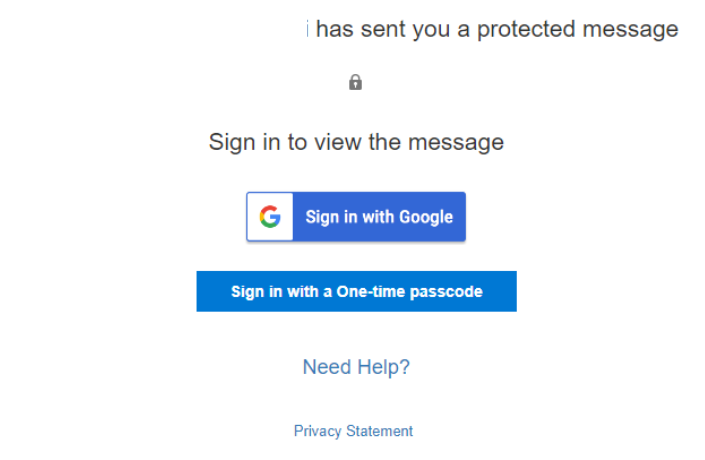
Sending an encrypted email without a Laurea account
You can reply to encrypted messages sent from Laurea in Outlook or in the portal, in which case the reply will also be sent encrypted. Note: if the recipient does not use Outlook, they must reply from the portal; otherwise the reply will not be encrypted.
Troubleshooting
Outlook not working on your phone
- Check that your phone’s updates are up to date
- Restart your phone
- Remove and reinstall Outlook and add the Laurea account again
At the turn of 2025–2026 there have been widespread issues with older Android phones or other devices that have not received the latest security updates.
I cannot sign in to my email
You sign in with your Laurea username, which is in the form ABC00012@laurea.fi, i.e. not an email address with the @student.laurea.fi suffix.
Outlook requires working two-factor authentication. Instructions for setting up two-factor authentication and common problems can be found here.