
On this page
Learning platforms
Survey tools
Gamification platforms
Video tools
Communication and collaboration platforms
Creating visual material
Co-creation platforms
Learning platforms
Platforms for completing study-related tasks and materials.
Canvas
Canvas is Laurea’s learning platform where you will find course materials, assignments, assessments and other study-related content. Through Canvas you can also submit assignments, track your study progress and keep in touch with teachers and other students.
DigiCampus (Moodle)
DigiCampus is a shared learning environment for higher education institutions, where you can find joint courses, courses open to all (e.g. MOOCs), project collaboration courses and institutions’ own courses.
Logging in
Depending on how you have been added to the studies, log in to DigiCampus:
Receiving the course link and key
DigiCampus courses are accessed using a course key. The student receives the course link and key by email after they have been accepted onto the course. If the message does not appear, check the spam folder as well.
Viope
Viope can be used for teaching programming and mathematics.
Logging in
Log in with your Haka credentials at: https://vw4.viope.com/login?org=laurea
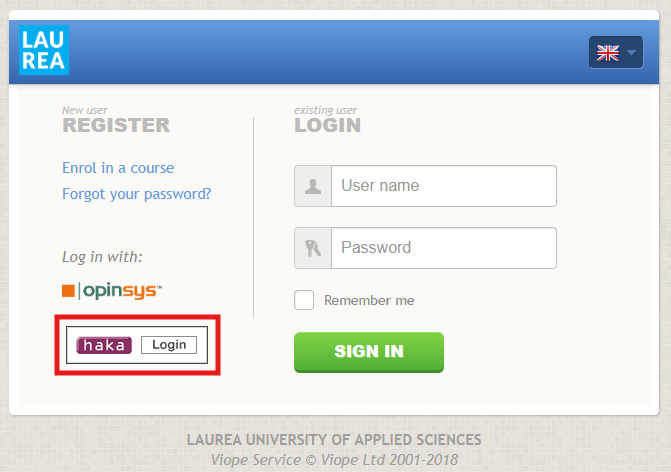
After logging in with Haka credentials, you will reach Viope’s user homepage, where you can continue using Viope.
Survey tools
You can create a survey using Laurea’s E-forms or Microsoft Forms. Both are accessed with a Laurea account.
Laurea E-lomake -forms
With E-lomake you can create and publish various web forms and surveys and process the responses either within the software or export them to spreadsheet or statistical programs.
You can securely create surveys, registration forms and other electronic forms.
Security of the E-lomake
According to the provider, the E-lomake system has:
- Encrypted connection (https)
- Responses are stored only on a server restricted to Laurea’s use
- Sensitive data has sometimes been included in surveys, for example a nurse answering questions
- Only the survey creators and Laurea’s system administrator (if needed) can access the responses. The survey creator must ensure they delete responses from the server as often as possible.
- When dealing with sensitive information: In the form settings, ensure that responses are not sent by email to the respondent or the processors of responses
- In principle, respondents’ IP addresses are technically stored on the server, but only the system’s technical administrator has access to them and would have to work hard to view them. The survey creator (e.g. a student) who manages the form and other administrators cannot access this information
As good practice, always attach a privacy statement to a survey form (there is a template in the form editor). Here is one example of how it has been used: Link to E-lomake example
Microsoft Forms
Microsoft Forms is an application in the Microsoft 365 environment that allows you to easily create surveys, forms, feedback questionnaires and quizzes. Responses are saved automatically and results can be viewed in real time and analysed as various summaries and reports.
Gamification platforms
On the Seppo game platform you can create playful tasks and other content that is mainly played on mobile phones.
Seppo game
Seppo is an award-winning gamified learning platform that activates and motivates learners. A single game can have up to 35 players or 35 teams.
Create a game in any environment. Choose a game board in jpeg, png, gif, 360° image or GPS map. You create the game on your own computer and players play on mobile devices.
Create tasks in the game using your own materials. You can make video, audio and text tasks directly on the Seppo platform and add links and images to your tasks. Players solve tasks using mobile devices and make use of multimedia possibilities.
Request credentials from servicedesk@laurea.fi or directly via the form https://servicedesk.laurea.fi/ssc/app#/order/1924174/ (requires login).
- Share your great game also in Laurea’s library.
- If you want to be sure your game is preserved, grant access rights to dcell@laurea.fi for your game
Video tools
Software for recording and editing videos.
Kaltura (video.laurea.fi)
Kaltura is Laurea’s video service through which you can view, record, share and manage study-related videos. The service also allows light editing of videos and adding subtitles.
Clipchamp video editor
Microsoft Clipchamp is Microsoft’s video editing application that allows you to create, edit and share videos easily in the browser or desktop application. With the app you can, for example, cut videos, add text, music and effects and produce content for presentations and projects related to studies.
Audacity
Audacity is a recording and editing software. It is excellent for making podcasts, mixing music, digitizing audio recordings and general audio processing, such as cutting, pasting and adding effects.
Instructions
Log in to the computer with your Laurea credentials.
Open Audacity from the desktop shortcut:

Check audio devices in Audacity:
- Microphone : (scarlett 2i2 USB)
- Speakers : (speakers/headphones(realtek))

Click the bar labeled “Click to start monitoring”

Make a few test recordings:
- Press the rec button

- Speak into one or both microphones (the ones you intend to use)
- When the recording is finished, press the stop button

- Listen to the recording by pressing the play button

- Watch the monitoring bar; it should not go into the red
- If it goes into the red, speak further away from the mic
- If the sound is weak, speak closer to the mic

- When the test recordings are OK, delete them (Ctrl+A and Delete or choose File – New) and start the recording
- Press rec
- When you are finished, press the STOP button and listen to the recording by pressing the play button
- Remove unwanted parts at the beginning and end of the audio clip by selecting them with the mouse and pressing the Delete key
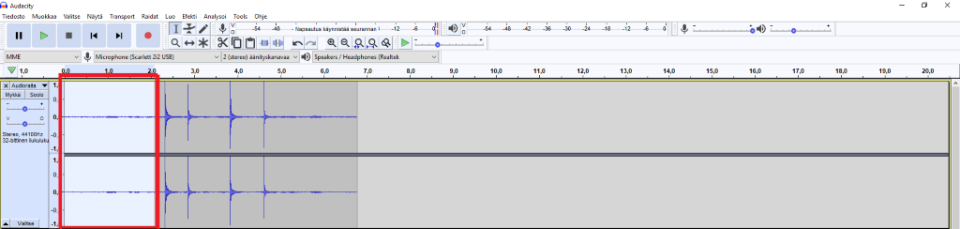
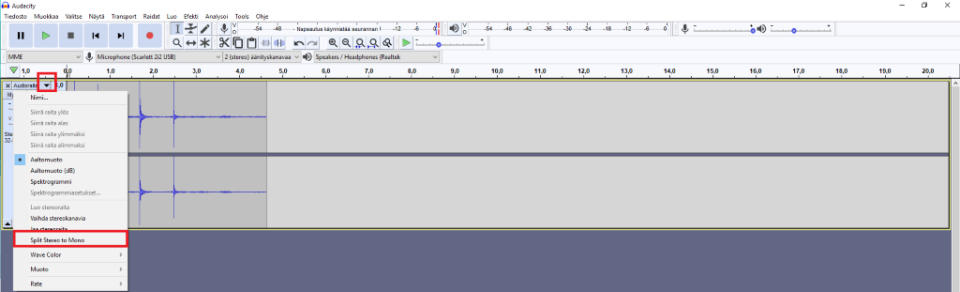
- Convert the recording to mono
- From the arrow menu next to the audio track text select “split stereo to mono”
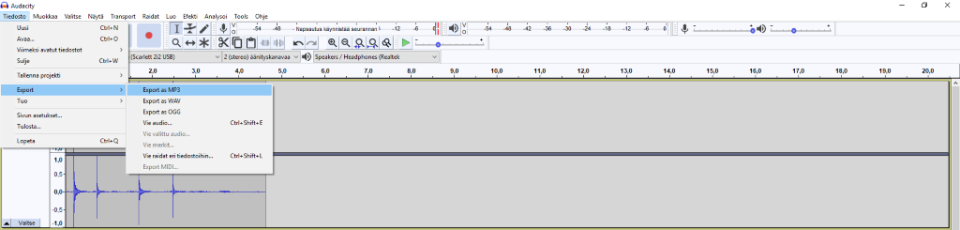
- Saving:
- File -> Export -> Export as MP3
- Save the file to the desktop and keep a copy for yourself
Biteable
With Biteable you can create animations and videos from a large library of ready-made video clips and animations. In addition to the ready-made clips you can also add text and images to your video or use your own images and videos by uploading them to Biteable. The video below demonstrates how a Biteable video is created:
You can order Biteable credentials from Laurea’s ServiceDesk (servicedesk@laurea.fi), after which you will receive instructions from Biteable.com by email on creating the account within a few days. Remember to also check your spam folder if you cannot find the message.
Detailed instructions for creating a Biteable video
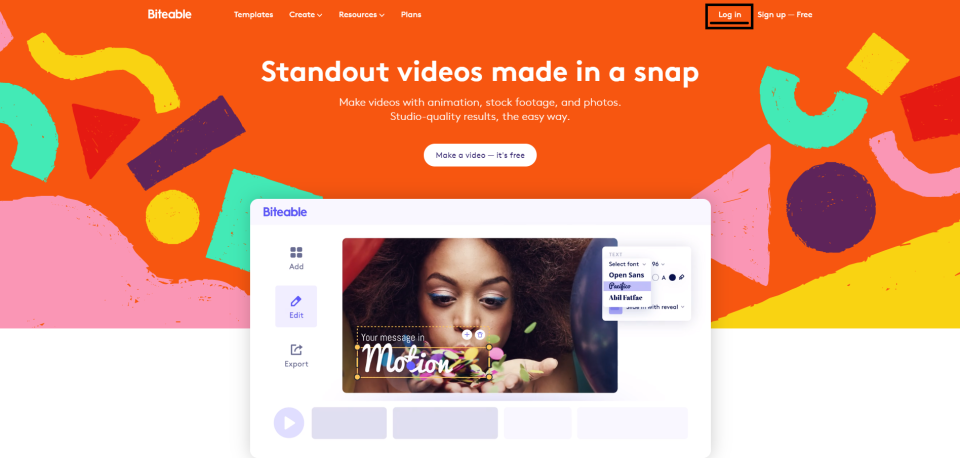
1. Log in to the service Biteable.com via the Log in button at the top right using the credentials you created.
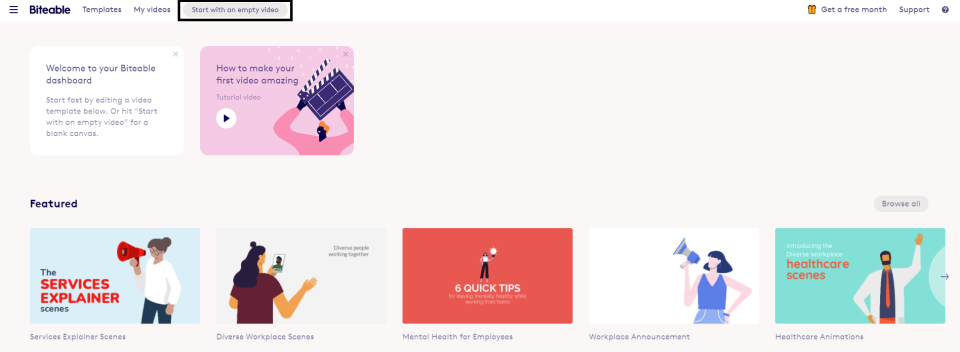
2. Choose “Start with an empty video”.
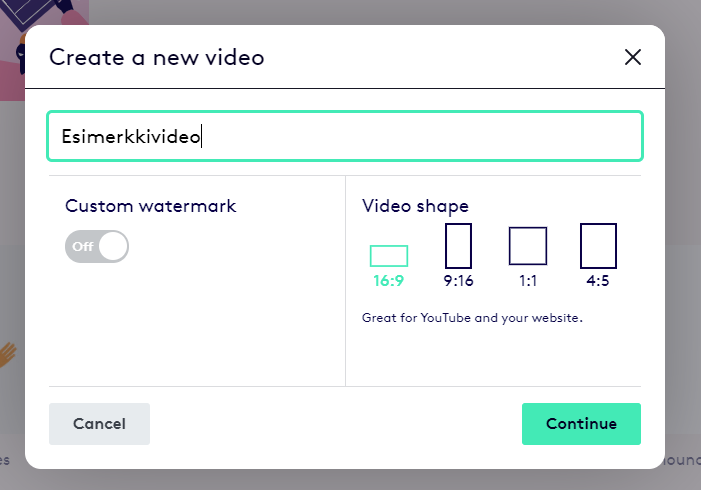
3. Give your video a name and choose the desired aspect ratio. You can also add a “watermark”, for example a logo that remains visible throughout the video.
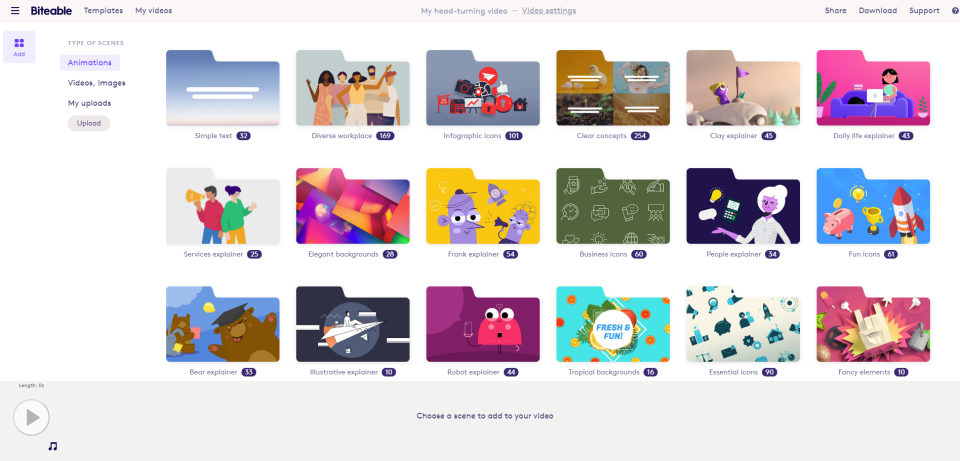
4. Select the video clips or animations you want. From the “Type of scenes” list you can choose animations, videos and images or your uploaded material. When searching for videos and images you can use the search field at the top right with tags.
5. Once you have selected the desired clips, press the “Edit video” button at the bottom right to access the editor.
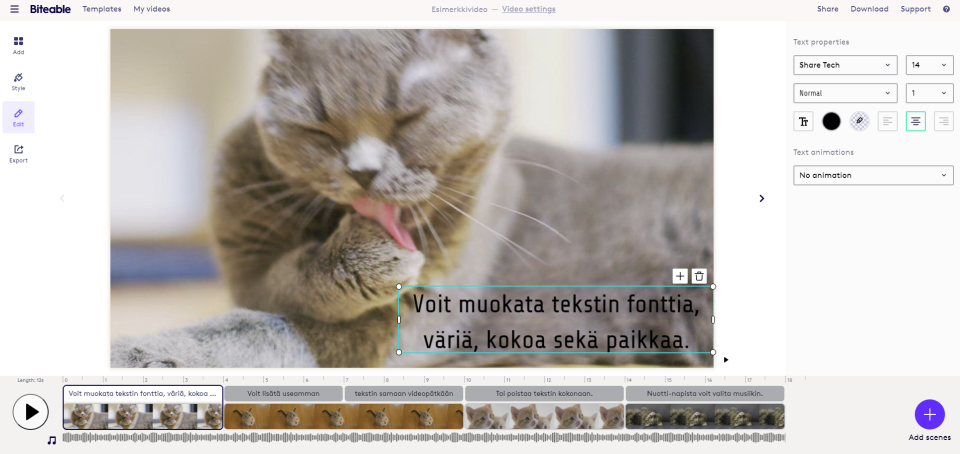
6. In the editor you can drag videos into the order you want with the mouse, edit and add/remove text, add animations between videos and to texts or choose background music from the library by pressing the note icon. You can preview the whole video with the play button and add more material by pressing the “Add scenes” icon.
7. When you are done, select “Export”, and from the window that opens choose “Build hi-res video”. This takes some time depending on the length and settings of your video.
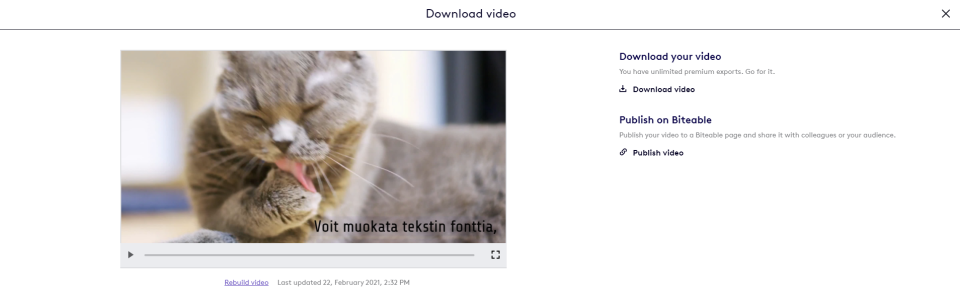
8. The video is ready and you can watch it. By selecting “Download video” you can download the video to your computer, from where you can upload it for example to video.laurea.fi.
By selecting “Publish video” you can share the video on Biteable.com. Remember to choose “Hidden – Can only be viewed by people with the link” so that only people you share the link with can see the video. If you choose “Public”, the video will be openly visible to everyone via Biteable.com.
Communication and collaboration platforms
Communicate in projects and work together.
Microsoft Teams
Microsoft Teams is a collaboration and communication application through which you can join online meetings, chat with teachers and other students and collaborate on group work. The app can also be used to share files, learning materials and other study-related content in one place.
Zoom
Zoom is a web conferencing application that allows you to participate in online lectures, web meetings and group work from anywhere. The app supports video meetings, screen sharing, chat messaging and recordings, which makes collaboration and online studying smooth.
Creating visual material
Create great brochures, social media material, design a logo, an electronic brochure or a portfolio.
Bulb portfolio tool
Bulb is a digital portfolio tool that helps you compile and showcase your skills, projects, assignments and achievements visually. The portfolio lets you track the development of your competence and share your work as evidence for studies, internships and job applications.
Canva
Canva is a web-based design tool that allows you to easily create presentations, posters, infographics, videos and other visual content for studies. With ready templates and easy-to-use tools you can produce professional-looking materials without prior graphic design experience.
Microsoft Sway
Microsoft Sway is a digital presentation tool that allows you to easily create visual presentations, reports, newsletters and portfolios without separate layout skills. Sway lets you combine text, images, videos and other content into a responsive whole that’s easy to share online.
Co-creation platforms
For service design or collaborative remote planning.
Lucid
Lucid is a whiteboard application that includes two sub-applications: Lucidchart and Lucidspark.
Lucidchart is a program for creating diagrams and charts easily and resembles apps like diagrams.net (formerly called Draw.io).
Lucidspark is similar to the whiteboard app Miro and you can create similar interactive whiteboards in Lucidspark, for example for creating visualizations.
As a Laurea student you are entitled to a Lucid student license which enables free use of the application.
Lucid can be enabled in any Canvas workspace by clicking the “Lucid (Whiteboard)” link in the left menu. Detailed instructions for enabling Lucid can be found in Canvas in the student help bank.
Microsoft Whiteboard
Microsoft Whiteboard is a freeform digital canvas where users can collaboratively develop content and ideas. The tool allows teams to work conveniently even remotely, each on their own device. Whiteboard is part of Microsoft 365 services and is available from the program menu in the intranet’s top left corner.
With Whiteboard you can for example:
- Hold efficient meetings
- Brainstorm
- Sprint planning for a team
- Project planning
- Problem solving
- Continuous improvement
- Case management
collabRoom
Rights to use collabRoom must be requested from the ServiceDesk, which grants them as needed.
https://secroom.laurea.fi/collabroom.cgi
The user receives a separate email with the login link and a password reset link.
In collabRoom a “room” means a team/folder where it is possible to have discussions and share files.
The home page shows the rooms the user has access to.
By clicking “Show subrooms” it is possible to view subrooms related to the room.
Files can be added by dragging them into the box or alternatively by locating them through the directory.
More detailed instructions are available when the user selects the “Info” button at the top right after logging in.
Miro
Miro is an online collaborative tool for teamwork. In Miro users can create “boards” where all users can jointly create content simultaneously.
Education license
The EDUCATION license is available to Laurea staff or students.
Instructions and application on Miro’s site
Proceed as follows:
- Create a free MIRO account on Miro’s site, if you do not already have one. (Using your Laurea email)
- Request a free upgrade to the EDUCATION version on Miro’s site.
- Add the following attachments to the application:
- Employment status (e.g. a photo of your staff card)
- Accreditation confirmation (e.g. a Word or PDF file stating our institution’s name and a link to the English website: Laurea University of Applied Sciences, https://www.laurea.fi/en/)
- A student can obtain a study certificate in English from Pakki, which can be submitted to MIRO as an attachment.
- Log in to Miro when you have received the email notification of your account creation: https://miro.com/
- Log in from the top right of the page using your Laurea email (the one you used to apply for the Education license)
- Create your own password
- NOTE: The account is not linked to Laurea’s account!
Tips for working
- Get started – YouTube videos
Support requests for Miro: https://help.miro.com/hc/en-us/requests/new