
Microsoft OneDrive
You can use OneDrive both as an online version and as a desktop application. When your files are stored in the cloud, you can access them regardless of location as long as you have a network connection. Through OneDrive you can also share files with your fellow students or instructors.
Office files can also be edited in the browser without an installed Office suite. You can also save files other than Office files to OneDrive.

These instructions are based on Microsoft information. Check the up-to-date instructions on Microsoft’s site before getting started:
Using OneDrive
Creating or uploading a file
- Open OneDrive via the M365 app (Apps → OneDrive). It’s recommended to pin OneDrive to the side navigation.
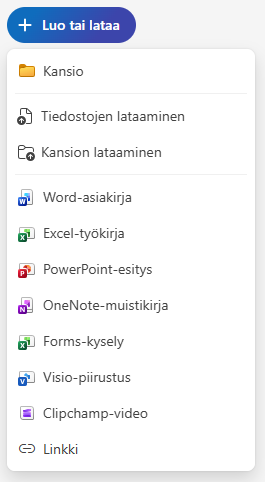
- Click + Create or upload. Choose which file you want to create or upload a file from your computer via “Upload files”.
Sharing files and managing permissions
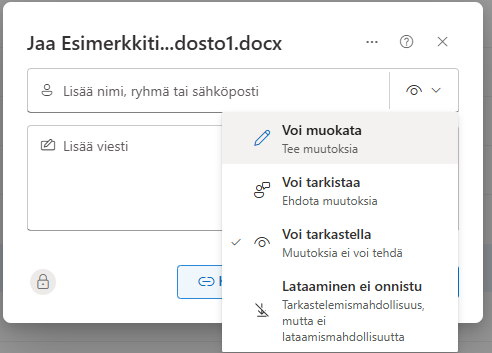
In OneDrive you can share your files and folders for others to view or edit if you wish. When sharing, you can set the recipients’ permissions.
Files in OneDrive can be shared both using the computer’s file explorer and the web browser. In both ways you can select the sharing settings for the file or folder in similar menu windows.
- In OneDrive, select the file you want to share and click the Share icon.

- Select the recipients and their permissions.
Troubleshooting
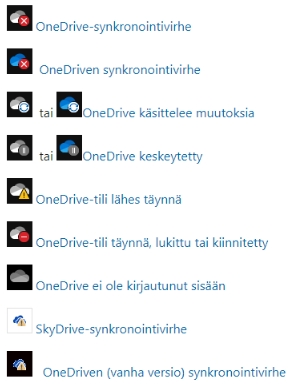
Synchronization issues
- Sync only what you need
- Check that you are not trying to sync too many files at once
- Ensure you are not exceeding your storage limit
- Make sure different files do not have the same names
- Ensure your computer does not go into power saving or sleep mode
Solutions for synchronization issues
- Check that you can access your OneDrive account in the browser
- Update to the latest OneDrive version
- Unlink OneDrive and run the OneDrive setup again
- Move some files out of the sync folder
- Ensure that file names and file types are supported
- Disable M365 updates
- Ensure you have permissions to the file or folder
- More detailed instructions for sync problems can be found here.
Missing files
- Search for the file in the OneDrive web version
- Search for the file in the Recycle Bin
- Open the desired Microsoft app and check whether the file appears on the Home page under Recent
More detailed instructions for finding lost files can be found here.
From Microsoft you can also find instructions for restoring a previous version of a OneDrive file here.