
General information about passwords
User must change their password every 12 months. If the password is not changed within the deadline, the account will be locked. The user will receive an email notification when the password expires. The password can also be changed before the forced change interval.
Password requirements:
- The minimum password length is 15 characters
- The password must contain at least one
- lowercase letter (e.g. a)
- uppercase letter (e.g. A)
- number (e.g. 1)
- The password can include the following special characters: ~!@#$%^&*_-+=|\(){}[]:;<>,.?/
Do not use the following in the password:
- Spaces
- Scandinavian characters (e.g. ä, ö, å)
- Parts of your name or username (3 characters or more)
- The same password as before
Passwords used at Laurea must not be used anywhere else (for example in personal email or social media services).
Passwords are personal and must not be shared with anyone – not even with Laurea’s ServiceDesk.
Handle passwords carefully!
Changing the password
- Go to the IAM Portal: https://iam.laurea.fi
- Log in with your username by selecting the sign-in method “Sign-in using your Laurea ID”
- From the front page select “Manage passwords”
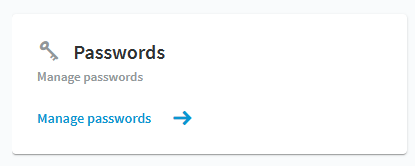
- From the view that opens, select “Manage passwords” again
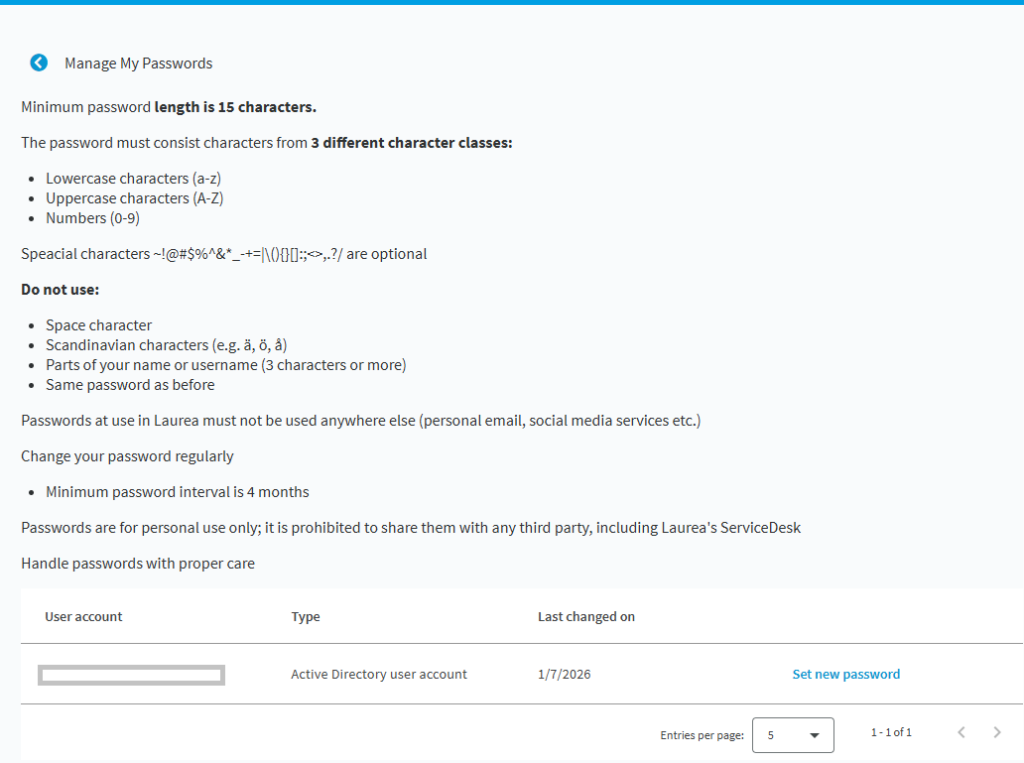
- On the next page you will see instructions for changing the password, below which your accounts (one or more) are listed
- Select “Set a new password” on the right side of the account
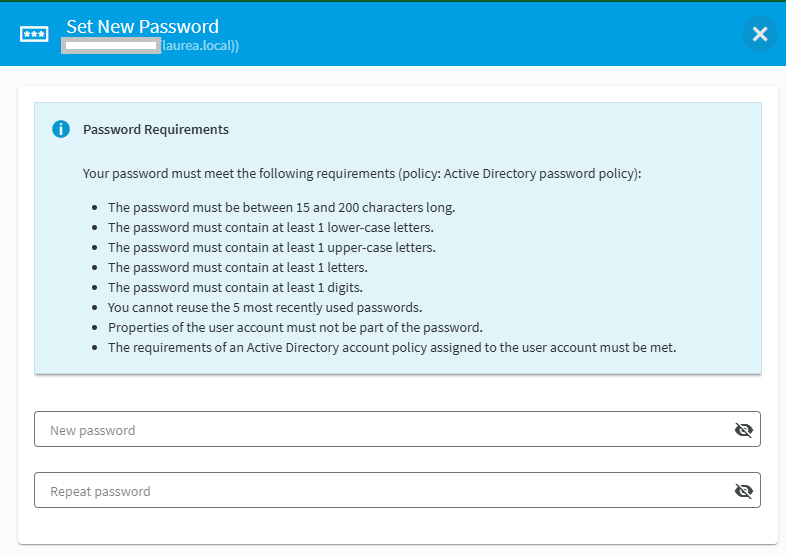
- Enter the new password twice and click “Save”
After this you will be redirected back to the password recovery portal front page. You can either sign out or return to the IAM portal by clicking “Back to IAM portal” on the front page.
Changing a forgotten or expired password
- Go to the IAM Portal: https://iam.laurea.fi
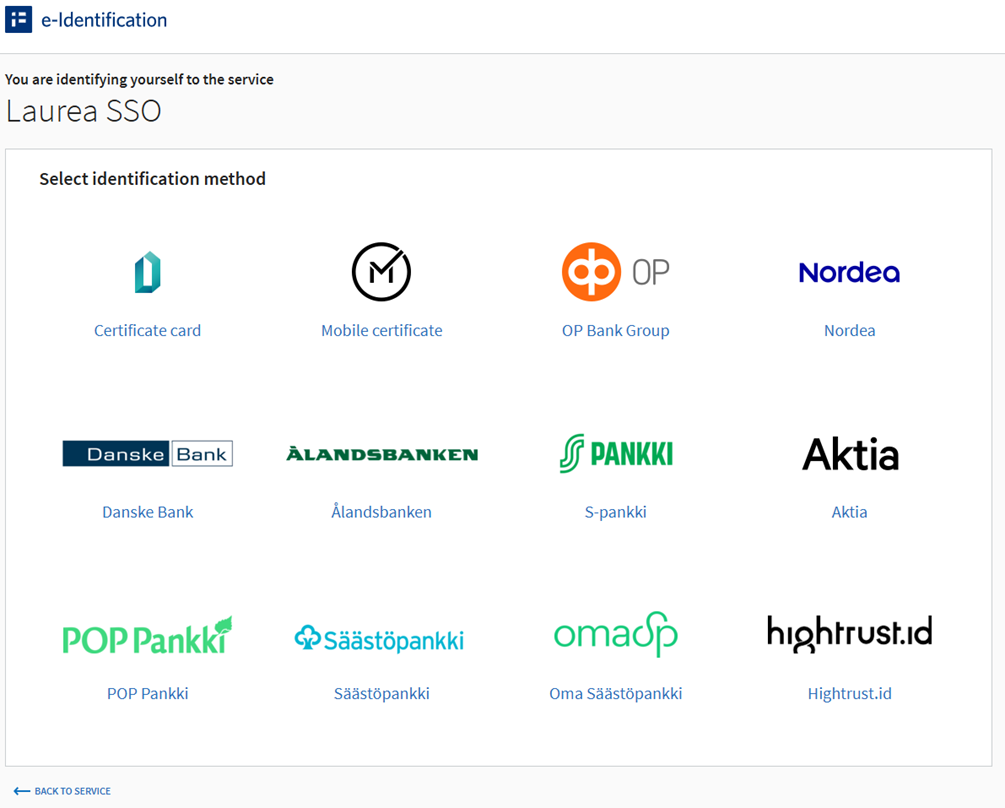
- Select the sign-in method “Suomi.fi – Student”
- Select your bank and sign in with your bank credentials (follow the bank-specific instructions shown on the screen)
- After signing in, change your password according to the instructions, continuing from section 3.