
On this page
Enable Microsoft Authenticator
Changing your phone?
Restore access to your account
Frequently asked questions
Need help?
Enable Microsoft Authenticator
You will need a computer and a phone for setup. Install the app on your phone and link it to your Laurea account using your computer’s browser.
Registering two-factor authentication to Authenticator
1. Start by opening a browser on your computer and go to: https://mysignins.microsoft.com/security-info
2. Sign in by entering your username in the form username@laurea.fi. Do not enter your email address. Click “Next”.
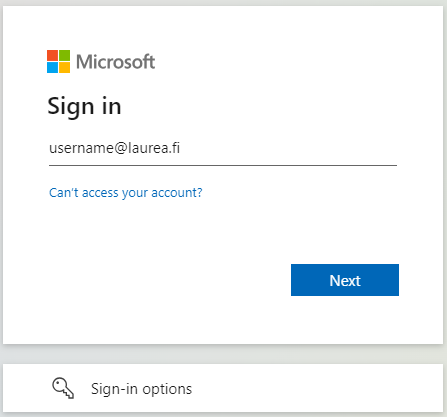
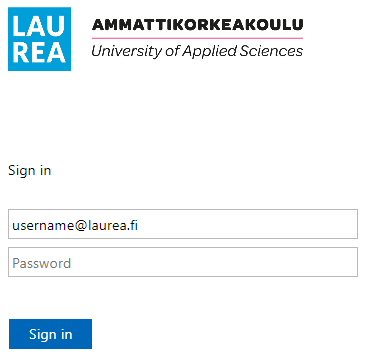
3. Then enter your Laurea password.
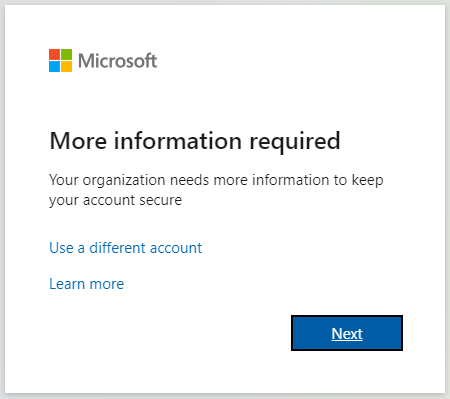
4. You will be asked for additional information to keep your account secure. Press “Next”.
5. Get the Microsoft Authenticator app from your phone’s app store for free. (Please allow the app to send notifications).
When you have the Microsoft Authenticator app ready on your phone, click “Next” on your computer.
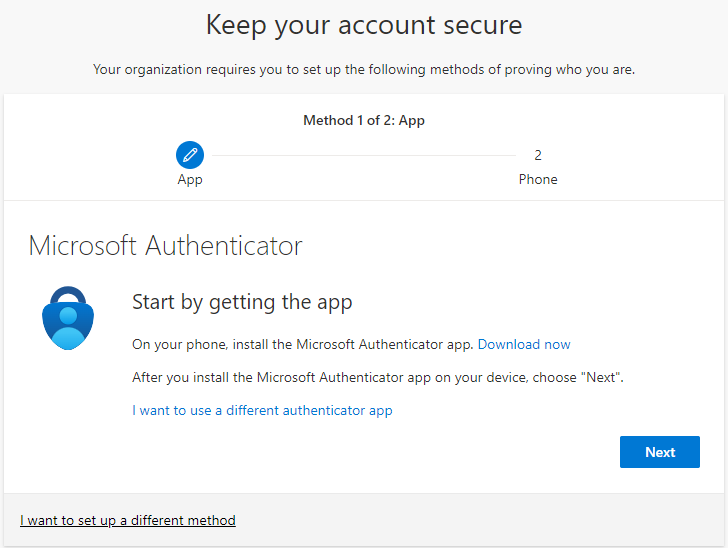
6. Choose “Next”.
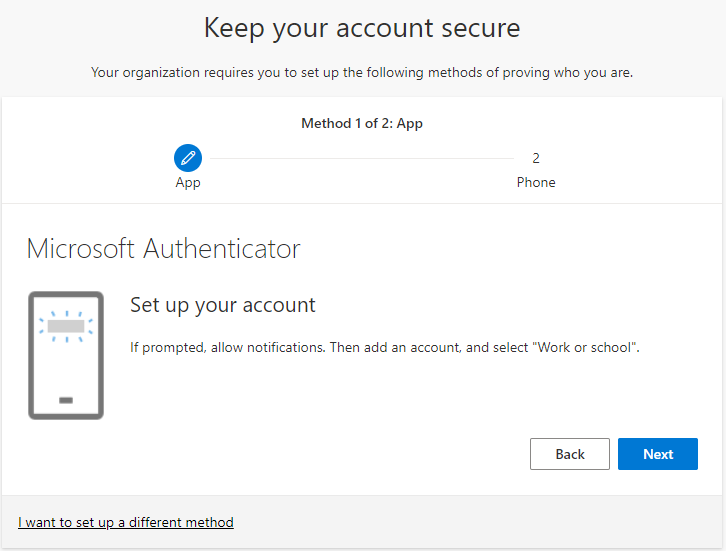
7. Next you will read the QR code on your computer screen with the mobile app. Do not navigate away from this window until you have completed steps 8-9.
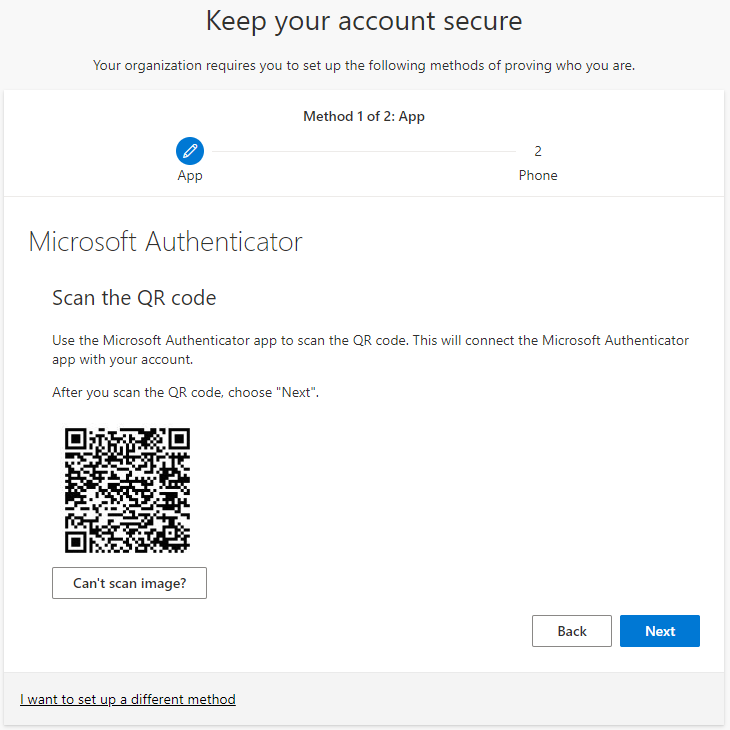
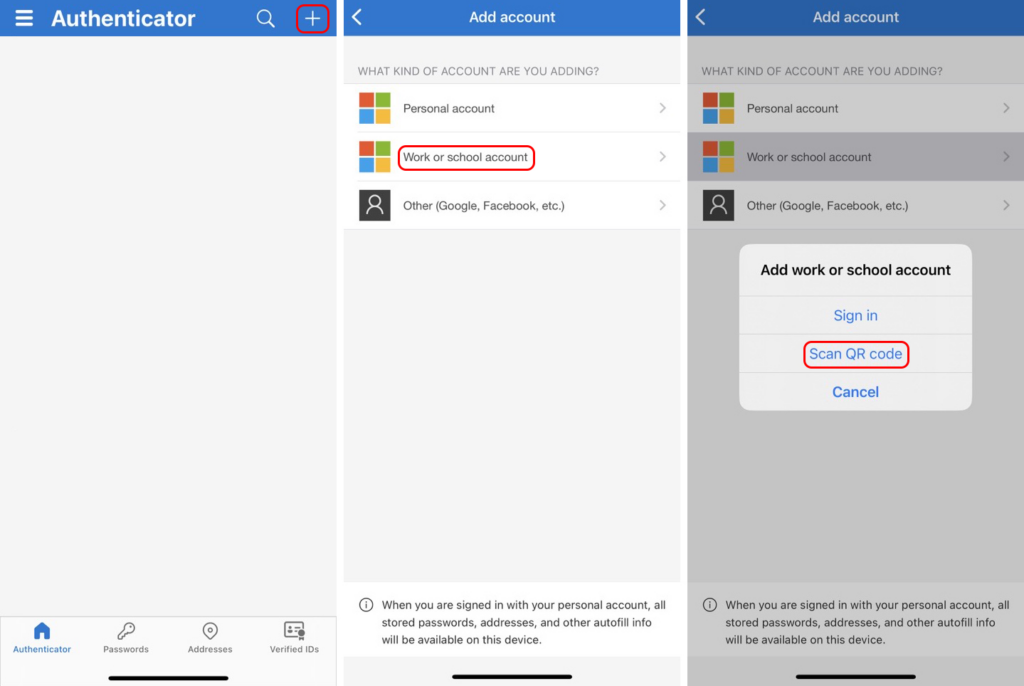
8. The phone screens may vary depending on your device. In Microsoft Authenticator, tap the “+” in the top right corner and choose Work or school account, then the option “Scan QR code”.
9. Scan the QR code displayed to you.
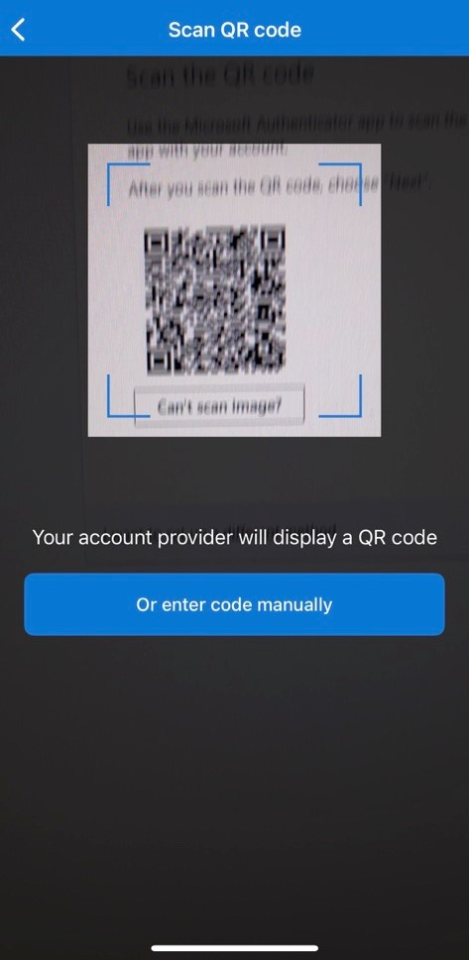
10. After scanning the QR code, select “Next” on the browser screen.
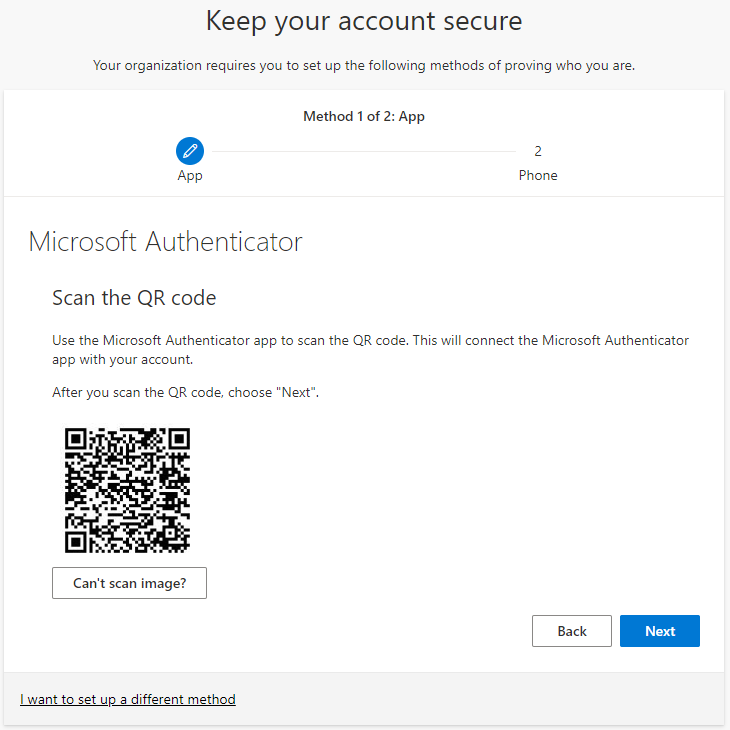
11. A browser view will open asking you to test the Authenticator.
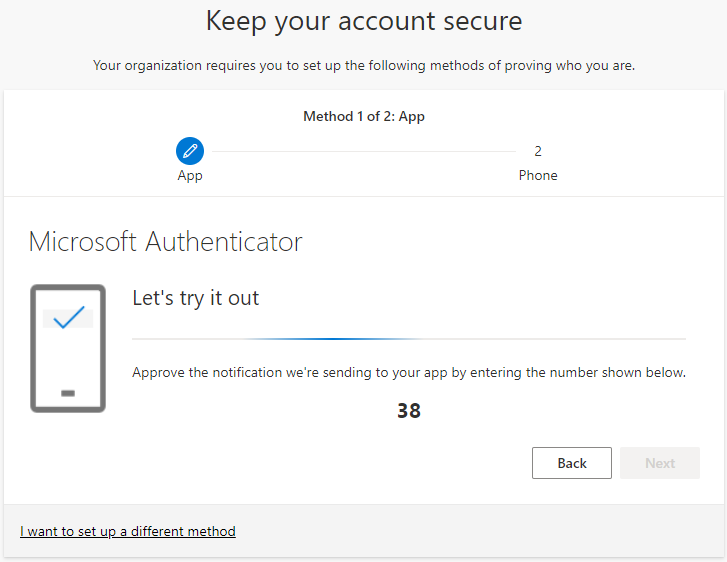
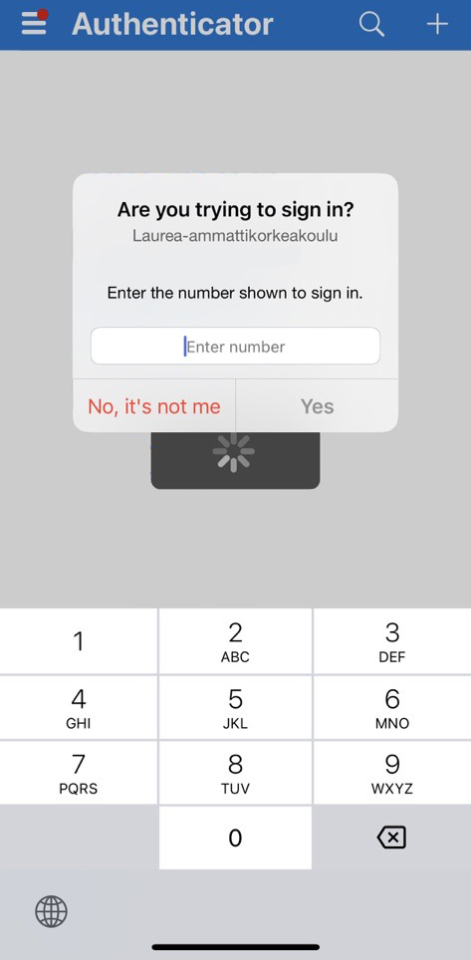
12. Enter on your phone the code shown on the computer screen and press “Yes”. You may need to wait a few seconds for this pop-up.
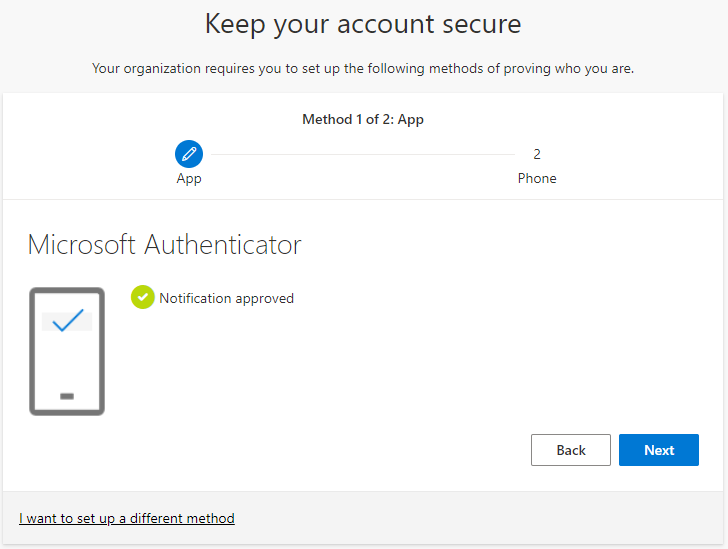
13. The notification is accepted once you have entered the correct code.
Changing your phone?
Keep your old phone until you have confirmed that Microsoft Authenticator works on your new phone. This way you can confirm the sign-in required to activate the new phone.
Don’t have your old phone anymore? Go to Restore access to your account and reset previous authentication methods.
Restore access to your account
If you cannot use the Authenticator or accept sign-in, you can reset your authentication methods in Laurea’s IAM portal. The IAM portal is a service where you can perform an MFA reset using Suomi.fi authentication.
Instructions for MFA reset
If for some reason you cannot use the two-factor authentication (MFA) you set up, you can reset the authentication methods you configured by logging into the IAM portal using Suomi.fi authentication.
After logging in, select the MFA reset button from the front page.
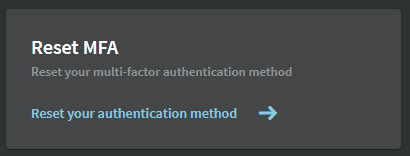
Then confirm that you are sure you want to remove all MFA authentication methods set on your Laurea account (Microsoft Authenticator, SMS, etc.).
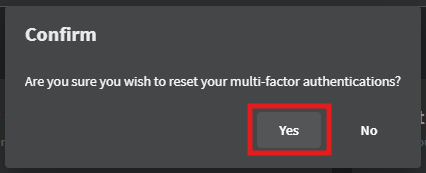
After this you can re-register MFA by following the registration instructions above.
If for some reason you cannot reset two-factor authentication, contact the Laurea ServiceDesk.
Frequently asked questions
Why do I need two-factor authentication?
It increases the security of your Laurea account if someone else learns your username and password: a second verification is also required to sign in.
Why am I not getting a verification request in Authenticator?
If you do not receive the approval notification, reset your authentication methods in the IAM portal and set up Microsoft Authenticator again. If the issue continues, contact Laurea ServiceDesk.
I received a verification request even though I’m not signing in. What should I do?
Check whether an open browser window on your computer or an app on another device is requesting sign-in confirmation. If you cannot find a reason for the request, change your password immediately and contact Laurea ServiceDesk.
I cannot get Authenticator working or perform an MFA reset. Where can I get help?
Contact Laurea ServiceDesk if setup or resetting authentication methods does not succeed with these instructions.
Need help?
Contact Laurea ServiceDesk if you need help with two-factor authentication.