
On this page
Signing in to the service
Is the signature legally binding?
Instructions for the sender of a signature request
Instructions for internal signers
Instructions for external signers
Answers to the most common issues
Laurea Sign – an easy way to sign documents
Laurea Sign is a service that allows you to sign various documents, such as contracts or powers of attorney, electronically. The service is available to all Laurea students and staff.
Signing in to the service
- Laurea students and staff: Log in using Laurea credentials.
- External signers: Use secure two-factor authentication (email + text message).
- If necessary, identification can also be done with strong authentication.
Is the signature legally binding?
Yes. Signatures made through Laurea Sign are legally binding, that is, they are accepted in the same way as handwritten signatures.
Signature instructions
Instructions for the sender of a signature request
The Laurea Sign service is used for signing documents when the document is in the signing phase.
- Before sending the signature request, ensure that the document can be signed electronically.
- State in the document that it will be signed electronically. Remove phrases referring to printed copies (for example, “this agreement has been drawn up in two identical copies”).
- Find out the email addresses and phone numbers of signers outside Laurea before uploading the document to the service.
Sender’s login
Sign in to the Laurea Sign service at https://sign.laurea.fi
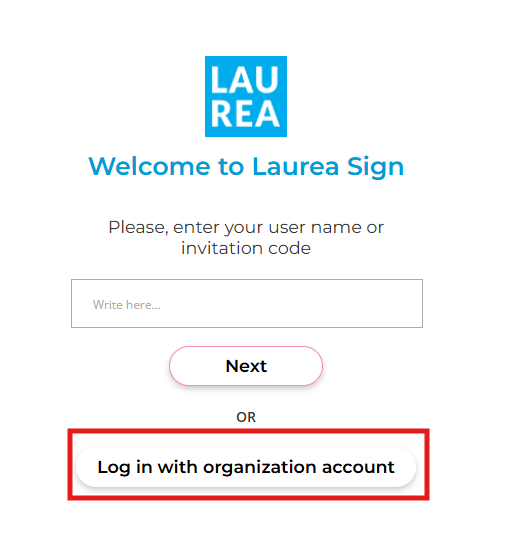
Laurea students log in with their Laurea credentials by selecting “Log in with organization account”. You do not need to add your username.
Creating a signature request
Step 1: Starting to send the signature request
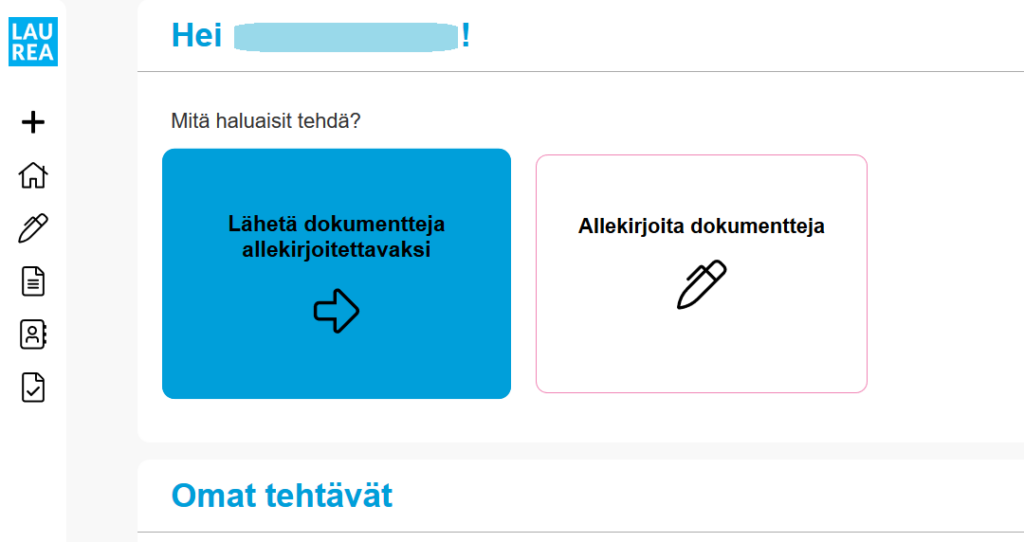
Start sending a signature request by selecting “Send documents for signature” or from the left sidebar “Send document”. Both buttons lead to the same place.
Step 2: Fill in the basic information of the signature request
- Signature request name (the title displayed in the email)
- Deadline (optionally add a deadline for the request; the signature can still be made after the deadline)
- Reminder message (optionally add an automatic email reminder before the deadline)
- Combine documents (combines the documents into a single PDF after signatures instead of separate files)
- Confidentiality (set if you want to hide the information from the administrator)
- Authentication method to use (set if identification via the trust network is required)
- Attach the documents to be signed (one document at a time)
- Add necessary attachments (one document at a time)
Documents can be previewed by clicking the magnifying glass.
Step 3: Select recipients and enter email addresses
Message to the recipient
- You can add a message to the signature request: the message will be visible in the request.
- You can save your standard messages as phrases: phrases are saved at: “Settings – Phrases”.
- You can also choose from already saved phrases.
Signatories
- If you are signing yourself, you can add yourself by clicking the “+ Add me” button
- Predictive input searches all Laurea contacts when you start typing a person’s name.
- When adding a person outside Laurea, type the recipient’s email address and click the “+ Add people” button that appears or press Enter. Fill in the required details and double-check the phone number and email address.
- You can edit the added invitees’ details by clicking the pencil or remove the recipient by clicking the red cross. Hovering over the user’s icon shows more quick details about the recipient (name, email, phone, and title).
- You can choose a steward for the signature request who can jointly manage the request and monitor its progress. The steward cannot be a person outside Laurea.
- You can choose a recipient for information who receives the agreement for information but does not sign the document. A read-only user can view the request details and download documents.
- If there is more than one recipient, you can define whether they should sign in a specific order. The order is top-to-bottom; you can drag and drop added users into the desired order.
- In additional settings it is also possible to define
- Whether someone can reject this signature request
- How many recipients need to accept or reject for the request to automatically proceed to the next step
- Additional settings will not be shown if there is only one signer
Step 4: Choose the signature layout
Select the layout of the document to be signed by first clicking the document. Then choose whether you want to define the signature fields yourself in the document or add a separate signature page.
- If you add a separate signature page, after collecting signatures the documents will be printed to PDF, locked, and a separate signature page will be added to the package.
- If you add signature fields yourself to the document, its structure will not change.
- Drag and drop the selected fields to the desired place in the document.
- Then click the added field and choose from the opened list the user to whom the signature field is assigned. In addition to the signature, it is possible to add, for example, the signer’s organization, job title, and free text.
- Assignment of the signature field is successful when the assigned user’s name appears in the signature field and the field is also shown under the person in the right side panel. All recipients must have a signature field.
- Remember to press save.
Step 5: Summary
- This page is a summary of all the information filled in. Check the details and send.
- After sending you will find the request under “Signature requests”. When all parties’ signatures have been received, download and deliver the signed document to the agreed location for archiving. Once you have confirmed that the signers have also submitted the documents for archiving, delete the request and the related documents.
Instructions for internal signers
Internal signer’s login and signing
Logging in
After receiving the signature invitation in your email, you can log in to the service by clicking the “Open document” link in the message.
Sign in to the Laurea Sign service at https://sign.laurea.fi.
Laurea students log in with their Laurea credentials by selecting “Log in with organization account”. You do not need to add your username.
Signing
After logging in you can view the documents included in the signature invitation and review them.
- You can sign the request by selecting “Sign”.
- You can reject the request by selecting “Reject”.
- You can leave a comment on the request at the bottom of the page.
- If necessary, you can delegate the request to another person.
- A notification is sent to the sender of the signature invitation for approvals, rejections, and delegations.
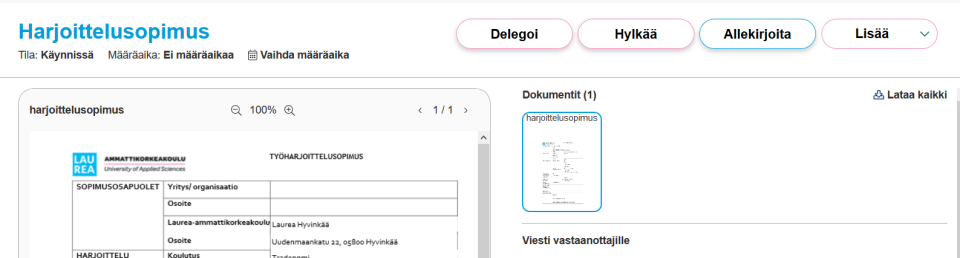
Finally, you will receive an email when the signing round is complete and you can retrieve the signed version from the service. The “Download all” button is in the upper right corner and packs all documents into a .zip file. You can also download an individual document as a PDF by selecting it and clicking “Download” under the document preview area.
Instructions for external signers
Logging in and signing from the invitation
Logging in
After receiving the signature invitation by email, log in to the service by clicking the “Open request” button in the message or by following the “Instructions: How to use electronic signatures?” link at the bottom of the email.
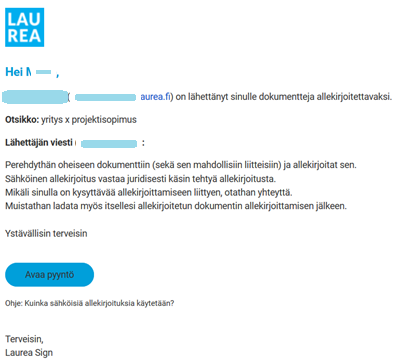
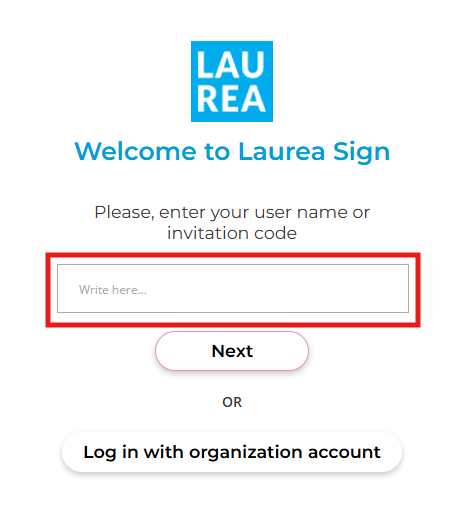
The invitation code should automatically appear in the login field if you arrived via the “Open request” button. Otherwise, copy the code from the email into the login field.
Click Next.
Note that you do not need a username and password.
In addition to the invitation code, you must authenticate with a one-time PIN code sent via SMS or, if necessary, authenticate for example via online banking. If you do not receive the text message on your phone, contact the sender of the signature request. If needed, the signature can also be made using the separate REKO mobile app.
After this, check that the information is correct. If the information is incorrect, contact the sender of the signature request.
Signing
After logging in you can view the documents included in the signature invitation and review them.
- You can sign the request by selecting “Sign”.
- You can reject the request by selecting “Reject”.
- You can leave a comment on the request at the bottom of the page.
- Additionally, if necessary, you can delegate the request to another person.
- A notification is sent to the sender of the signature invitation for approvals, rejections, and delegations.
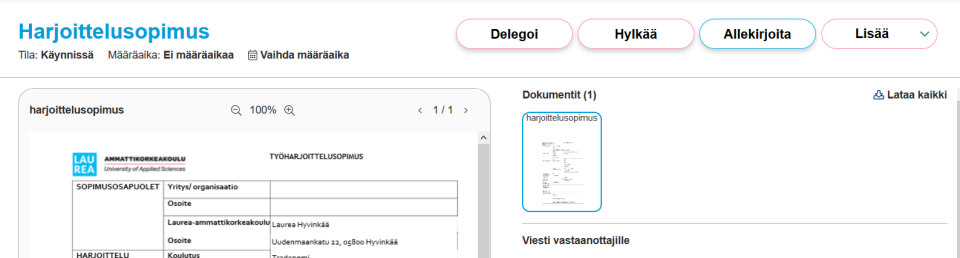
Finally, you will receive an email when the signing round is complete and you can retrieve the signed version from the service. The “Download all” button is in the upper right corner and packs all documents into a .zip file. You can also download an individual document as a PDF by selecting it and clicking “Download” under the document preview area.
Answers to the most common issues
The signer does not receive the signature request by email or phone number
Check if there is an error in the signer’s email address or phone number. An administrator can correct an incorrect contact detail if necessary.
A confirmation message does not reach an international phone number
The problem may be due to international SMS routing agreements, which can prevent the text message from reaching a foreign phone number.
An administrator can send the signer instructions for using the REKO mobile app, which allows the user to be identified in these situations with a separate code.
The signer cannot access the signing service
The most common issue is that an external signer clicked the “Log in with organization credentials” button. Do not click that button; instead click the Next button below the invitation code.
If the invitation code was not copied automatically, copy it from the email and paste it into the Username/Invitation code field.
If an internal Laurea signer has entered their username into the Username/Invitation code field, this should not be done; select “Log in with organization credentials” instead.
The signature request was accidentally sent to the wrong person
If the document has not yet been signed, you can cancel the signature request by selecting “Sent signature requests” and “In progress” from the front page. Open the relevant signature request and select “Suspend request”. Give a reason for the suspension and suspend the request. Correct the signatory information and send it again for signature.