General information about logging in

You log in to Laurea’s services with your Laurea username in the form username@laurea.fi (e.g. ABC00001@laurea.fi or 1234567@laurea.fi). Email addresses ending with @student.laurea.fi cannot be used to log in to Laurea’s services.
Two-factor authentication
Microsoft cloud services used by Laurea, such as OneDrive and Teams, as well as services that use Microsoft single sign-on, such as Pakki, require two-factor authentication. Instructions for activating two-factor authentication can be found here.
How to log in
Logging in to Laurea’s services from a home computer
Some services are also available from outside the network. You can use the service on, for example, your home computer or mobile device if the application supports mobile devices.
You can log in to Laurea services from outside the network using your Laurea username and password. When logging in, enter the username in the form username@laurea.fi, e.g. ABC00012@laurea.fi
Always log out of the application and close the browser when you are not using your personal device.
Haka authentication
Haka is a shared authentication system used by Finnish higher education institutions. Haka allows you to log in with your Laurea credentials to applications of other universities for which Laurea has granted access.
How to use Haka authentication:
- Select the Haka option on the login page
- Select the organization, e.g. Laurea University of Applied Sciences
- Log in with your Laurea username and password
If you encounter problems, you can contact Laurea’s ServiceDesk.
Logging in to the Canvas platform
You can access Laurea’s Canvas learning platform using a Laurea username, Haka credentials, or a guest account. A guest account is used, for example, if you have purchased an individual course from the online store and do not have Laurea credentials. As a Laurea student, you must activate your Laurea account before logging in to Canvas.
Note: Log in to Canvas with your Laurea username in the form username@laurea.fi.
Registering another university’s credentials for Canvas
Arcada, HAMK, KAMK, Karelia, LAB, OAMK, Savonia, SeAMK, TAMK, XAMK:
- Open the Canvas front page (https://canvas.laurea.fi)
- Under Haka login, select “Register your Haka credentials first”
NOTE! You will be asked to provide your social security number to verify the connection between the account to be registered and the person recorded in Laurea’s system.
Other universities or Haka authentication/registration does not work:
Log in to Canvas (https://canvas.laurea.fi) with your activated account by selecting “Log in with a Laurea account”. Instructions for activating your account can be found here.
Logging in to Laurea devices
When logging in to Laurea workstations and devices such as multifunction devices, use your username only. Do not add the @laurea.fi suffix.
Most common login problems
Check the following:
Username:
- Are you using the username in the form username@laurea.fi?
- Is your study entitlement valid?
- Has your username been activated?
Password:
- Make sure you enter the password correctly
- Check that Caps Lock is not on
- You can change a forgotten or expired password using these instructions
Two-factor authentication:
- Ensure that the authentication app is enabled
- Check the MFA instructions and contact ServiceDesk if necessary
- You can reset MFA with these instructions
Contact ServiceDesk if you cannot check these or if the problem persists after doing so.
Checking your username and email address
Log in to the IAM portal by selecting the Suomi.fi option. This will prompt you to authenticate using online banking credentials or mobile certificate.
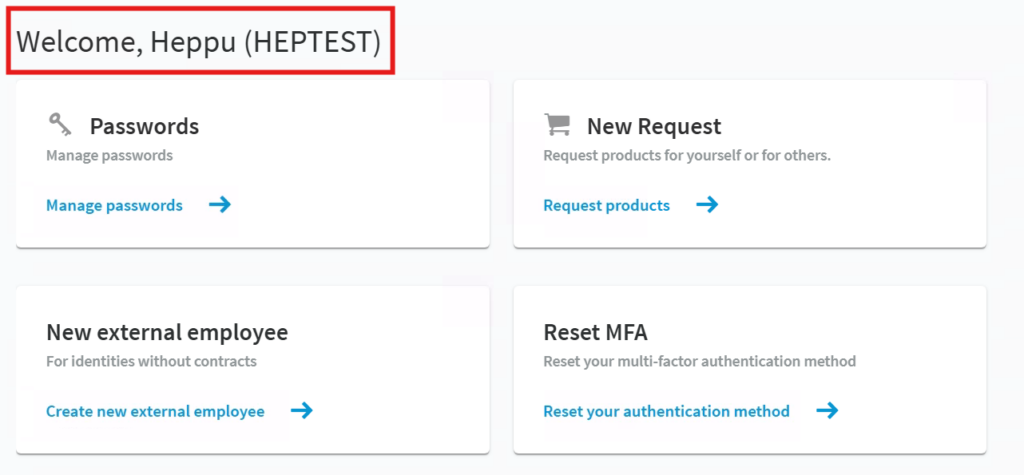
After logging into the IAM portal, you can see your username in parentheses on the front page after the welcome text and your first name:
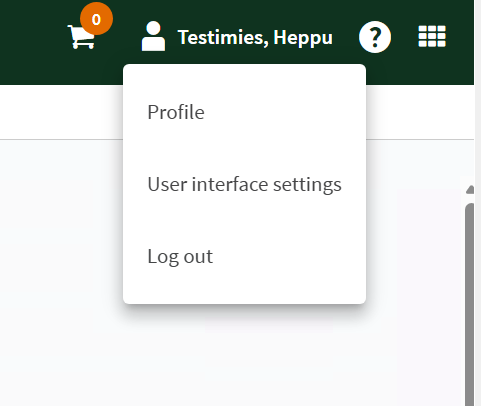
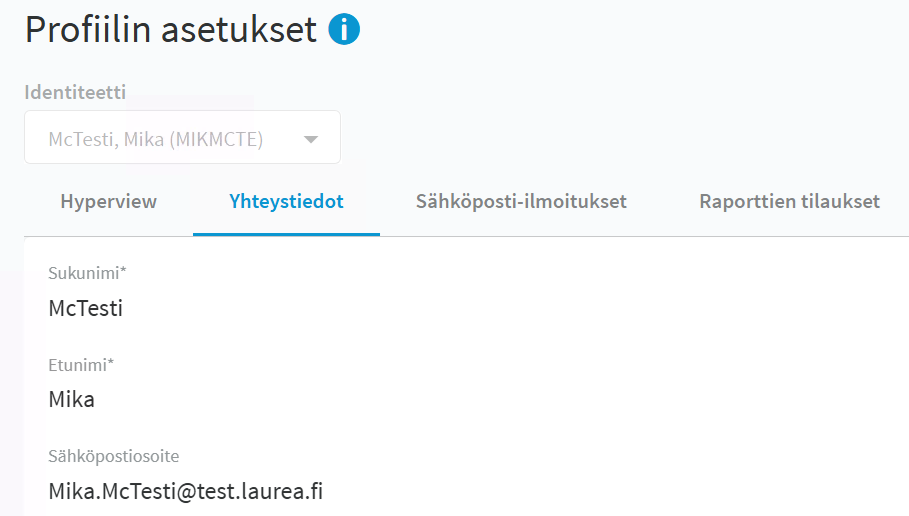
You can view your email address by navigating to your profile and selecting the Main Data tab: