
On this page
Before you start
Register a Finnish Authenticator account
Set up the app
Activate your Laurea account with Finnish Authenticator
Troubleshooting
Where to get help

These instructions are based on information from Suomi.fi. Check the up-to-date instructions on the Suomi.fi website before you begin:
Finnish Authenticator: registration, setup and troubleshooting
Finnish Authenticator helps you prove your identity as an international student at Laurea when you do not have a Finnish personal identity code. On this page you will register an account, set up the app and find help for common problems.
If you already have a Finnish personal identity code, do not register Finnish Authenticator. Use the normal Suomi.fi authentication. If you do not have a suitable authentication device for that, contact Laurea ServiceDesk.
Before you start
First make sure the online service you are using supports authentication with the Finnish Authenticator app.
Who is Finnish Authenticator suitable for?
The Digital and Population Data Services Agency (DVV) provides the Finnish Authenticator service for foreigners. At Laurea the service is used to verify the identity of international students. When you register you will receive a foreign identifier (UID). This is not a Finnish personal identity code.
Read more about the DVV Finnish Authenticator service.
Prepare these in advance
- A computer and a smartphone or tablet on which you can use the Finnish Authenticator app, and a working internet connection.
- A personal email address that you can access. Do not use your Laurea student email for registration.
- A passport or an accepted national identity card. A national identity card is accepted for citizens of EU countries, Iceland, Liechtenstein, Norway, Switzerland, the United Kingdom and San Marino.
- Good lighting and a camera that clearly shows your face and the document details.
The Finnish Authenticator account and your Laurea user account are separate. Finnish Authenticator is used to verify your identity. You set a Laurea password for Laurea services separately. Finnish Authenticator is not Microsoft Authenticator and it is not Laurea’s own multifactor authentication (MFA) by itself.
Register a Finnish Authenticator account
When you want to use the Finnish Authenticator authentication service, you must first register a foreign identifier (UID) for yourself and then verify your identity using the Finnish Authenticator app.
Do the registration on a computer and use your personal email address for the registration. During the registration you will create a Finnish Authenticator password and receive a UID identifier. The app and the identity verification are taken into use afterwards.
Register a Finnish Authenticator account
- Open the Finnish Authenticator registration service in your browser: https://idm.finnauth.tunnistaminen.suomi.fi/self-care/#/prod
- Select “Register” (Registration)
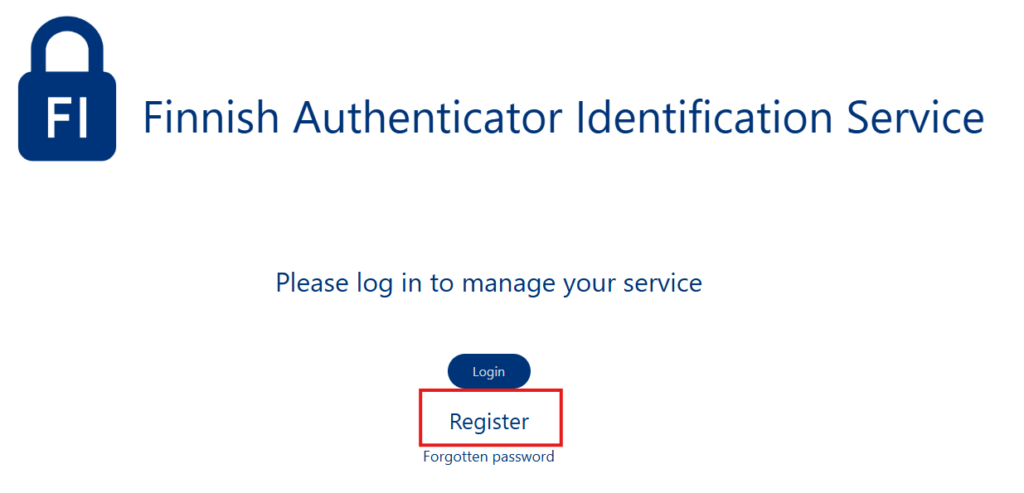
3. Enter your personal email address.
Important:
- Check the spelling so the confirmation message goes to the correct address
- Use an email address you can access
- The same email address can be used for only one Finnish Authenticator account.
4. Open the confirmation message sent to your email and click the confirmation link.
- The link is valid for 24 hours and can be used only once
- If the link expires, you must start the registration again
5. Read and accept the service terms.
- If you do not wish to continue the registration, the user account will not be created. In that case the email address you provided will be removed from the system.
6. Create a Finnish Authenticator password and type it twice.
- Follow the password requirements shown on the screen.
- Choose a password that you do not use in other services.
7. Your account has been created. Keep the UID identifier and your password safe.
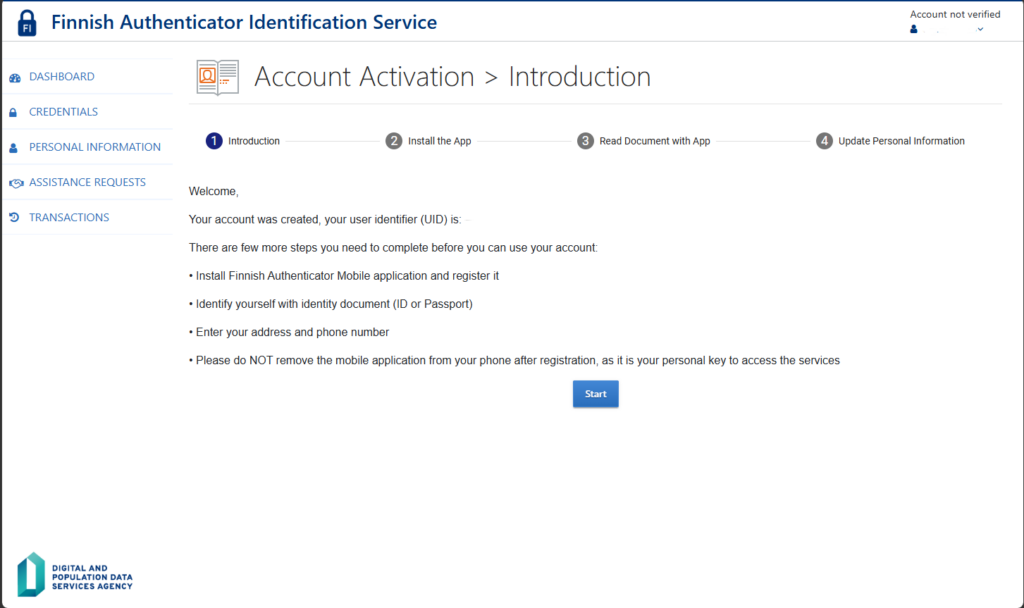
When the account registration is complete, continue to set up the app.
Confirming your email address alone does not replace the identity verification carried out in the app.
If you encountered problems registering your account, check the most common answers to these situations here.
Set up the app and verify your identity
Install the app on your device from your phone’s app store and follow the steps shown. The app will guide you to photograph your face and your identity document. The order of the photos can vary, so follow the app’s instructions.
DVV’s instructions for setting up the app can be found here.
App setup and identity verification
- Keep the Finnish Authenticator Identification Service page open on your computer, and select Account Activation > Start > Next
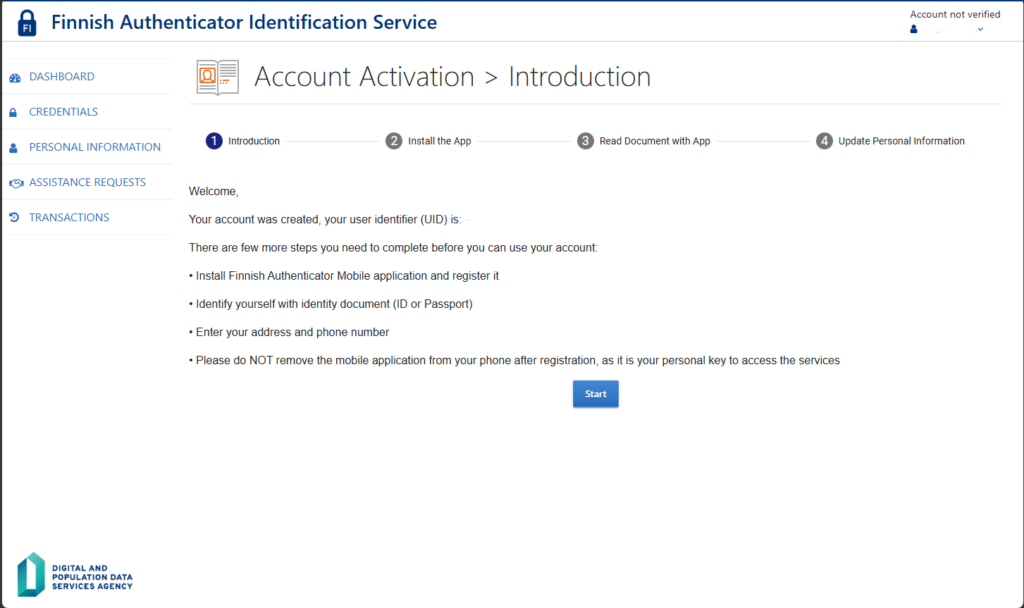
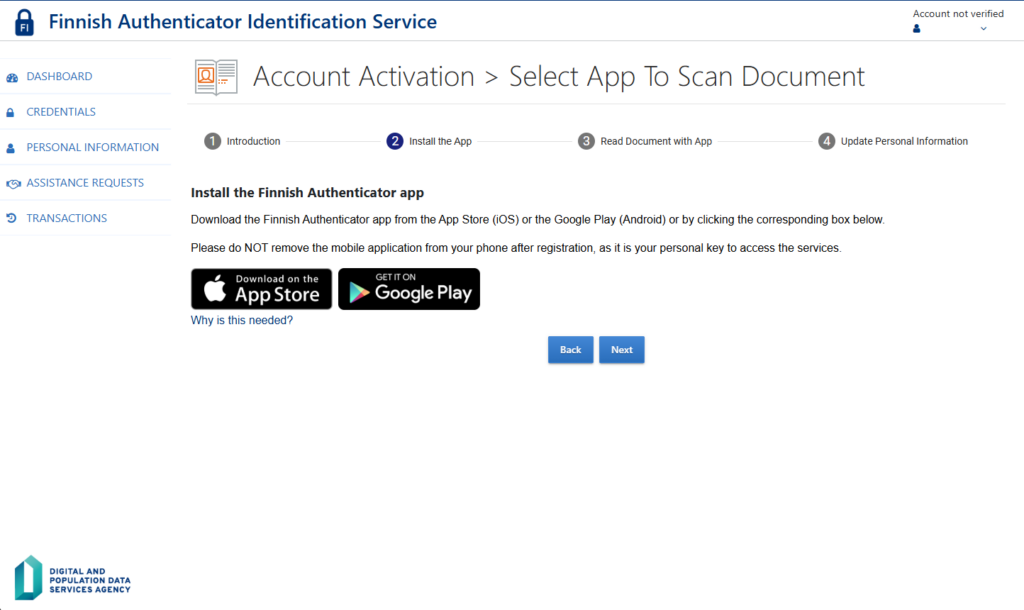
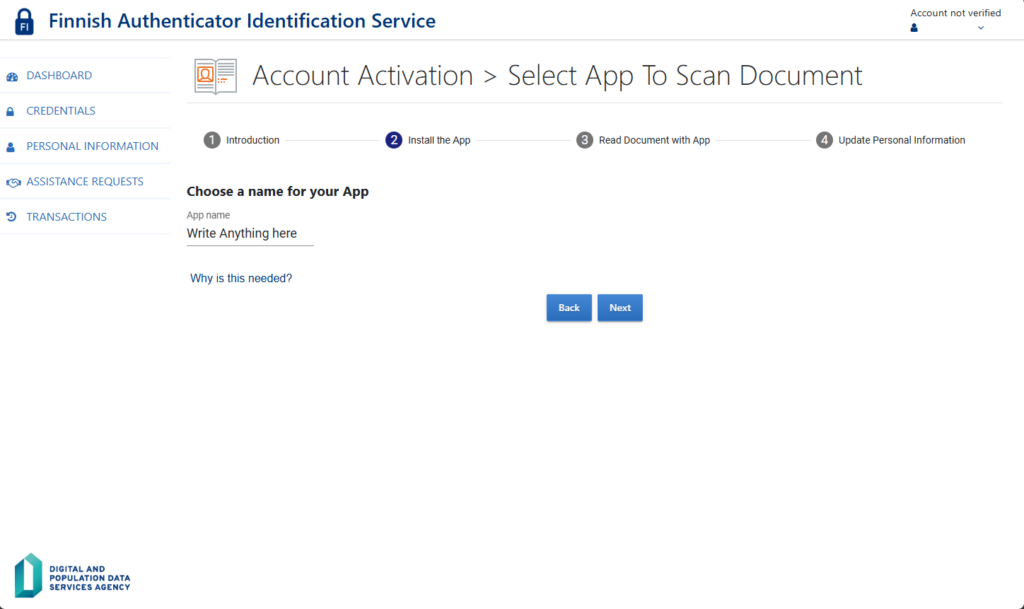
2. Enter a name for the app (in the image below the field says “write anything here”). You can install the app on multiple devices and give it a different name on each device. This helps you distinguish between devices and choose which one to use at any given time.
When the device has been named, select Next.
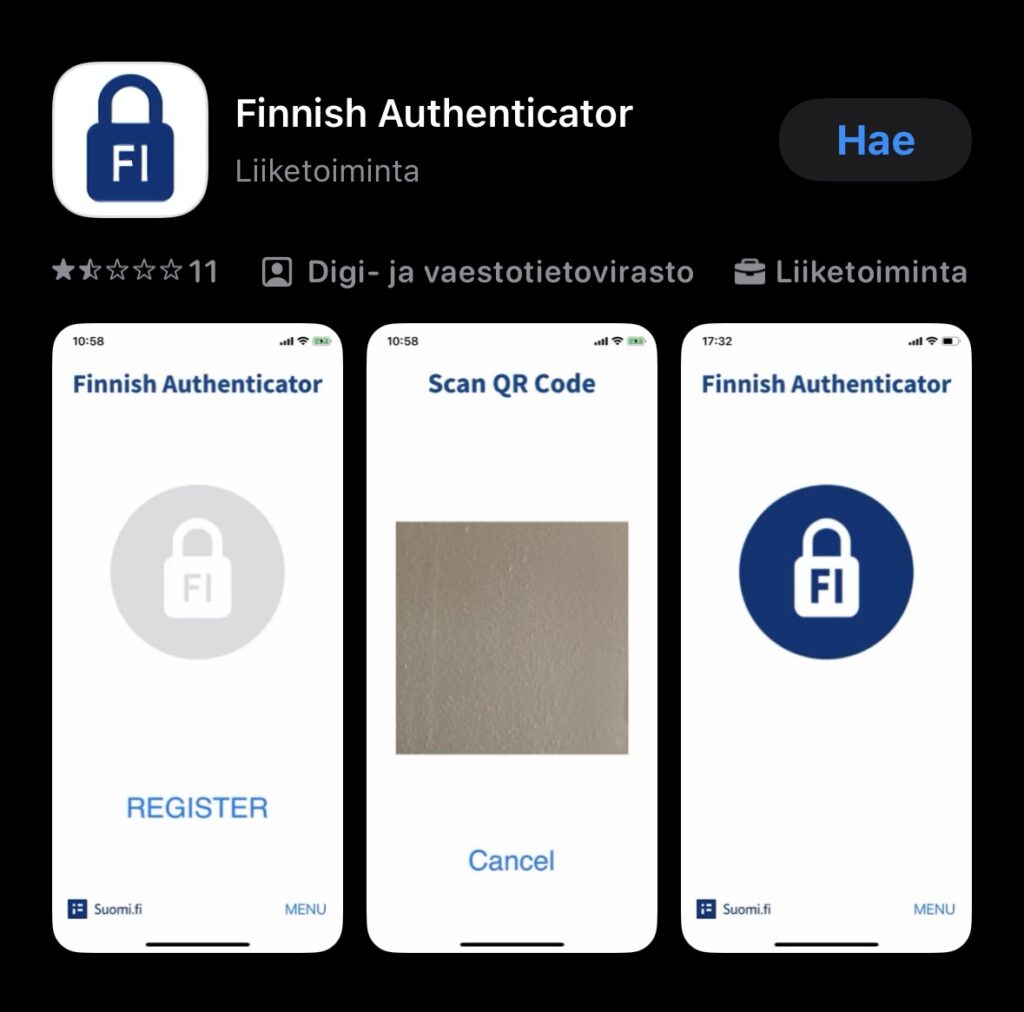
3. Find and download the Finnish Authenticator app from your device’s app store (App Store or Google Play). Install the app on a mobile device that has a camera. When the installation is complete, select Register.
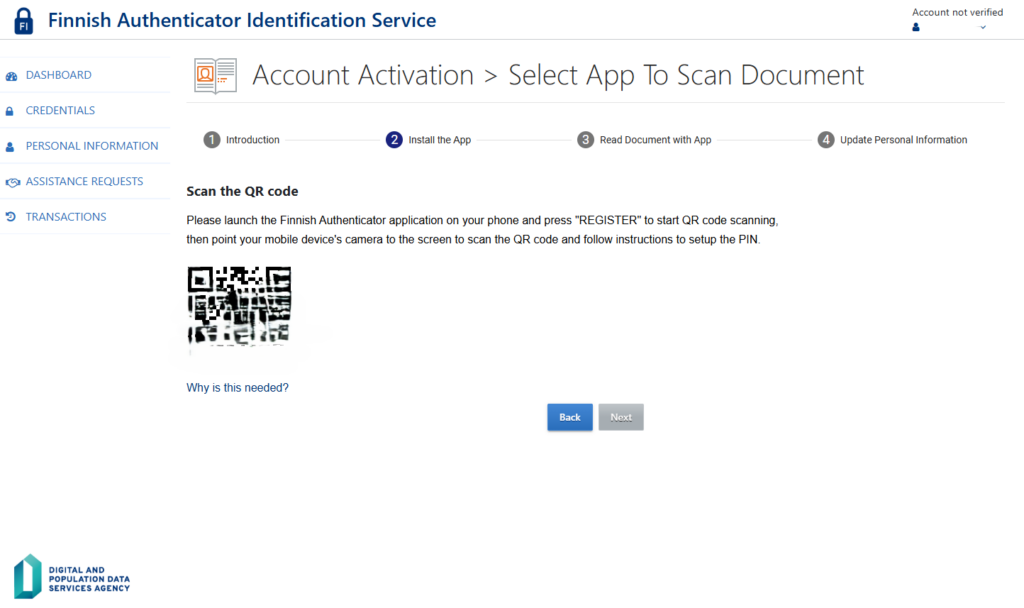
4. When you are using the app on a mobile device and the Finnish Authenticator Identification Service on a computer, scan the QR code shown in the browser with your app.
5. After scanning the QR code you will set a PIN code for the app (4–8 digits). You will use the same PIN code to log in to services. Note that the PIN code digits change position on each use!
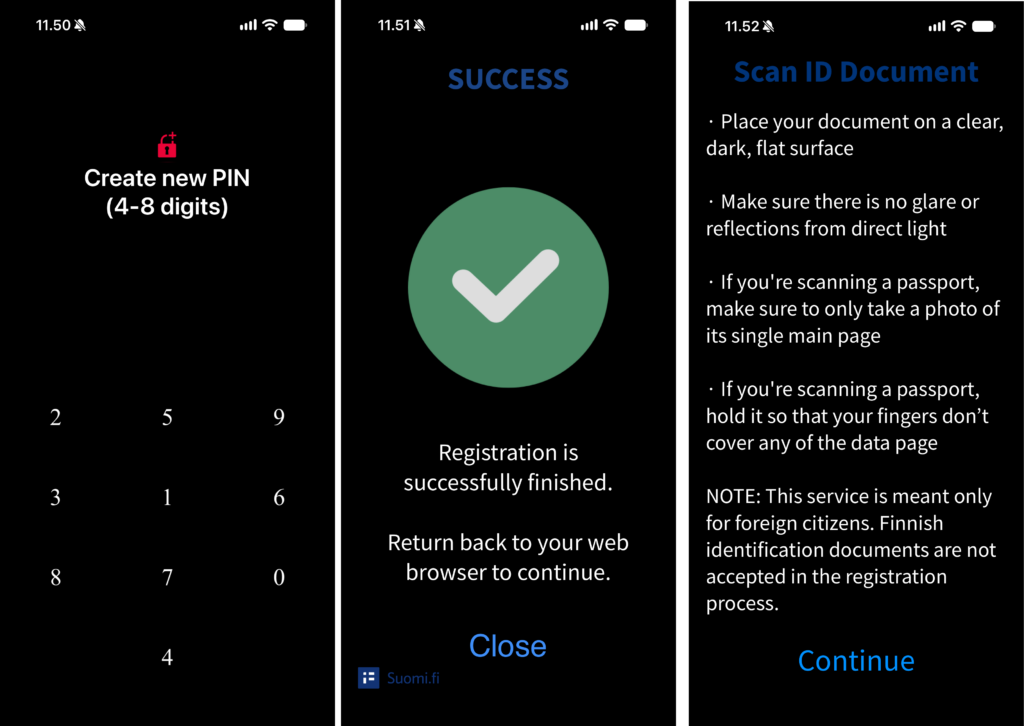
6. Finalize the app registration by entering the PIN code you just created.
Take a photo of your identity document
7. On the Finnish Authenticator Identification Service website, select Next.
8. Switch to the app.
9. Use the app to take a photograph of your valid passport. Photograph only the page that contains your personal details.
- If you are an EU citizen or a citizen of San Marino, Iceland, Liechtenstein, Norway, the United Kingdom or Switzerland, you may alternatively take a photo of an official photo ID card.
- Note that a driving licence or an alien’s passport does not qualify for identity verification.
- Be aware that the process may be interrupted if the photo is of poor quality. Try taking a new photo. Avoid reflections and shadows on the document surface. Do not cover any part of the document with your fingers.
10. When your identity document has been read successfully, you will be automatically directed to the next step.
Take a photo of yourself
6. Take a photo of yourself using the app.
- Take the photo against a white background.
- Hold the camera in front of your face the same way as when taking a selfie.
- Look at the camera and follow the app’s instructions, for example about blinking or turning your head.
The app guides the identity verification process, and when it is complete you will be taken to the Finnish Authenticator Identification Service start page.
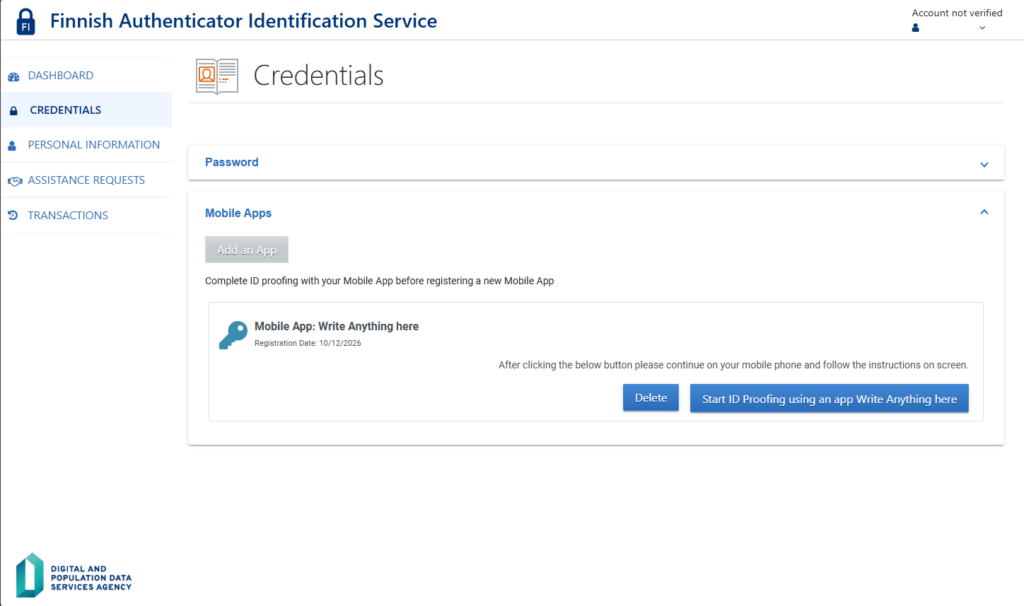
8. Log in to Laurea’s IAM service using the Finnish Authenticator app.
Activate your Laurea account with Finnish Authenticator
Activating your Laurea account
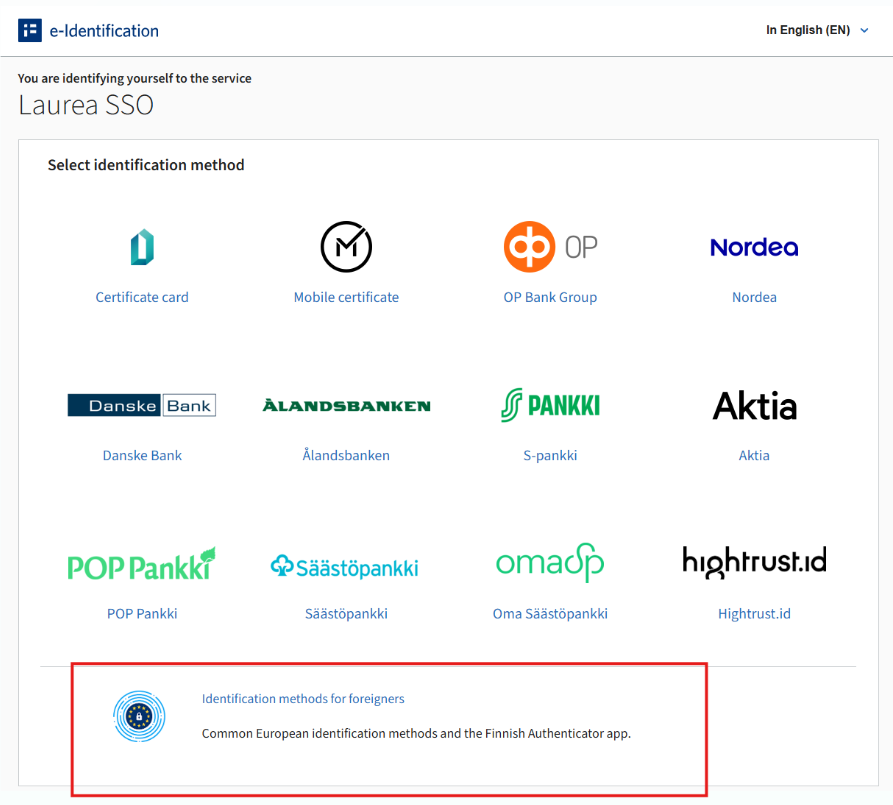
- Go to https://iam.laurea.fi and select “Suomi.fi – student”
- Select “Identification methods for foreigners” at the bottom of the page
3. Next, select the Finnish Authenticator App
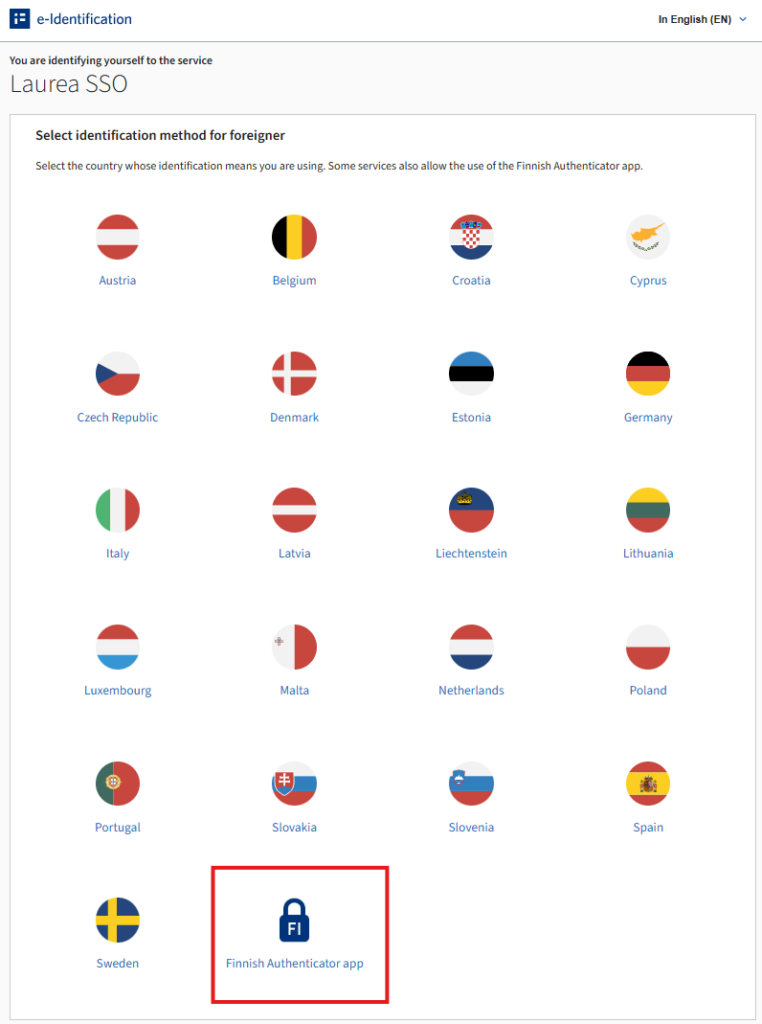
4. Log in to the AM service with the Finnish Authenticator app:
- Enter your identifier or email address and password.
- Select the registered app you want to authenticate with.
- Switch to the app and enter the PIN code.
- The screen requesting the app will disappear automatically when authentication has succeeded.
Login instructions also on the Suomi.fi page.
5. Continue to Laurea account activation.
Also remember to activate multifactor authentication (MFA).
Troubleshooting
Problems related to Finnish Authenticator
Finnish Authenticator is not a system maintained by Laurea, so for issues related to it please turn to Suomi.fi support here.
Problem activating Laurea user account
- You logged into the IAM service and your birth date is missing? > please wait a moment, your enrolment has not yet been fully processed.
You can also:
Problem with Laurea user account
Make sure you are logging in with the username in the correct format.
- You can find your username in the IAM service after your name, inside parentheses
- Logins to Laurea services use username(at)laurea.fi.
- Your student email address (ending with @student.laurea.fi) is not used for logging in
Where to get help
Related to Finnish Authenticator
Finnish Authenticator is not a system maintained by Laurea, so for issues related to it please turn to Suomi.fi support here.
For account issues: Laurea ServiceDesk
You can contact the ServiceDesk:
- by leaving a support request
- by sending an email to servicedesk@laurea.fi
- by calling +358 9 8868 7112 (weekdays 8–16)