
At Laurea you can print on all campuses using the Konica Minolta multifunction devices. Printing works conveniently as Find‑Me printing, meaning you can send a job to the print queue and release it at any Laurea printer by signing in to the device.
1. Windows, Mac and Chromebook Papercut Mobility Print Cloud – Setup
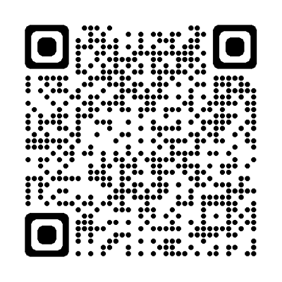
2. iPhone, iPad and Android phone https://print.laurea.fi:9164/setup or scan the QR code below with your phone camera.
Laurea uses secure printing. When printing, jobs are not released from the device before authentication and release. Authentication is done with your username and password. Credentials can be stored on an NFC-readable card; instructions for saving credentials can be found on the student intranet (login required). Jobs remain in the queue for 240 minutes and are then removed automatically.
If the card is lost, the credentials should be overwritten for security reasons; instructions for overwriting can be found on the student intranet (login required).
Each student is provided with a €42 printing balance.
Additional balance can be purchased from the student services office.
Prices starting from:
• A4 page black and white €0,06
• A4 page in colour €0,14
• Double-sided page €0,01 discount per side
• A3 page black and white €0,12
• A3 page in colour €0,28
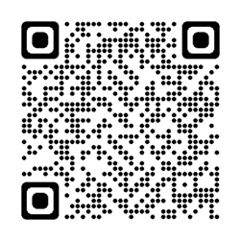
You can see your remaining printing balance by logging in to a printer or by visiting https://print.laurea.fi:9192. You can also scan the QR code below with your phone camera.
Prints related to project work are credited to students with prepaid print cards, which the responsible teacher collects from the front desk services.
To redeem the credit, log in at https://print.laurea.fi:9192 and enter the code from the prepaid card on the Redeem Card tab.
1. Where can I print?
Students can print to all Konica Minolta multifunction devices.
2. Can I print from my laptop or mobile device?
Yes, printing is possible from the following devices -> iPhone, iPad, Mac, Android Phone, Windows and Chromebook.
3. How do I add the printer?
a) For Windows, Mac & Chromebook users, add the printer from the link Mobility Print Cloud – Setup
b) For iPhone, iPad and Android Phone users, from the link https://print.laurea.fi:9164/setup
4. Is printing free?
No. Laurea provides students with €42 printing balance and additional balance can be purchased from the student services office. Pricing is as follows->
- A4 page black and white €0,06
- A4 page in colour €0,14
- Double-sided page €0,01 discount per side
- A3 page black and white €0,12
- A3 page in colour €0,28
5. What does secure printing mean and how does it work?
The print job does not print automatically; it must be released from the device. Sign in to the device using your username and password. Printing balance is charged only for released print jobs.
6. I didn’t release my print job—will I be charged?
No, you are charged only for released jobs.
7. How long do print jobs stay in the queue?
Print jobs stay in the queue for 240 minutes and are then removed automatically. You will not be charged.
8. Do I need to be on the campus network to print?
- Students can print from any network.
- Mac users can print from any network, using Mobility Print Cloud – Setup
9. Can I print from home and release the job later?
Yes, print jobs remain in the queue for 240 minutes.
10. Who can print?
Students and staff. Printing is tied to the user’s Laurea identity, i.e. the username. Students who have Laurea user accounts automatically receive €42 printing balance.
11. I was charged in error due to a printer malfunction.
You can request a refund from the student services office.
12. The printer has a paper jam, is out of colour or out of paper
Ask for help from the front desk services or campus hosts. Do not attempt to clear the jam or add paper yourself.
13. Can I store my credentials on any NFC-readable card?
Yes, provided the card reader can read the card and prompts to save the username and password. Instructions for saving credentials to an NFC-readable card can be found on the student intranet (login required).
14. Where can I see my printing balance?
By logging in to a printer or by visiting https://print.laurea.fi:9192/
15. I’m graduating and I still have printing balance. Can I get the remaining balance refunded?
No, remaining balance is not paid back to the student.
16. Why can’t I sign in to the printer with my credentials?
The password must not contain å, ä, or ö characters; the printer does not recognize them.
17. I added the printer to my Windows machine but I cannot print?
Make sure that you installed the printer using the correct link.
a) For Windows, Mac & Chromebook users, add the printer from the link Mobility Print Cloud – Setup
b) For iPhone, iPad and Android Phone users, from the link https://print.laurea.fi:9164/setup
18. Is scanning to email charged?
No, we only charge for printed pages.
19. https://print.laurea.fi:9164/setup address does not open on iPhone or iPad
Printer queue setup only works with Safari. If the page reports permission issues, clear the browser cache according to these instructions and try again Remove history, cache and cookies in Safari on iPhone – Apple Support (FI)
22. What should I do if my card is lost?
The credentials stored on the card used for printing should be overwritten if the card is lost. Instructions can be found on the student intranet (login required).