
User instructions
Open Audacity from the desktop shortcut

Check the audio devices in Audacity
- Microphone : (scarlett 2i2 USB)
- Speakers : (speakers/headphones(realtek))

Click the bar “Click to start monitoring”

Make a few test recordings
- Press the Rec button

- Speak into one or two microphones (the ones you intend to use)
- When the recording is finished, press the Stop button

- Listen to the recording by pressing the Play button

- Watch the level meter; it must not go into the red
– – -> if it does, move further away from the mic
– – -> if the sound is weak, move closer to the mic

- When the test recordings are OK, remove them (Ctrl+A and Delete, or choose File – New) and start the recording
- Press Rec
- When you are finished, press the Stop button and listen to the recording by pressing the Play button
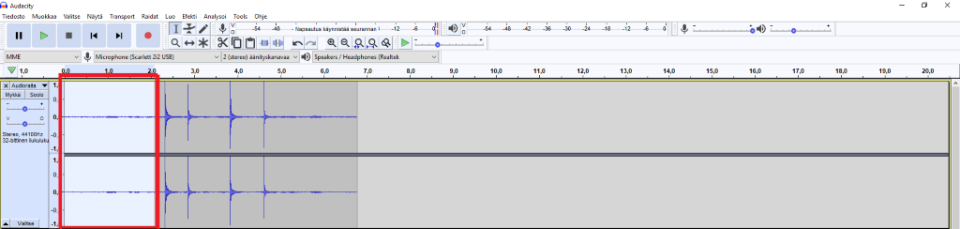
- Remove unwanted parts from the start and end of the audio clip by highlighting them with the mouse and pressing Delete
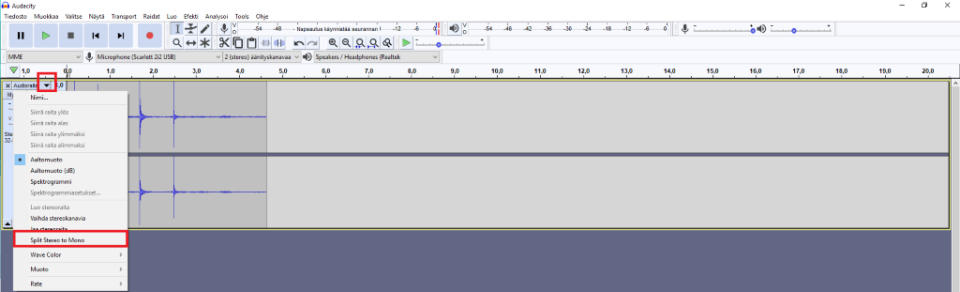
- Make the recording mono
- Click the arrow next to the audio track name -> from the menu choose “Split Stereo to Mono”
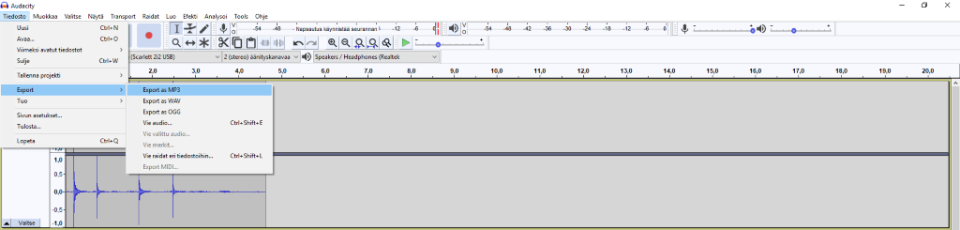
- Saving:
- File – Export – Export as MP3
- Save the file to the desktop and keep a copy for yourself