
Canvas
Canvas is a digital learning platform used to manage course materials, assignments, announcements and discussions.
Supported browsers
Canvas is recommended to be used with the following browsers (check this page for exact version numbers and whether your browser is supported):
- Chrome
- Firefox (the ESR release line version is not supported)
- Edge
- Respondus Lockdown Browser
- Safari (Mac only)
and make sure your browser accepts third-party cookies. Instructions are available in the Canvas help pages or search online for your browser’s instructions on enabling cookies.
When working in Canvas it is important to use the most recent and updated browser so that all features work correctly. Canvas generally recommends using Chrome or Firefox, and you can read more here.
Guidance for using Canvas
Logging in to Canvas
Log in at https://canvas.laurea.fi/
- Laurea students and open UAS students log in with their Laurea ID
- Students from other universities log in with their own university’s Haka ID or with Laurea ID
- Others (for example applicants to entrance exams or project partners) log in as guests
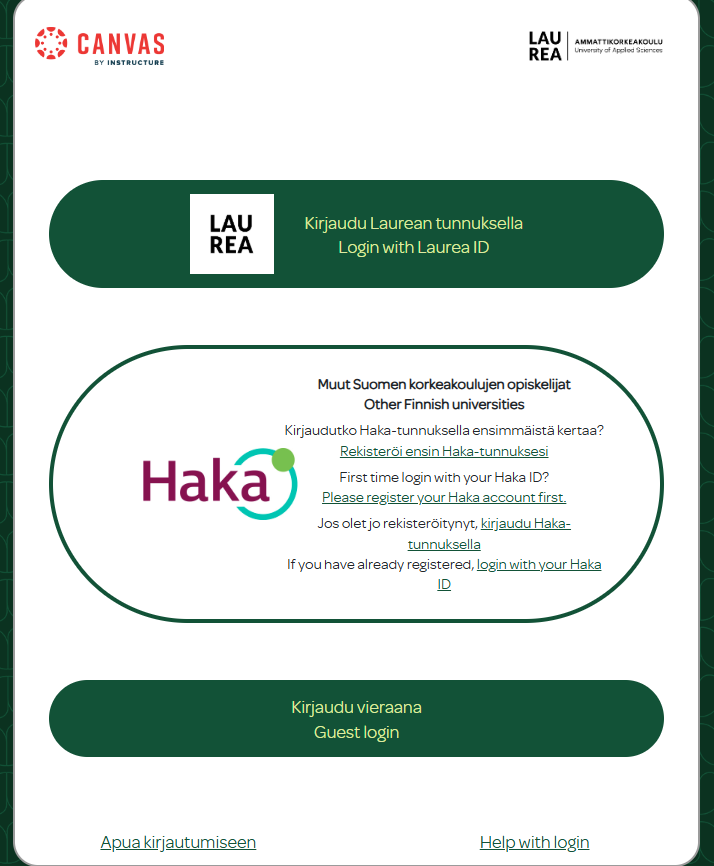
Logging in to Canvas with the mobile app
Download the Canvas Student app to your mobile device.
Search for “Laurea UAS” and sign in with your Laurea credentials. You can also get a QR code from the Canvas settings to sign in to the mobile app.
Accepting a Canvas course invitation
- The course invitation is sent to your email.
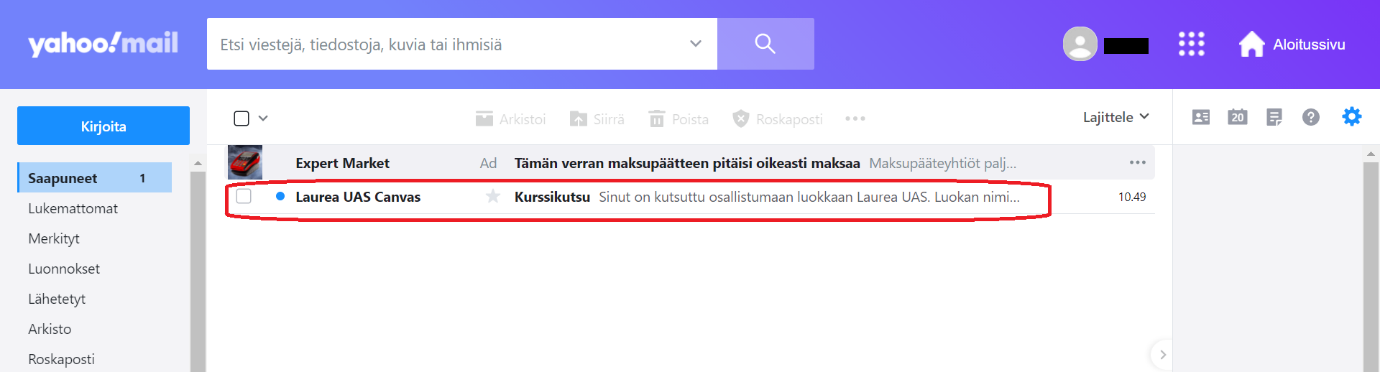
- Open the email invitation. Continue by clicking the blue Start button.
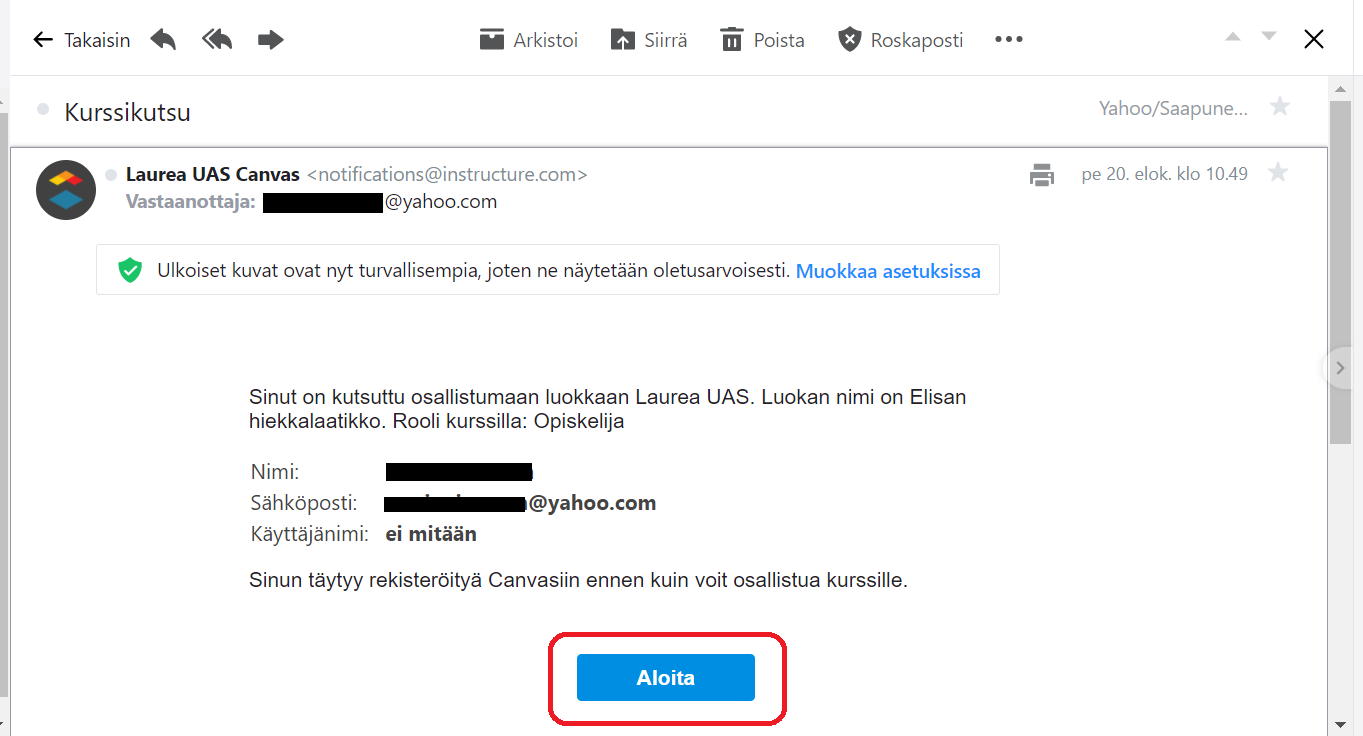
- Clicking the Start button will take you to the Canvas view
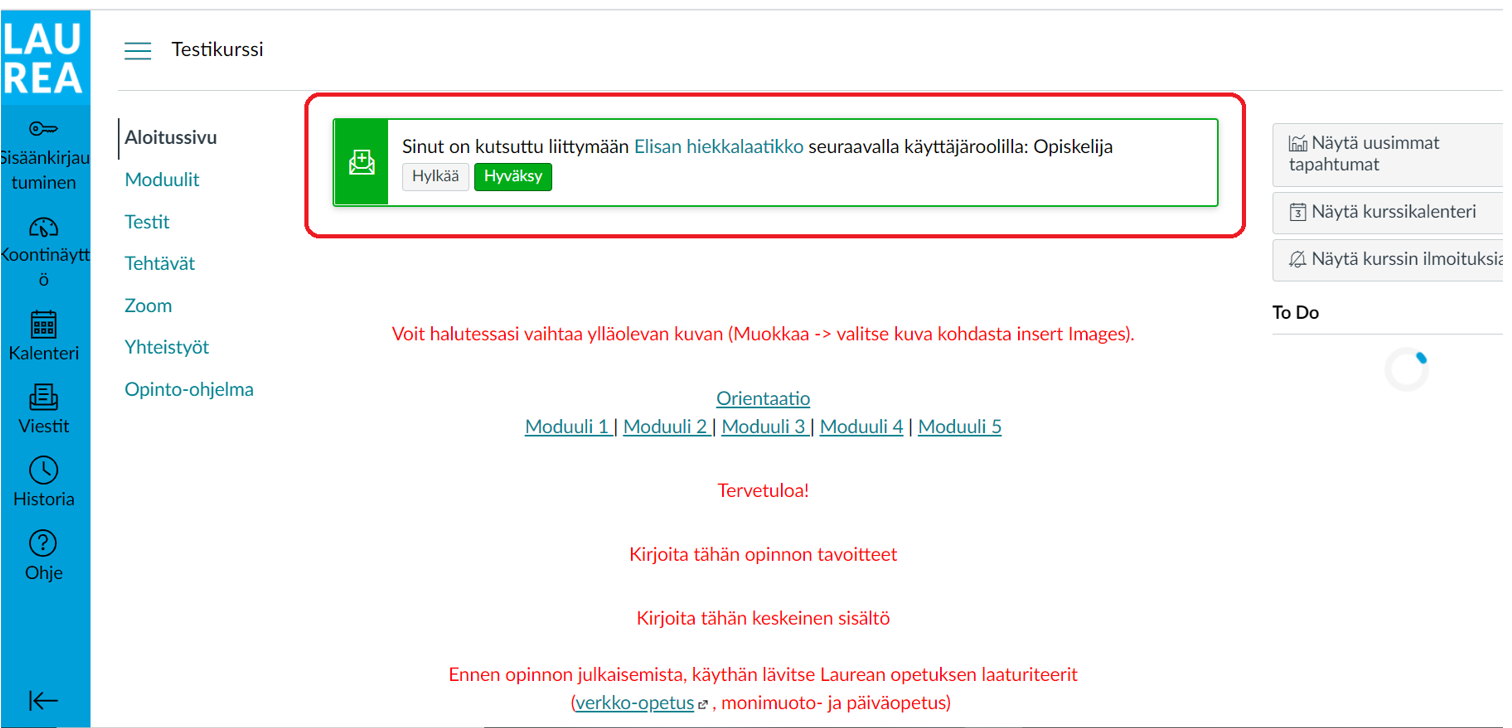
- In Canvas a green bar appears at the top of the page where you can accept the course invitation. Click the green Accept button. You can browse the course content without enrolling, but to participate in the course you must accept the enrolment invitation.

- After this you will have the option to sign in to Canvas with existing credentials or create a new user account.
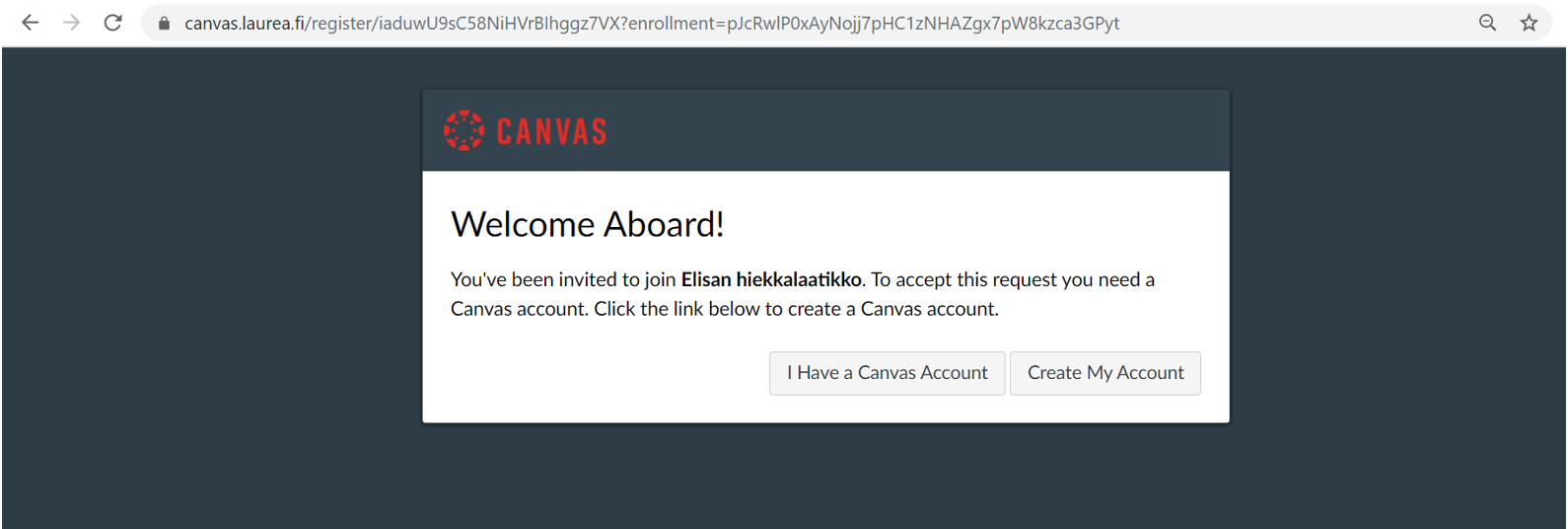
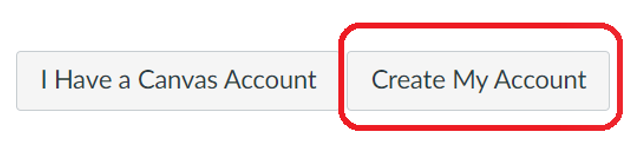
- If you do not already have a Canvas account, choose the Create My Account option.
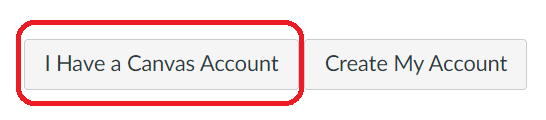
- If you already have a Canvas account, choose I Have a Canvas Account. Go to the section Logging in with an existing account in these instructions. You can sign in to Canvas using guest credentials or Laurea credentials.
Note that if you have previously participated in any Laurea Canvas course, you should already have an account.
Creating a Canvas account
- If you do not yet have a Canvas account, create one by clicking the Create My Account button.
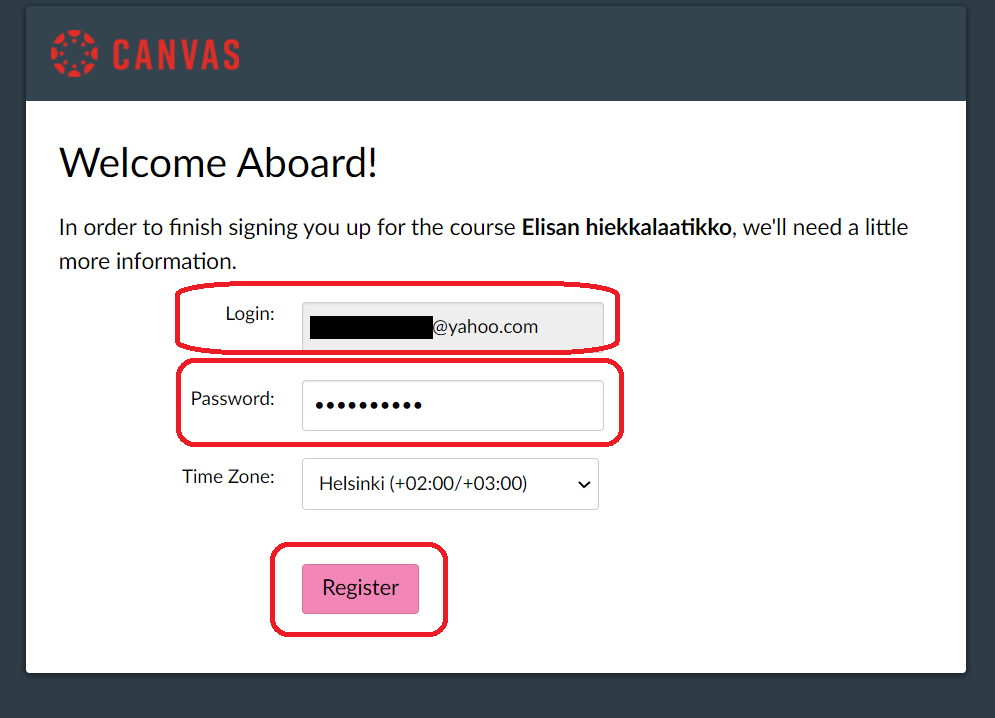
- Enter the email address that received the course invitation in the Login field and create a secure password. Then press the Register button.
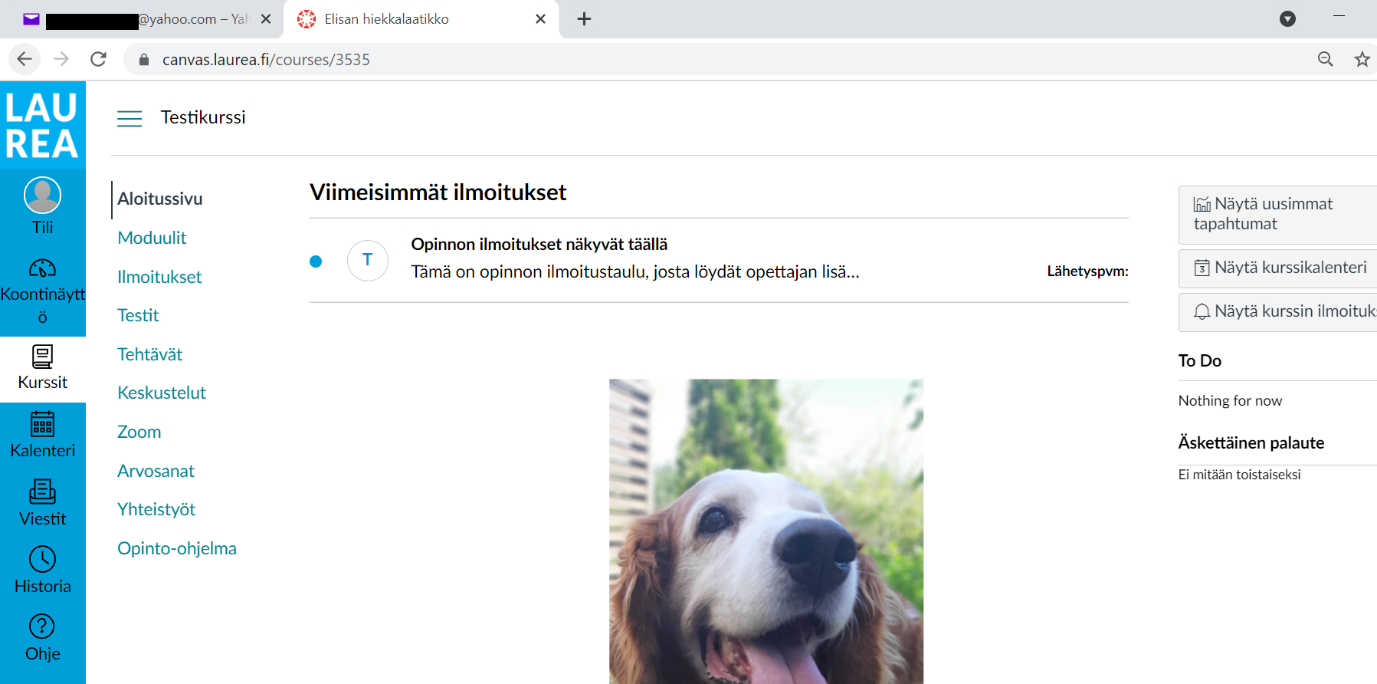
- You will access the Canvas course view and can begin completing the course.
Logging in with an existing account
Logging in as a guest
- If you already have Canvas guest credentials, select I Have a Canvas Account.
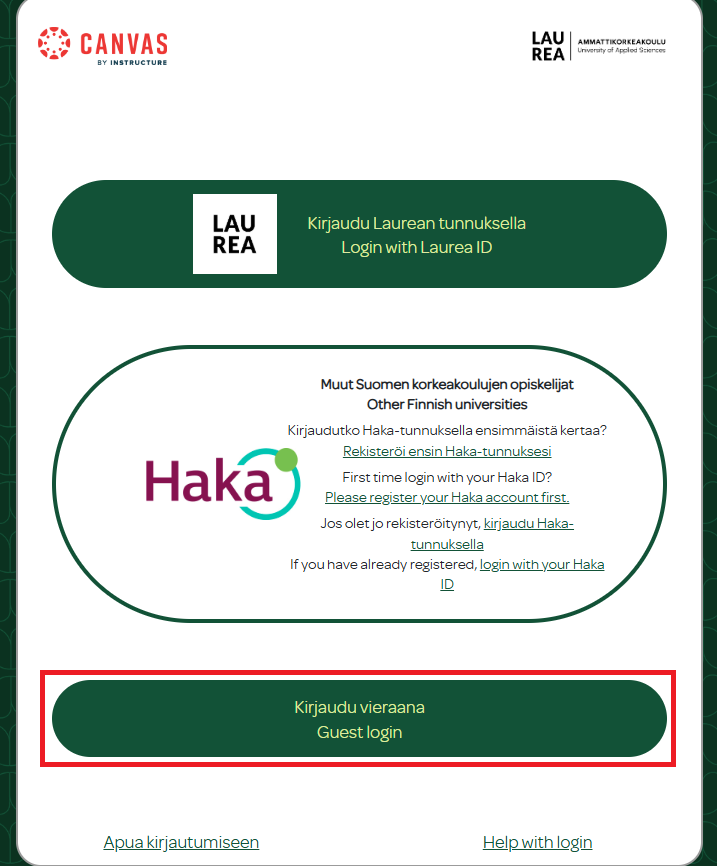
- Select the option Guest login.
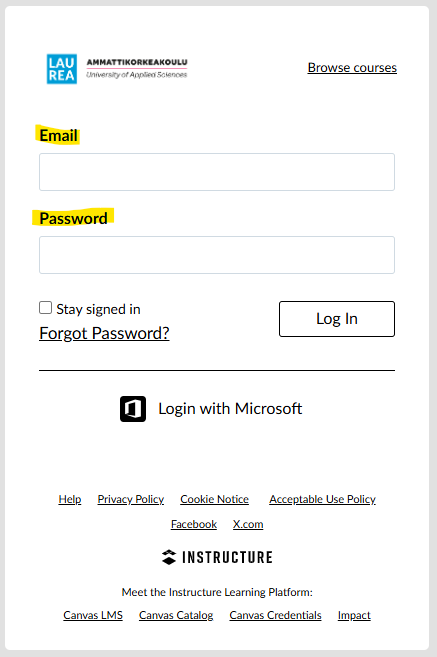
- Enter your email address and password in the fields. Then select Sign in.
If you have forgotten your password, click the Forgot Password? button. Enter your email address in the field and click Request password.
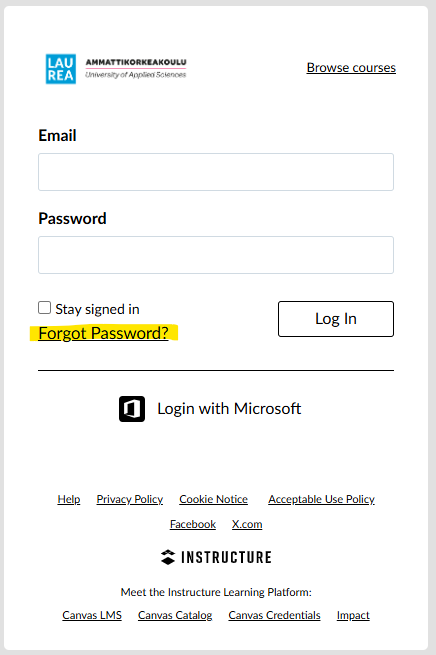
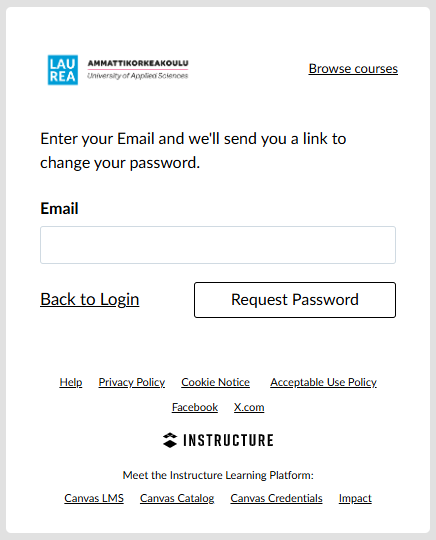
You will receive an email with a link to reset your password. Also check your spam folder. After changing your password you can log in to Canvas as a guest with the new password.
Logging in with Laurea credentials
- If you already have Laurea Canvas credentials, choose the I Have a Canvas Account option.
- Select the option Log in with Laurea ID.
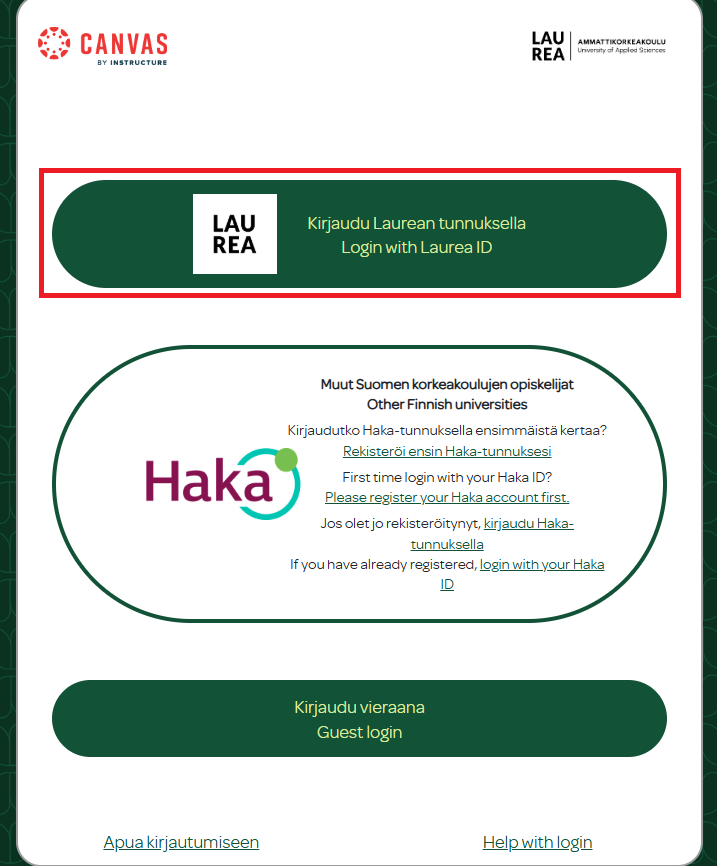
- Enter your Laurea username in the format username@laurea.fi and your password, then click the Sign in button.
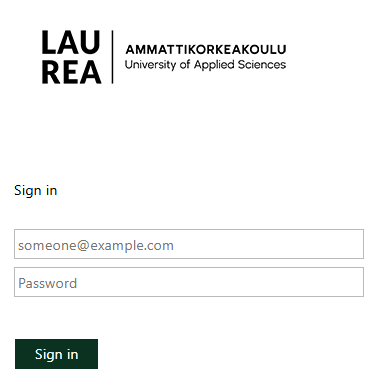
If you have problems signing in, clear your browser cache and cookies and try signing in again.
For more information and support with accepting course invitations and signing in to Canvas, contact the Laurea ServiceDesk.
Introductory video about Canvas features for students
Canvas technical support
There is a lot of Canvas documentation available in English. At Laurea you can get help with technical issues from IT support.
- You can send a message about your issue to servicedesk@laurea.fi. Please describe your problem as precisely as possible and include the workspace name, code and link if applicable.
- In the browser version of Canvas, the left-hand menu contains a ❔/Help menu. Direct link to the help center.