You can upload self-produced content (videos and audio files) to the service and share content with others via a link or embed code, e.g. in Canvas. Kaltura also has a screen capture program, Kaltura Capture, with which you can record your computer’s screen, your own video and audio. With Kaltura Express Capture you can record your own video and audio via the browser, but not the screen.
Videos can be lightly edited in Kaltura. For example, you can cut a piece off the beginning and the end. In the editor you can add subtitles to the video.
In the service you can:
- Upload videos, images and audio files to the service and set viewing permissions (private, link-only, public)
- Create screen capture videos
- Questions can be attached to videos to allow students and teachers to assess competence
- You can attach files to the media and allow likes and comments
- Analytics on video upload counts are available
- Videos can be linked to and embedded in other systems.
- Zoom cloud recordings are saved to the Kaltura service
The service is freely available to Laurea staff and students who sign in with Haka.
Uploading a video to the video.laurea.fi service
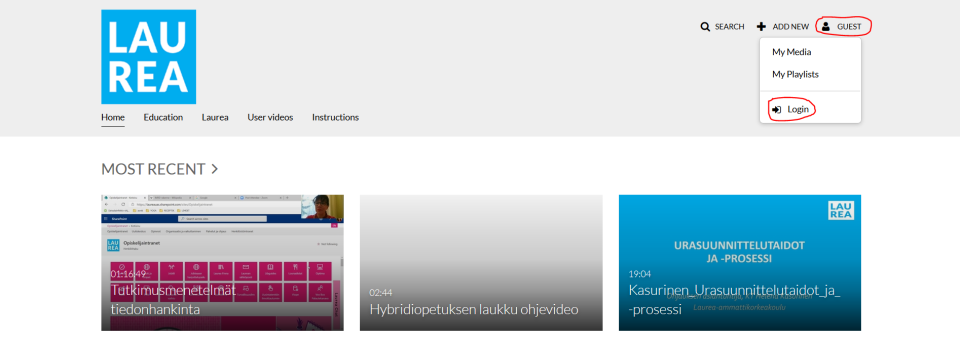
1. Sign in to the service video.laurea.fi
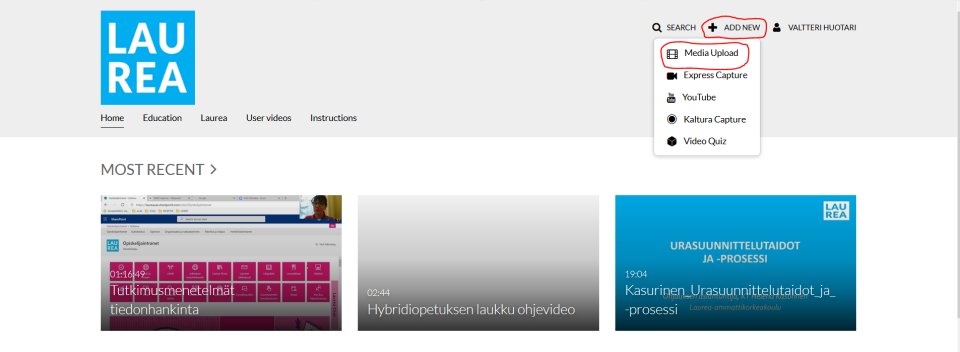
2. Select “Add New” and then “Media Upload”
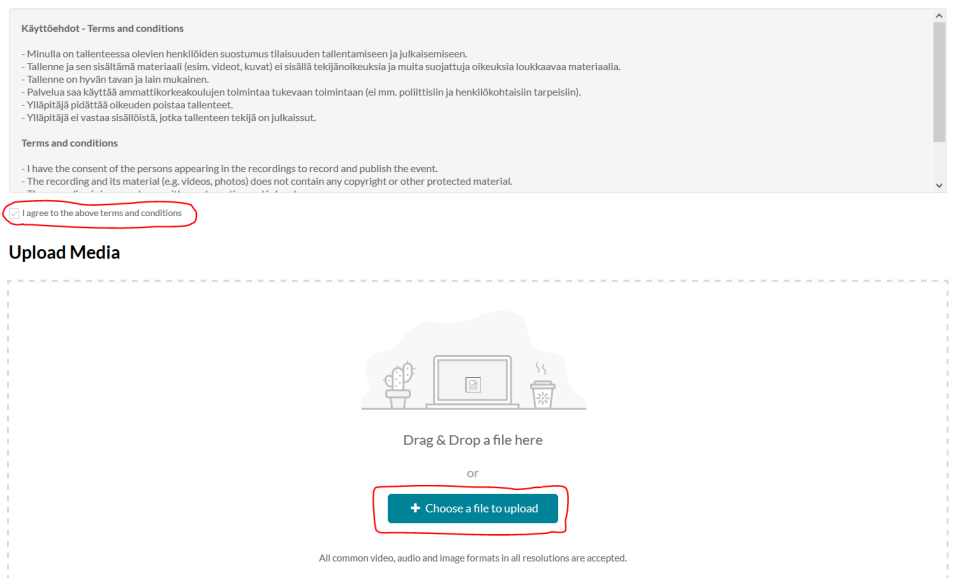
3. Accept the terms of use and choose the file to upload
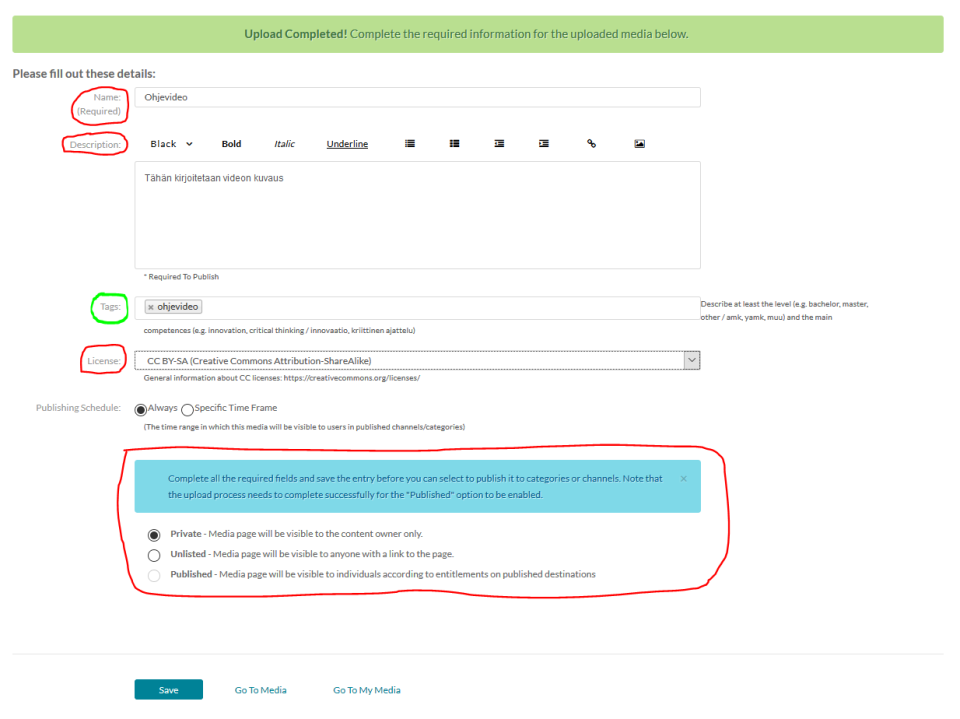
4. Fill in the required information and save the changes
Fields marked in red are mandatory and fields marked in green are recommended to fill in. Fields marked in green are mandatory if you want your video to be public (Published).
CC BY-SA is Laurea’s license.
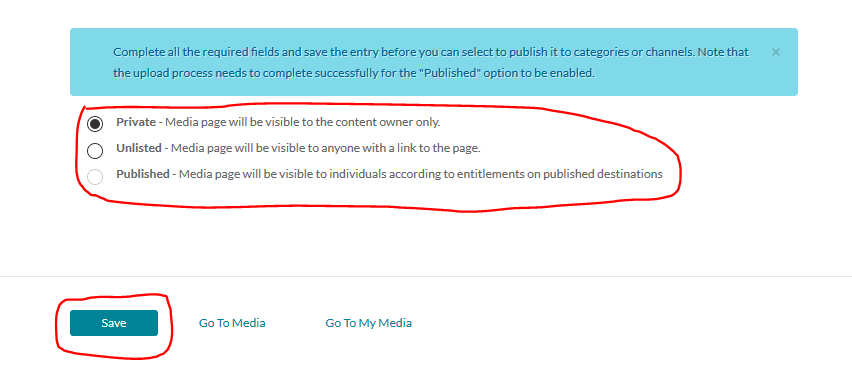
5. Choose how you want to share the video
You can choose the video’s sharing settings from the bottom of the page:
- “Private” does not show the video to anyone other than the uploader
- “Unlisted” allows sharing to others via a share link
- “Published” makes the video public to everyone. The video is also visible outside the Laurea organization
You can later edit the publishing settings from the video’s watch page via the “Publish” action found in the “Actions” menu.
Finally, you can save the video using the “Save” button.
6. After saving, you can go to the video’s watch page by clicking the “Go to Media” button.

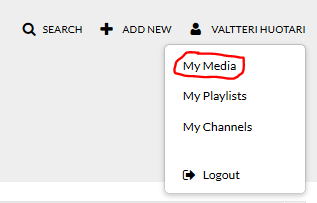
The video can also be found under your profile in the “My Media” section, where all media files you have uploaded to video.laurea.fi are stored.
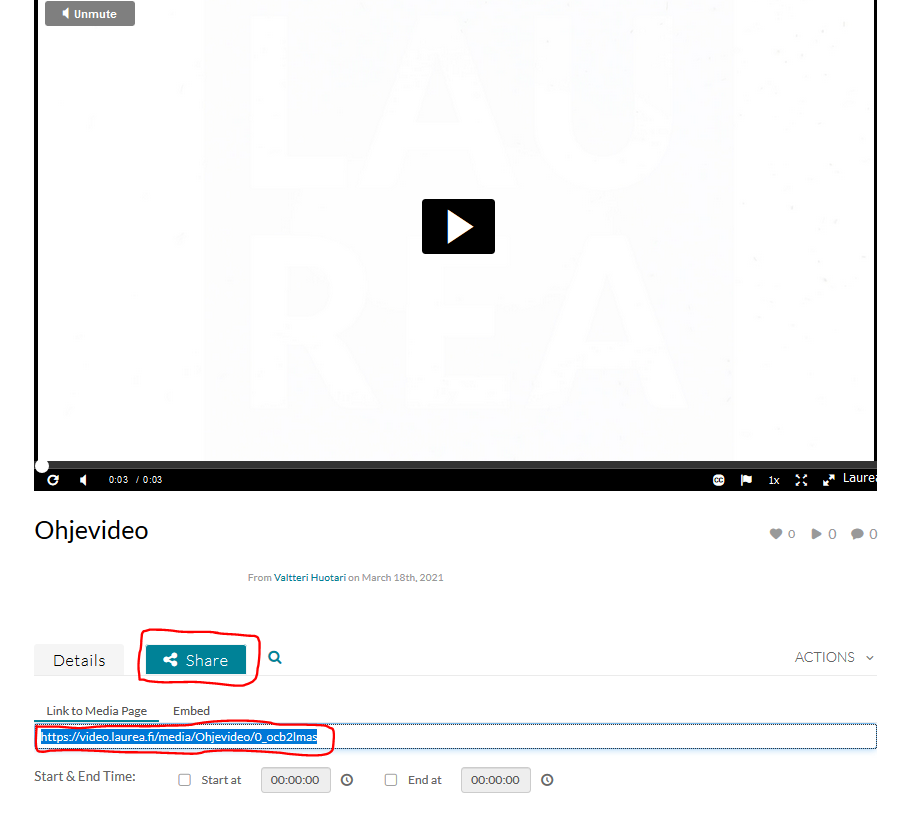
7. Select the “Share” button on your video’s watch page and copy the link
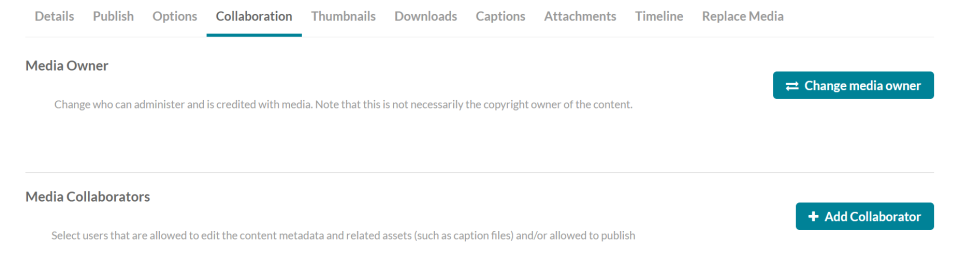
Sharing video ownership
You can share video ownership with multiple people.
- If you are graduating or leaving Laurea and the video should remain under someone’s profile, e.g. a thesis or project video used in teaching, etc.
- Open the video
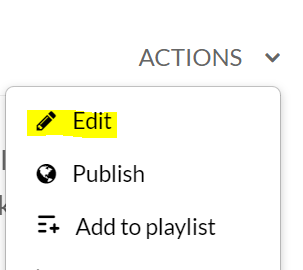
- Select Actions → Edit
- Select the desired option:
- Change the video’s owner (Change media owner)
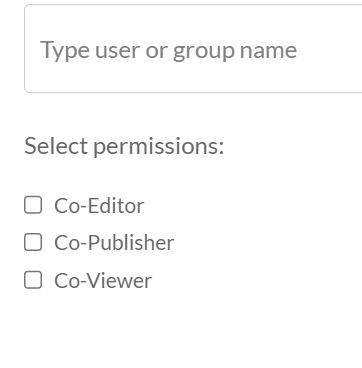
- Add co-ownerships (Add Collaborator)