
Using Zoom in studies
Log in to Zoom via the browser by pressing Sign In and using your Laurea credentials. When you sign in with Laurea credentials you will have an Education license.
Students can organize meetings with up to 500 participants. Larger-scale webinars can be organized with Teams. There is no time limit for meetings. You can be the host of only one meeting at a time.
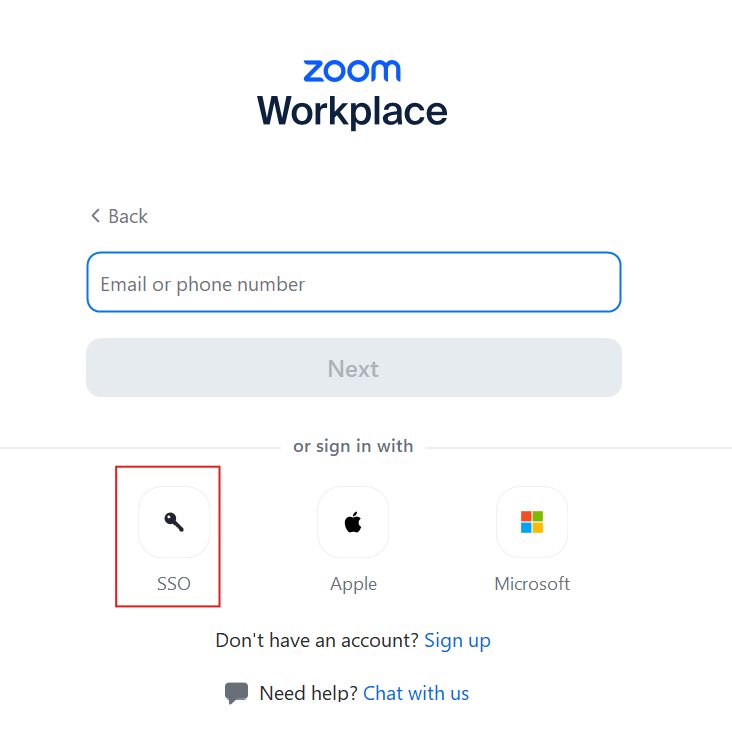
Use the SSO sign-in option to sign in to the Zoom desktop application. This directs you to sign in with Laurea user credentials.
Always join meetings using your full name. You can change your name on the participants list after joining by right-clicking your name, selecting the three dots and choosing “Rename”.
Protect the meeting either with a waiting room or a passcode.
General English-language instructions
Joining a meeting
You do not need an account to join Zoom meetings. The primary way to join is to click the provided link. These links typically look like https://laurea.zoom.us/j/3147613480, but they can also contain letters for a personal meeting room, for example: https://laurea.zoom.us/my/henrinhuone.
Joining on a computer
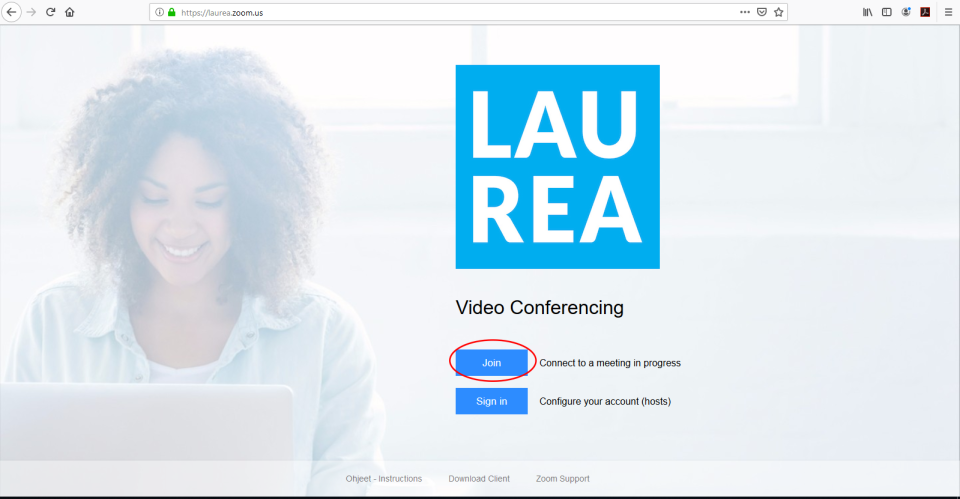
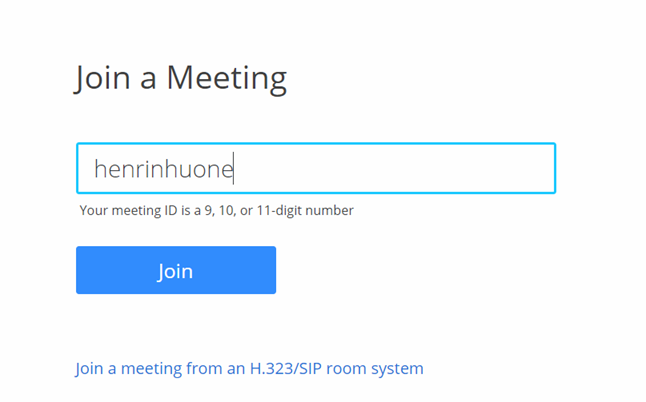
To join a meeting without a link, go to https://laurea.zoom.us. This opens Laurea Zoom’s start page. Click the Join button to join a meeting:
In the next view, enter the meeting ID in the text field. The ID is at the end of the Zoom link: https://laurea.zoom.us/j/3147613480
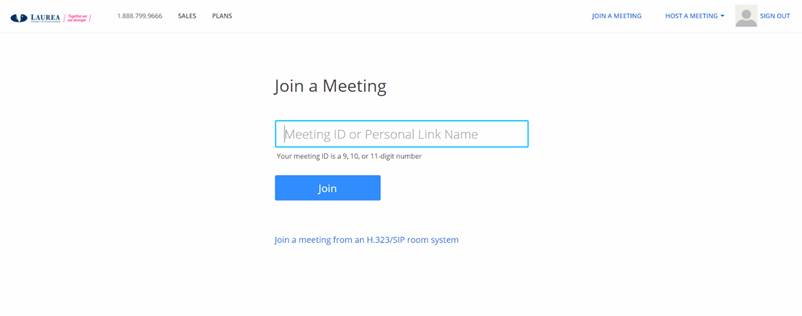
You can also join personal meeting rooms by using Personal Link Names. If you have such a name, for example “henrinhuone”, you can join that meeting room directly by entering it in the text field.
If you are signed in to Zoom, you can also join a meeting by meeting ID or name using the Join a meeting button at the top right:

If you join a meeting for the first time or from a new device, Zoom may ask you to install the Zoom application. Download the application to your computer, open your downloads folder and install Zoom. After installation you should be taken automatically to the Zoom room. If this does not happen, try joining the room again after installing the Zoom application.
If you cannot or do not want to install the application on your computer, you can join the meeting via the browser by selecting “Join from Your Browser”. This feature works best with up-to-date versions of Microsoft Edge, Mozilla Firefox and Google Chrome.
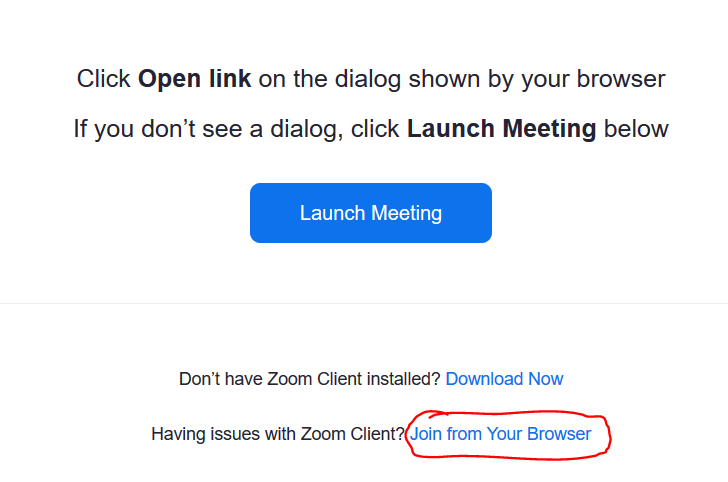
Joining the meeting in a browser
Zoom’s own English instructions can be found here.
You may be able to join a Zoom meeting directly via the browser on a computer without installing the Zoom application.

NOTE! This only works with the Google Chrome browser, so you will need it if you want to join via the browser. Also, on mobile devices meetings can only be joined via the Zoom App.
When you join a meeting via the browser (for example via the meeting URL), the following window will open:
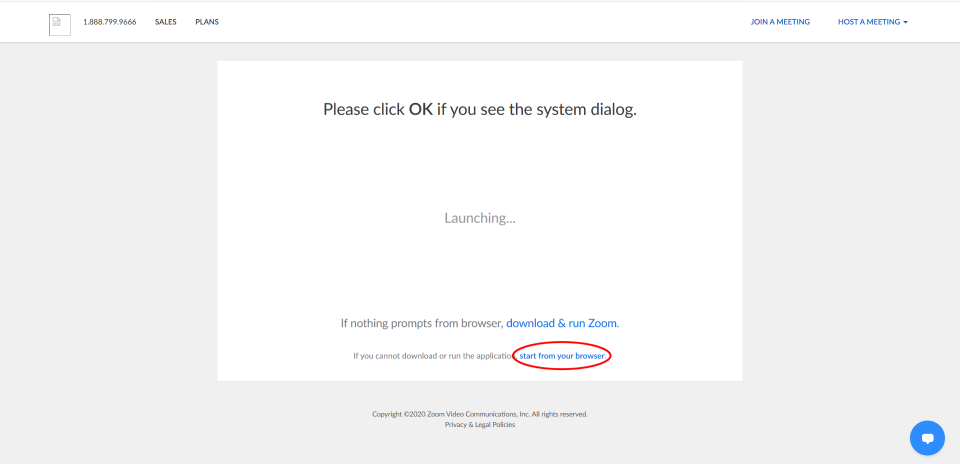
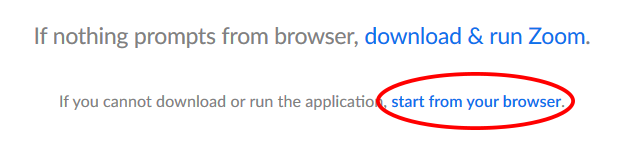
From this page you can start the meeting directly in the browser by selecting “start from your browser”.
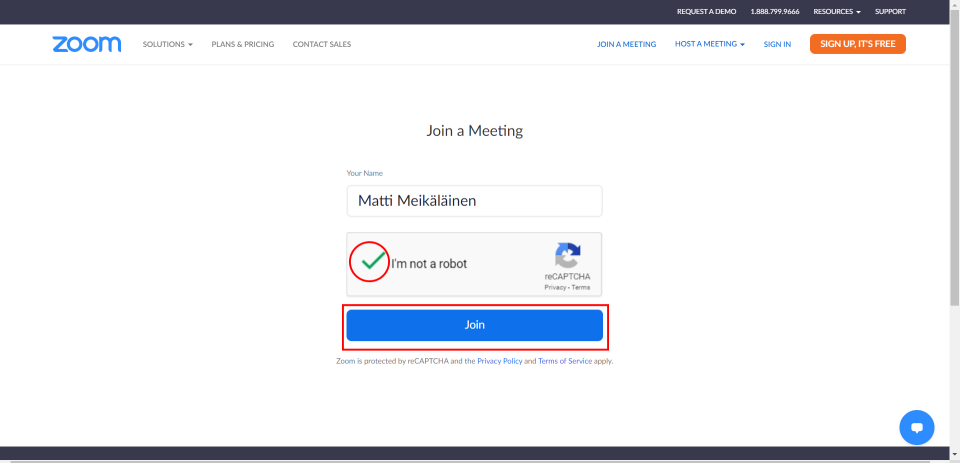
On the new page enter your first and last name, select “I’m not a robot” and finally join the meeting by selecting “Join”. On the next page select “I Agree” to proceed into the meeting.
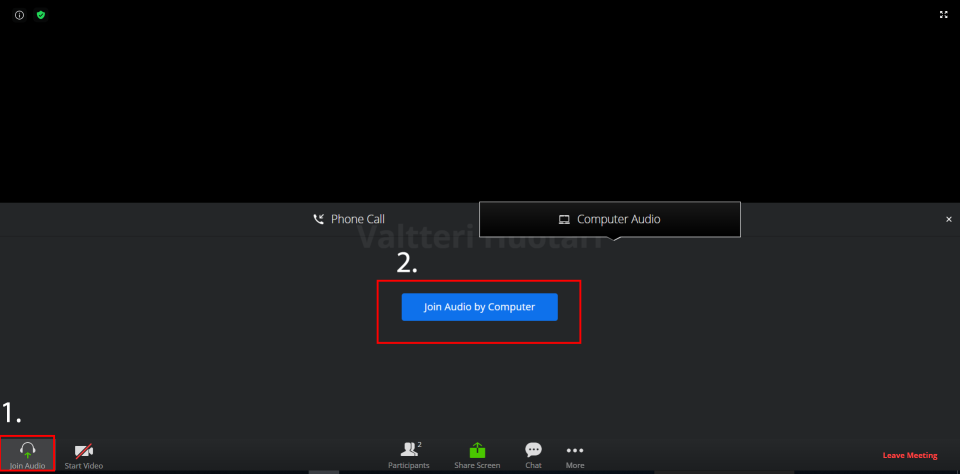
After joining, select “Join Audio by Computer” to connect your computer’s audio to Zoom.
NOTE! Connect your audio devices to your computer before joining the meeting.
Joining on mobile devices
To join meetings on mobile devices you need the Zoom App.
For Android devices: https://play.google.com/store/apps/details?id=us.zoom.videomeetings&hl=en
For Apple devices: https://apps.apple.com/us/app/zoom-cloud-meetings/id546505307
Organizing a meeting
Recurring meeting room
In Zoom you can create meeting rooms that are saved to your account. Each Zoom meeting room has its own address that can be used to join. Recurring meeting rooms can be reused so participants can use the same link to join as before.
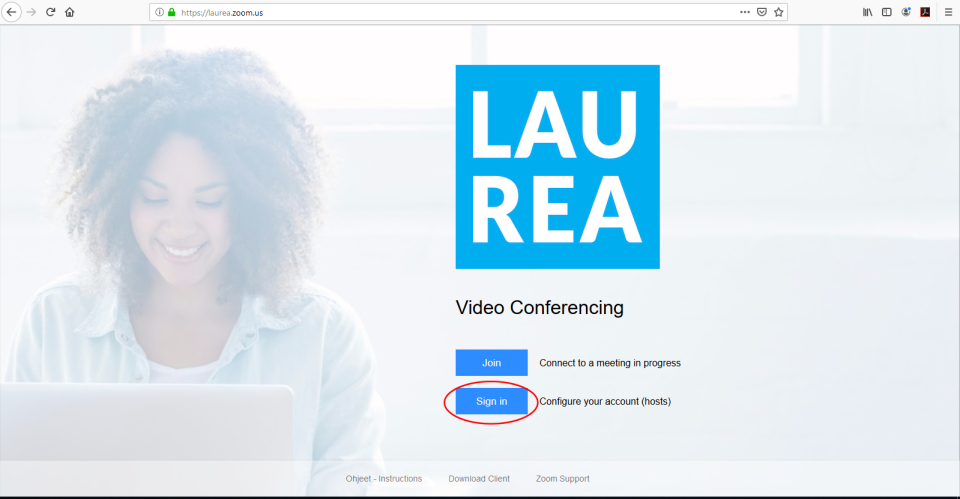
First sign in at laurea.zoom.us (Sign in).
Then click Meetings from the left panel. From this view you can manage your meeting rooms. You can create a new meeting room by clicking the “Schedule a New Meeting” button.

This opens a view where you can set and edit your meeting room details and settings:
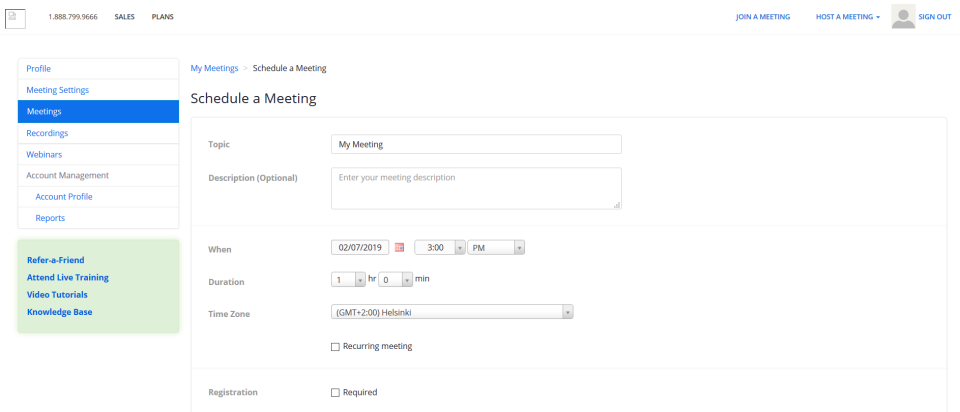
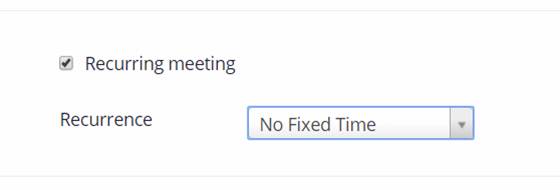
To make the meeting recurring, check the Recurring meeting box. You can define how often the meeting recurs using the Recurrence menu (Daily, Weekly, etc.). Use the “Repeat every” option to specify more precisely how often the meeting should repeat (every day, every other day, etc.). Use the End date to set when the room’s use ends either by date (By –/–/—-) or by number of occurrences (After – occurrences).
If you want to use the same room for an extended period or without a fixed schedule, select No Fixed Time from the Recurrence menu. This keeps the room available until you change it.
If you want your room to be freely available without your presence, enable “Enable join before host” in the Meeting Options section:
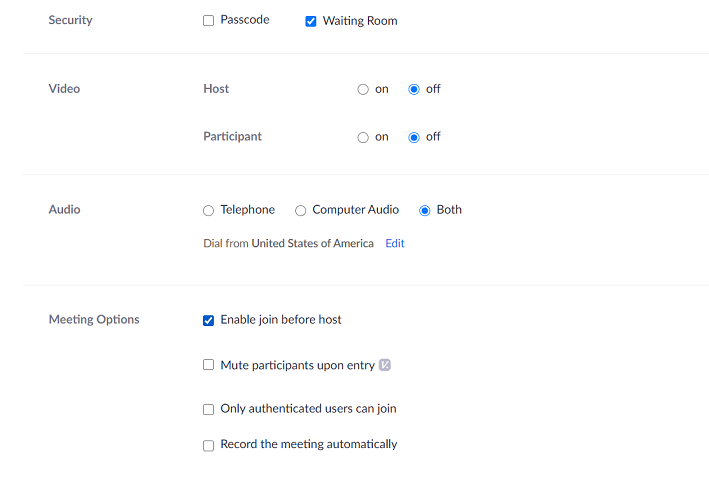
This allows anyone to join the room at any time as long as they have the room’s URL. If multiple hosts are assigned, the first person with Host rights becomes the meeting Host and the others become Co-Hosts. If a pre-assigned person does not receive rights, they should sign in at https://laurea.zoom.us/ and start the Zoom meeting again.
Note! Meetings now require either a passcode or a waiting room.
You can predefine alternative hosts (Co-Hosts) for recurring meeting rooms via the “Alternative Host” field. Enter their usernames in HAKA format as username@laurea.fi (for example otthuus@laurea.fi) in that field. If there are multiple alternative hosts, separate the usernames with commas:
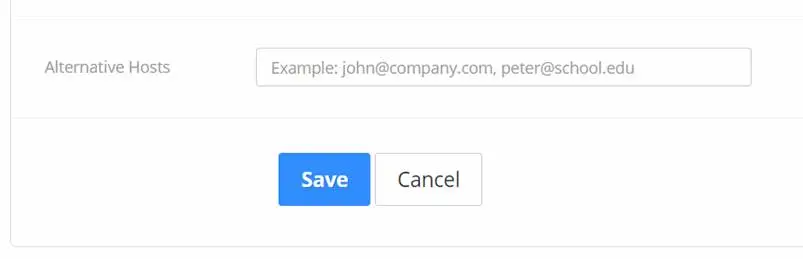
Remember to press the Save button at the bottom so your room is saved in the system. The teacher must sign in once at https://laurea.zoom.us before you can add them as a Co-Host.
After saving you are taken to a view where you can see your room’s details. From here you can start the meeting, add it to a calendar, join the meeting or send invitations:
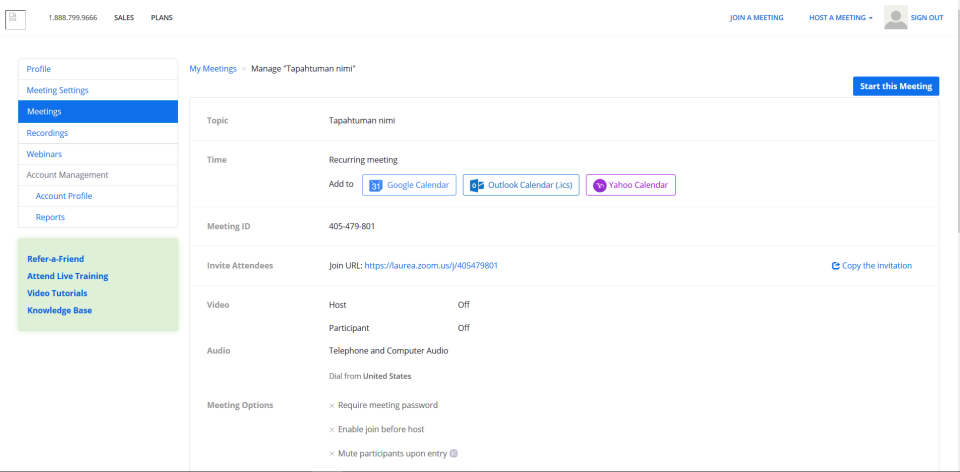
You can join the room by clicking the “Start this Meeting” button or by opening the room’s personal link.
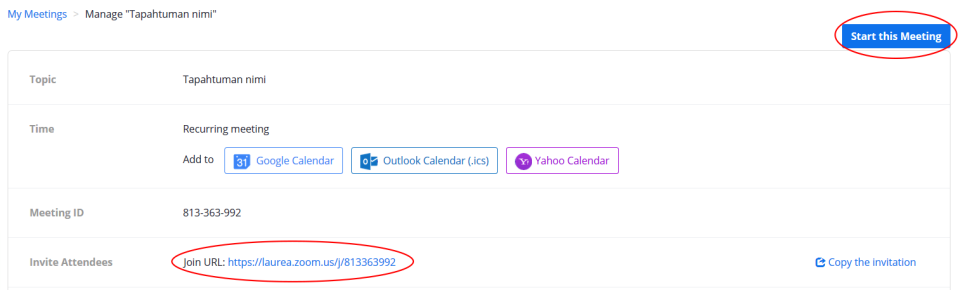
NOTE! Each room has its own personal address and link. Make sure your guests know the room link (URL) you use for the meeting.
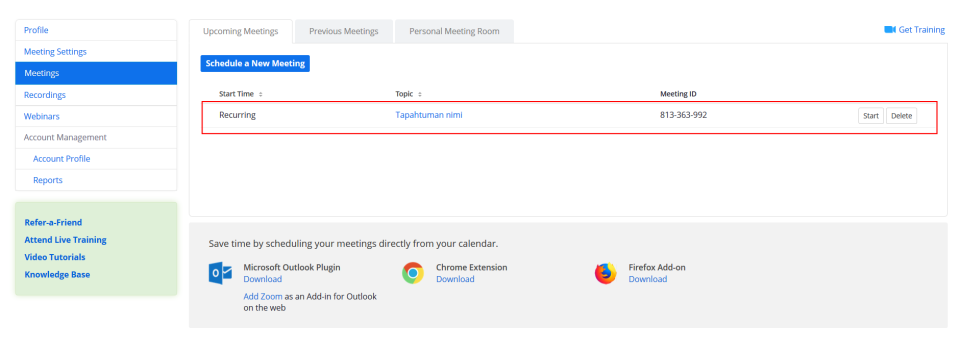
After saving, your room is always found in your profile’s “Meetings” section among your other rooms below the “Schedule a New Meeting” button.
Quickly created one-time meeting room
A quickly created meeting room exists as long as there are participants or a host. Each quickly created meeting room has a personal address and link which become invalid after the room is no longer in use. Quickly created meeting rooms are not saved in the Zoom system. You can create one-time meeting rooms via your Zoom profile or by creating a Zoom meeting through Outlook.
When you are signed in you can start a meeting by clicking the “Host a meeting” button, where you can immediately choose whether video is on or off.

NOTE! The “Host a Meeting” button creates a one-time meeting room with its own address and link (URL). This meeting room is separate from the meeting rooms saved in the system.
Adding participants during a meeting
When you start or join a meeting in Zoom (with camera off), the Zoom application opens the meeting view which includes many meeting-related features.
To invite more participants during the meeting, click the “Participants” button at the bottom (it appears when you move the mouse over the window) and then the arrow in the corner, or click the large “Invite Others” button in the middle right:
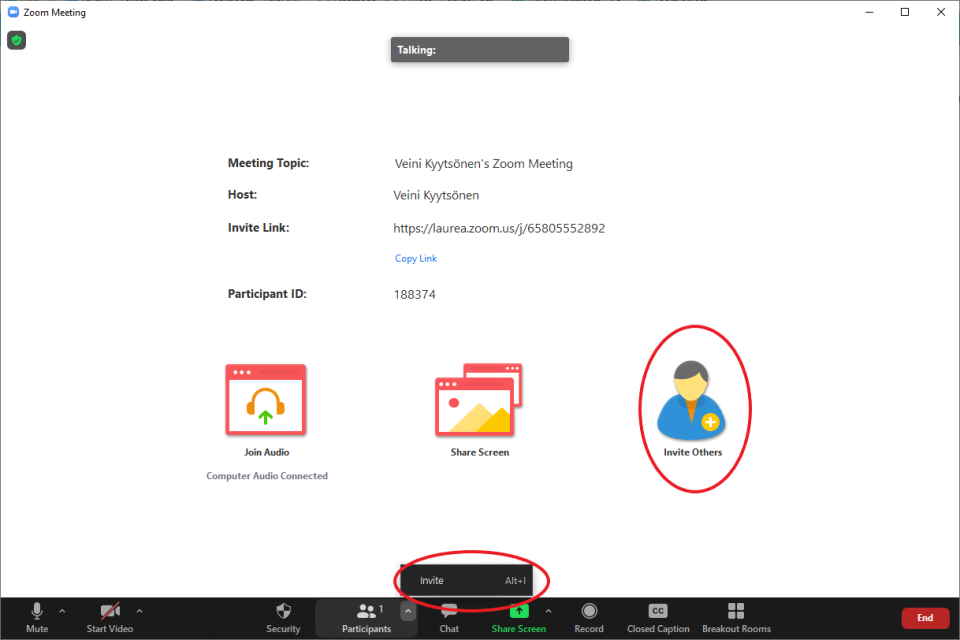
Both of these buttons open a new window:
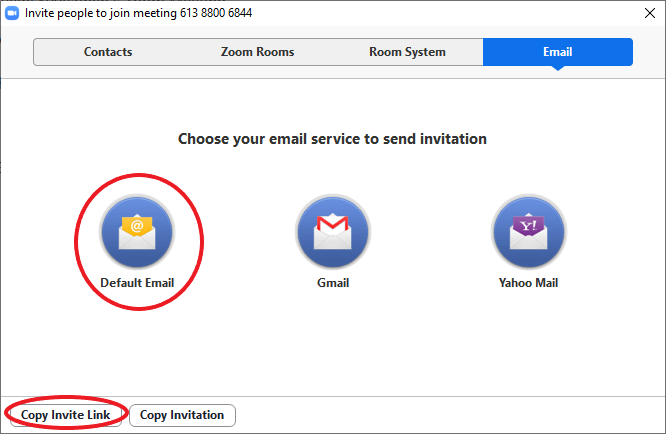
From that window you can invite new participants to your meeting. The leftmost “Default Email” icon in the center allows you to send the invite link via Outlook to selected contacts. This button opens Outlook with a shareable message, so you only need to set the recipients.
At the lower left there is a “Copy Invite Link” button which copies the meeting invite link for use. A similar “Copy Link” button is available on the meeting’s front page under Invite Link.

“The host has another meeting in progress” notification
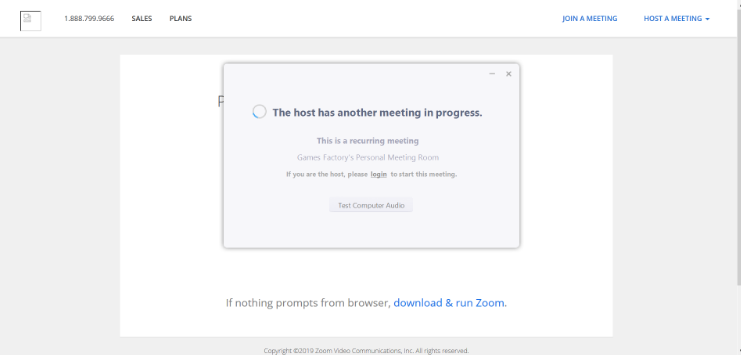
This notification appears when the host has previously given students/teachers/participants a link to a prepared/personal Zoom meeting room, but the host goes into a different meeting room.
Simply put: the host is in one Zoom room and the others are in another Zoom room.
This can happen, for example, if:
- The host has created and saved a recurring meeting room (or personal room) with a specific address and link (URL)
- They then shared that address link with participants
- But then try to start a meeting using the front page “Host” button, which creates a separate one-time Zoom meeting room with its own personal address and link (URL)
An instruction video on organizing a meeting can be found here (English).
Recording a meeting
Zoom’s help page for recording meetings can be found here.
Recording a Zoom meeting to the video.laurea.fi service (Kaltura)
Instructional video is available here
First make sure you have logged in at least once to the Video.laurea.fi service at: https://video.laurea.fi/. This ensures that your recording will be placed in your media in the service.
Start recording from the bottom bar by pressing the Record button.

Select Record to the cloud.
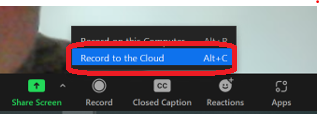
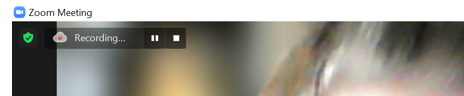
You will see at the top left that recording is in progress. From there you also get Pause and Stop controls.
These buttons are also available in Zoom’s bottom bar.

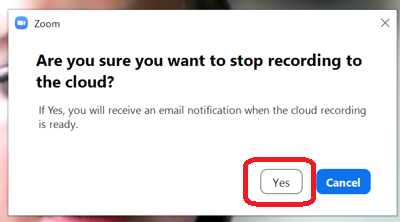
When you press the Stop Recording button, a window opens asking if you are sure you want to stop the cloud recording. If your video is ready, press Yes.
You will receive a notification at the top right of the screen that you will get an email when your recording is available.
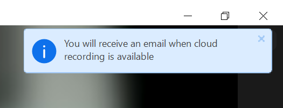
End the meeting and wait for the email notification.
Note! From stopping the recording to the recording being ready usually takes at least as many minutes as the recording length. For example, be prepared to wait at least three hours for a three-hour recording.
The incoming email looks like this and contains a direct link to Kaltura: https://video.laurea.fi/
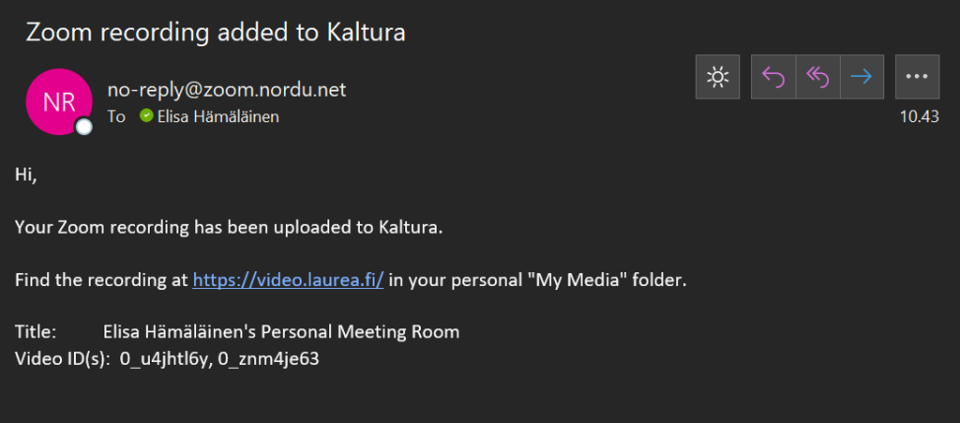
In Kaltura you can find the recording in your own videos – click the Guest icon in the top right and choose My Media.
Note! A Zoom meeting produces two different recordings in the video.laurea.fi service; one contains audio and video, and the other contains only audio (and a black screen).
The recording is always placed in the meeting host’s account.
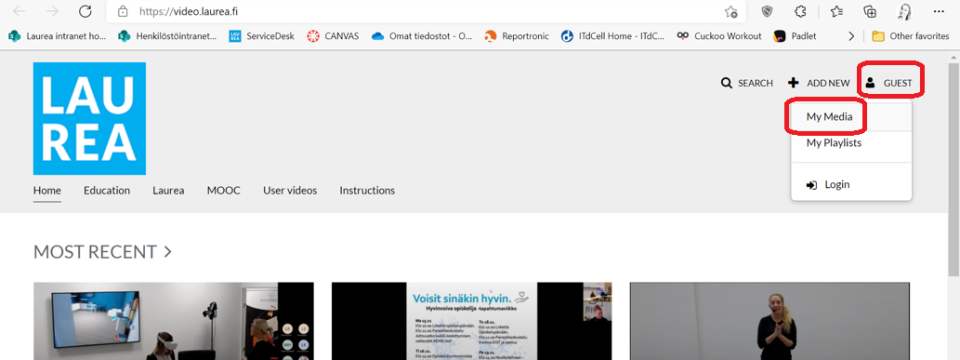
In the video.laurea.fi service (Kaltura) the recording is automatically in “Private” mode, so it is visible only to you. If you want to change the sharing settings, click the pencil icon (Edit) on the right.

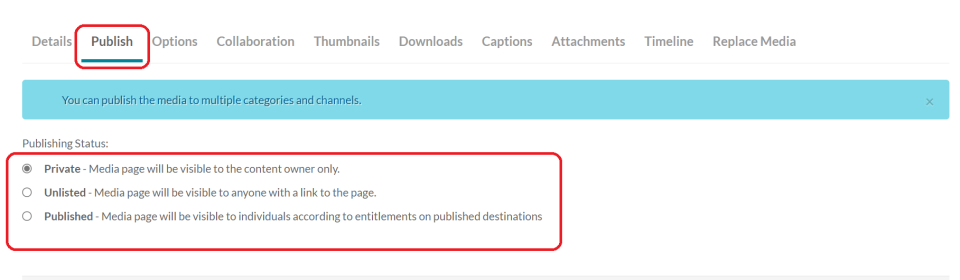
Select the Publish tab under the video. If you want to share the video with others, choose “Unlisted“, which allows sharing via a link, or set the video to “Published” to make it public for everyone. This will make the video visible outside the Laurea organization as well.
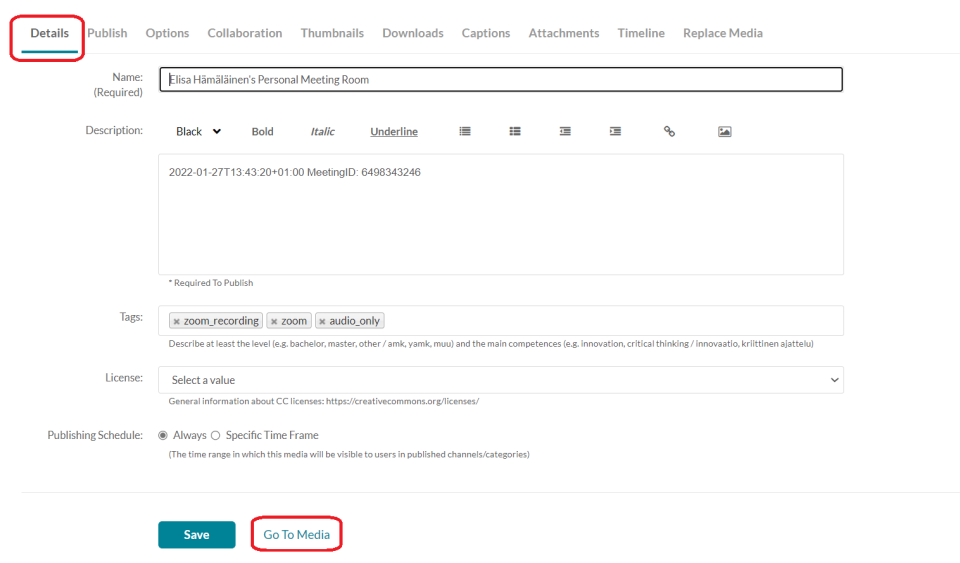
Then go to the Details tab. Here you can change the recording’s name, description and CC licenses. Save your changes. Scroll to the bottom of the page and click Go to Media.
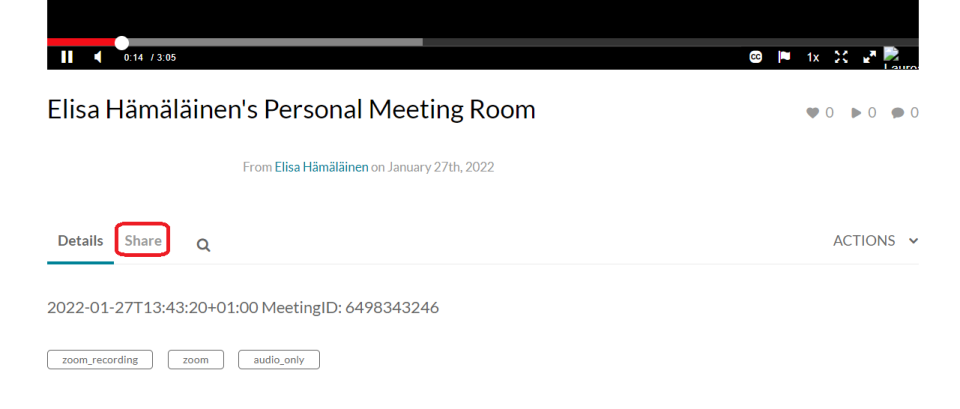
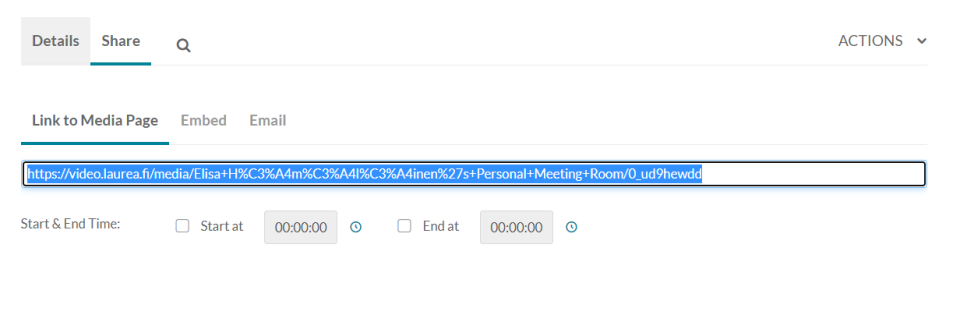
You will arrive at the recording’s media view. Under the video you will find the Share option.
From here you can copy the recording’s share links. From the Embed option you can get an embed code for the recording.
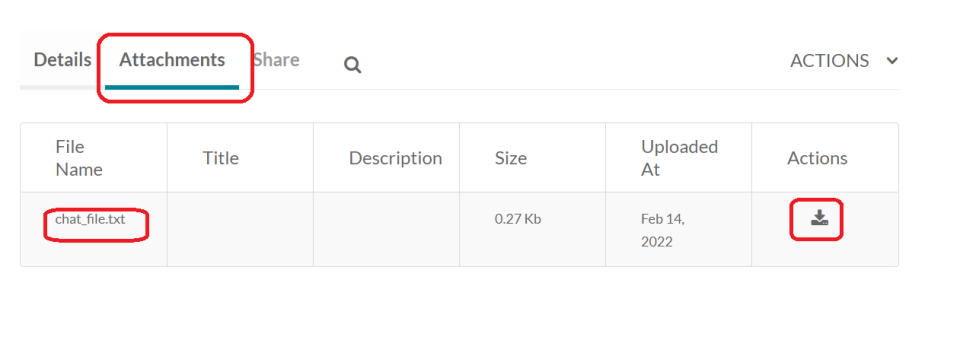
Chat messages created during the recording can be found under the Attachments tab, and you can download this file to your computer.
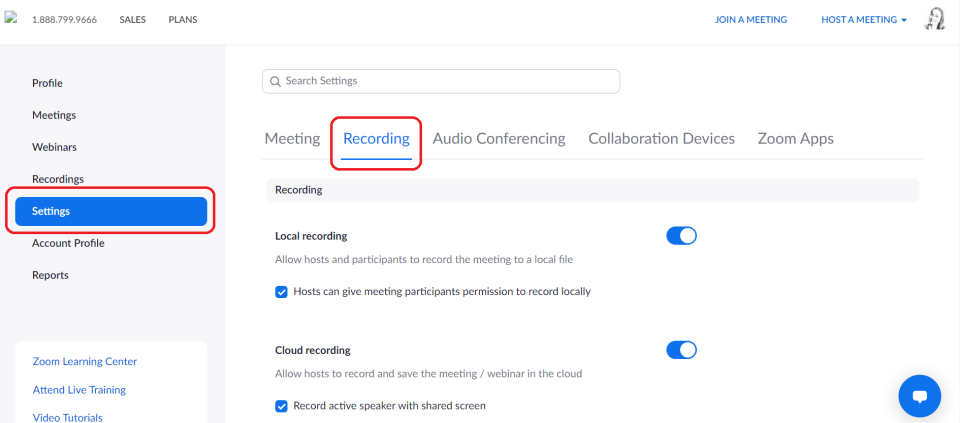
Also note your recording settings in Zoom:
Sign in at https://laurea.zoom.us/
Select Settings from the left and then the Recordings tab:
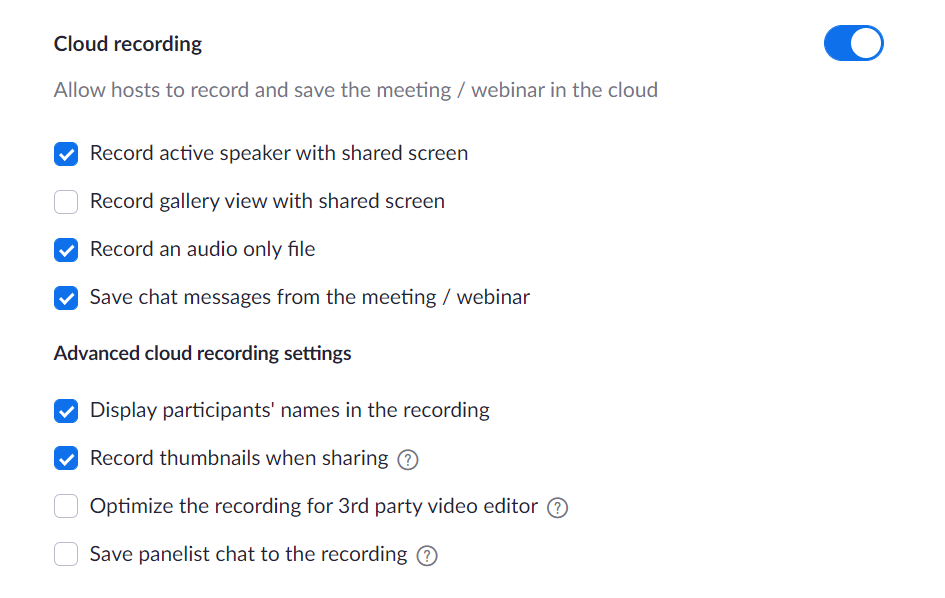
The recording can be affected by the following Zoom settings:
Recording a Zoom meeting to your computer
If you record the meeting directly to your computer, Zoom will process it for viewing after the meeting ends.
You must allow Zoom to finish processing the recording; the time required depends on the recording length. When the recording is ready, Zoom will automatically open a file manager window to the folder where the recordings are located:
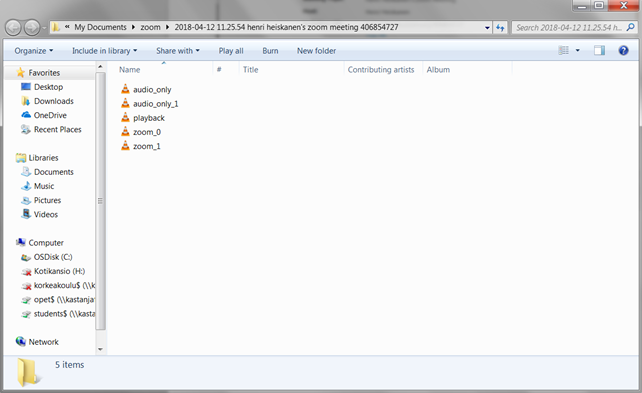
The same meeting will always produce both a video recording and an audio-only recording that does not include video. If you create several recordings in the same meeting, Zoom will number them (zoom_0, zoom_1).
To find the recordings folder afterwards, search your file manager for “zoom”, which is the parent folder name for the recordings.
Recording the meeting – instruction video
Personal meeting room
Zoom’s help page on Personal Meeting Room is available here.
Each Laurea Zoom user has their own Personal Meeting Room. A Personal Meeting Room can be accessed using a Personal Meeting ID or a Personal Link.
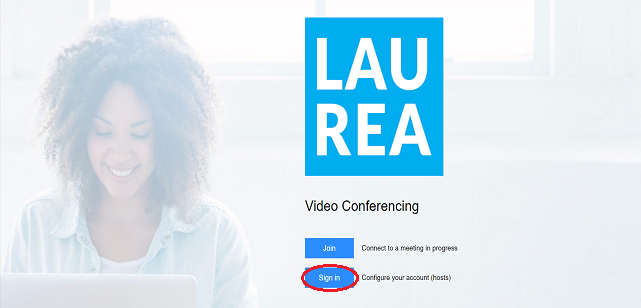
First go to laurea.zoom.us and sign in to your account with the Sign in button:
Your Personal Meeting ID is visible on the front page of your profile:
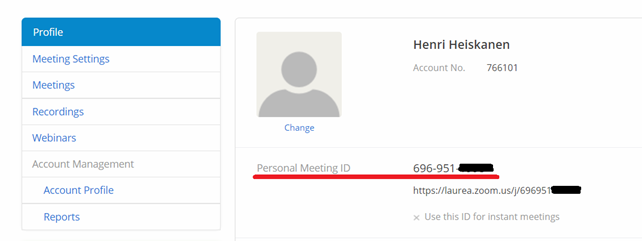
The Personal Meeting ID is a 9–11 digit code that others can use to join your Personal Meeting Room. Below the Personal Meeting ID is the Personal Link, a customizable personal link to your meeting room.
You can also share the URL shown under the code to let others join your room directly. By default you do not have a personalized link; you must create one by clicking the Customize button:
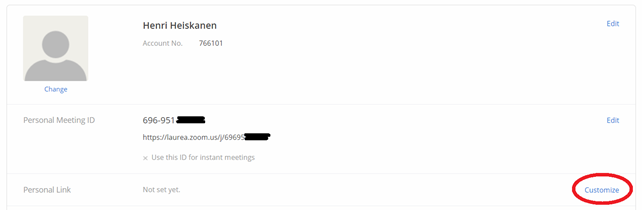
Then enter the desired name for your Personal Link and click Save Changes to store the changes:
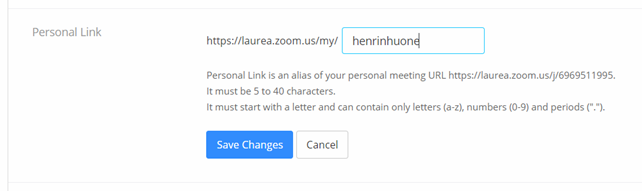
The Personal Link now appears on the front page of your profile. After this others can join your room using the name instead of the numeric code.
You can change your Personal Meeting Room settings from the Meetings tab. Then click Personal Meeting Room.

From the opened view you can edit the meeting by clicking Edit this meeting at the bottom of the page.
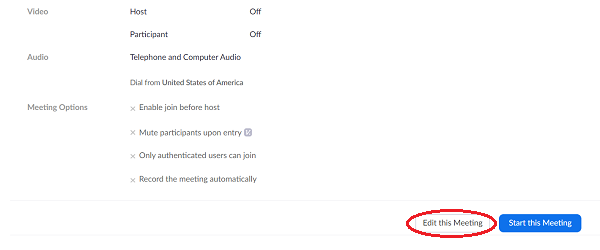
Note! Meetings now require either a passcode or a waiting room.
Personal meeting room – Zoom instruction video
Webinar
Zoom’s instructions for webinars are available here.
With Laurea’s standard Zoom license you can host webinars for up to 500 participants.
Laurea also has a few licenses that allow hosting webinars for larger audiences. These webinars are essentially Zoom meetings that can accommodate up to 1000 people and focus on presenters’ presentations rather than active interaction. If you feel you need to hold a 1000-person webinar in Zoom and you do not already have the rights, contact servicedesk@laurea.fi.
Creating a webinar
After signing in at laurea.zoom.us (Sign in), webinars can be found under the Webinars button. Click Schedule a Webinar to create and schedule a webinar:
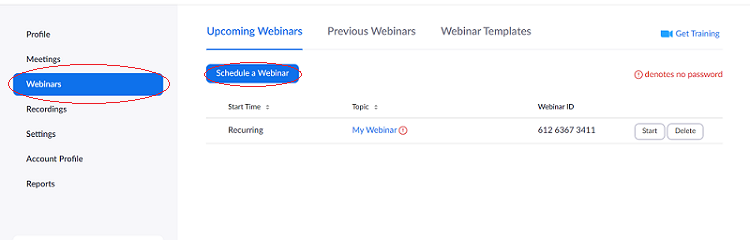
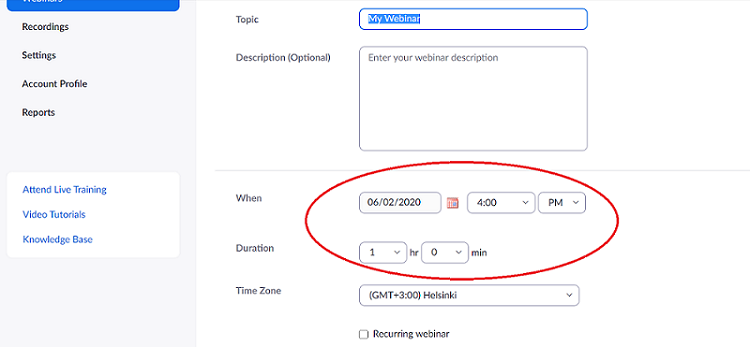
In the opened view enter the webinar name, an optional description, and importantly the webinar date and duration:
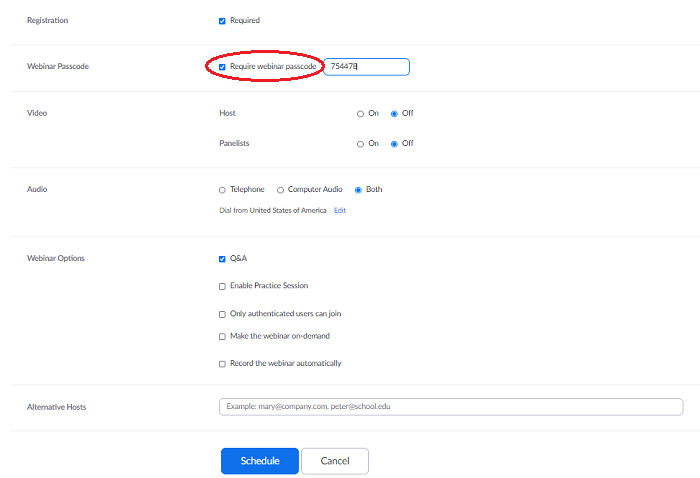
You cannot set a waiting room for a webinar. You can set a passcode for the webinar and this is recommended. After filling in the relevant fields for your webinar, click the Schedule button at the bottom:
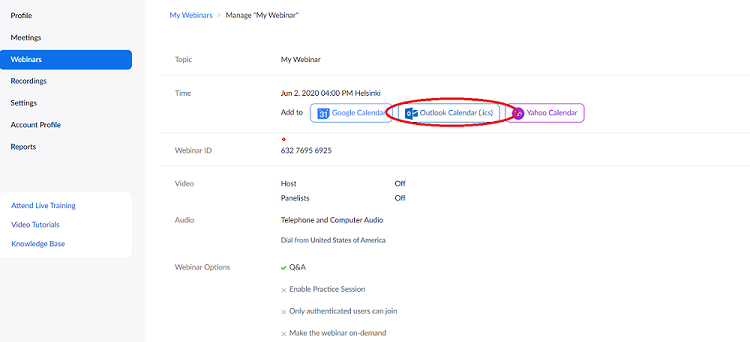
The webinar is now ready to use. You can easily create an Outlook event for the webinar which can be shared with participants via the Add to: Outlook Calendar (.ics) button:
To start the webinar, click the Start button for the webinar on the Webinars page.
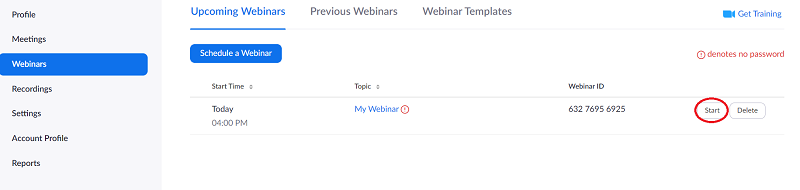
This opens the webinar’s Zoom room.
Q&A
The webinar Zoom room is almost identical to a regular Zoom meeting. The main differences in the interface are the Q&A (Questions & Answers) and Polls buttons at the bottom:
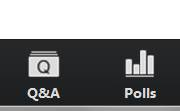
Q&A allows participants to pose questions to the presenters, which the presenters can answer either in writing or verbally. Written answers are private. The Polls feature allows you to present pre-created surveys to participants and collects the data on the webinar’s Zoom page. The Polls feature works the same way in regular meetings and webinars.
Practice session
Practice session is a temporary space before the webinar starts where the host, co-hosts and panelists can do last-minute planning for the webinar. Attendees cannot enter the Practice session. You can enable Practice session in the webinar settings. The Practice session looks like this:
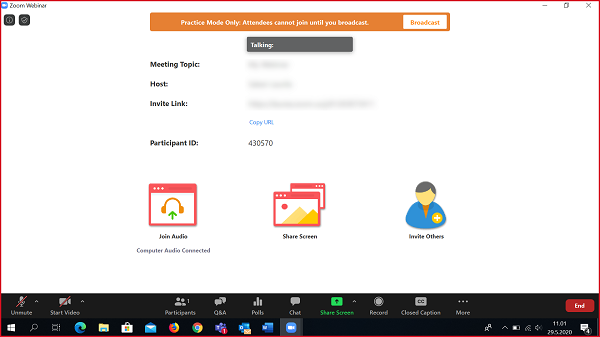
By pressing the broadcast button, the webinar begins and attendees can join.
Host, Panelist and Attendee
Unlike a regular meeting which has two participant roles (Host and Participant), webinars have three roles: Host, Panelist and Attendee. The webinar Host has full rights to the room. Hosts and co-hosts act simultaneously as hosts and panelists. Panelists have fewer rights than Hosts. They can share their screen and control their microphone for their presentation, but they cannot grant rights to others or change room settings. Attendees correspond to Participants and by default have only chat and Q/A. Hosts and co-hosts can give participants speaking rights, which allows participants to speak aloud.
As Host you can manage who are Hosts, Panelists or Attendees. To change participant permissions, click the Participants button in the bottom bar, then select either the Panelist tab (which lists Hosts and Panelists) or the Attendees tab (which lists all Attendees). Hover over the person, click More and select the new role:
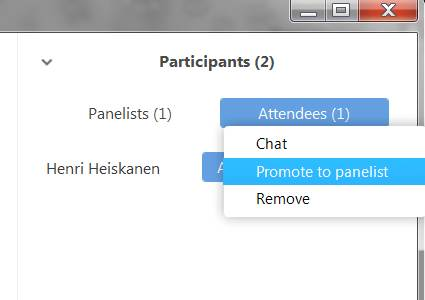
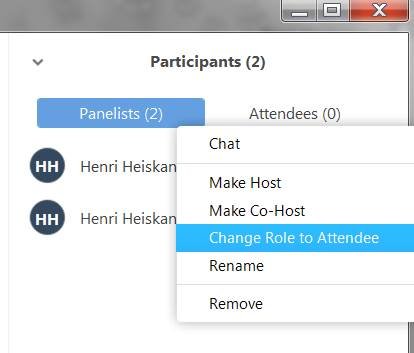
Attendees can only be promoted to Panelists. Once a participant has been promoted to Panelist, you can promote them to Host or Co-Host in the same way, or demote them back to Attendee:
Installing the Outlook add-in
Zoom’s instructions on this topic can be found here.
Installation (Browser version)
Note! If you install this add-in via the browser, it will automatically appear in the Outlook desktop version the next time the application is started.
1. Sign in at https://outlook.office.com/owa with your Laurea credentials.
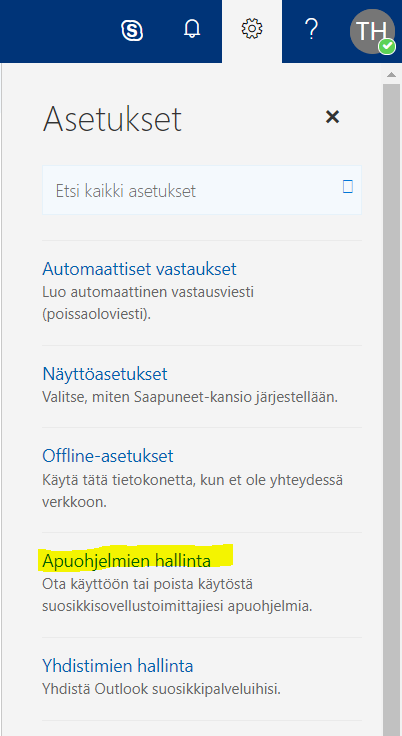
2. From the gear icon in the top right, choose Manage Add-ins.
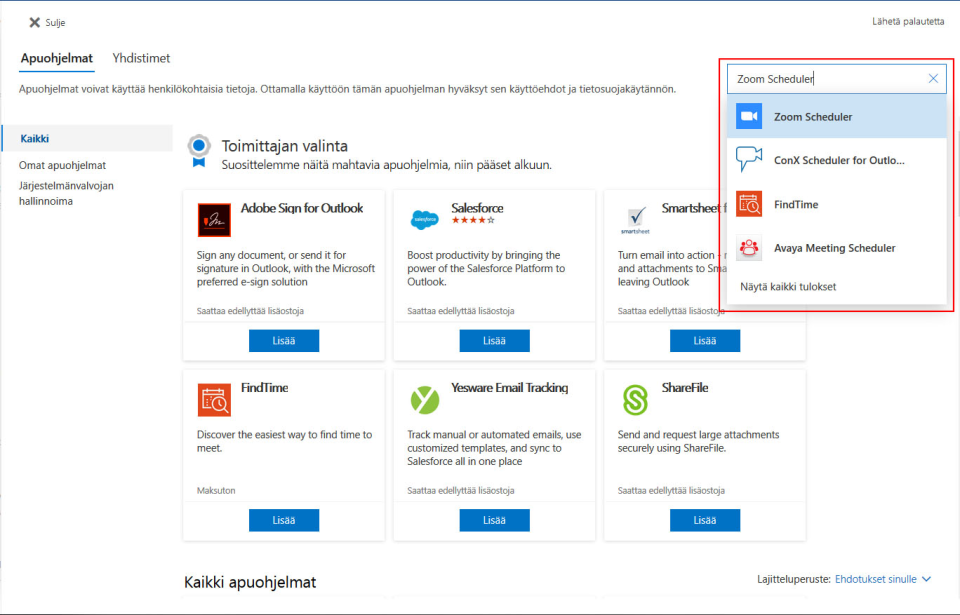
3. Type Zoom Scheduler in the search field and select it from the menu that appears below the search field.
4. Press the “Add” button.
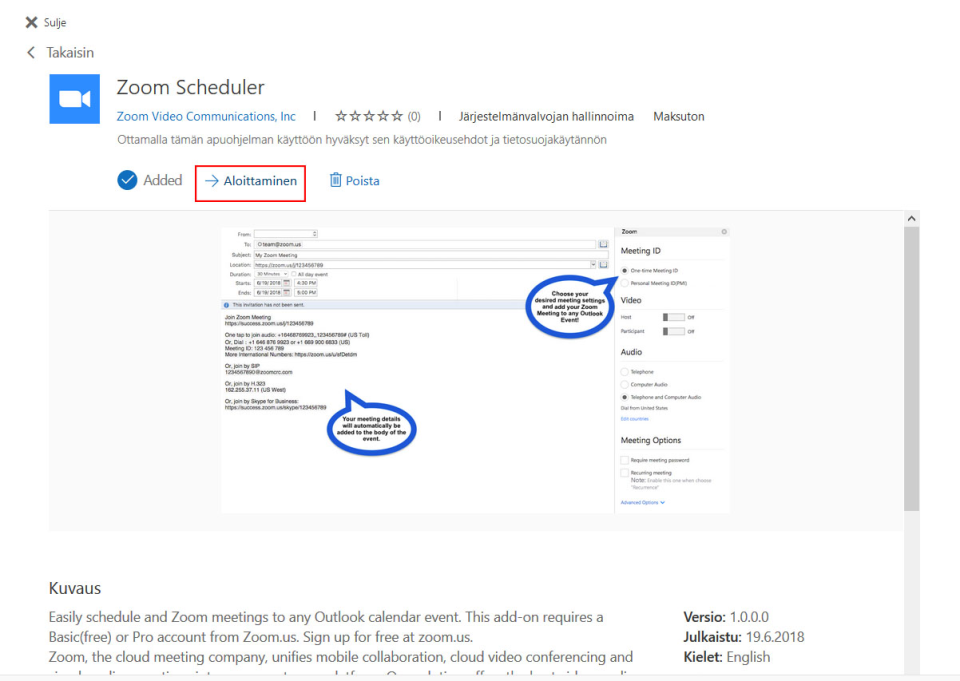
You are ready. When creating a calendar entry in the browser you will now see a small blue Zoom icon in the top bar.
Outlook desktop version

From the top bar go to Store – search for Zoom
If the add-in does not appear in the top bar immediately, restart Outlook.
Creating a Zoom meeting
1. Go to the calendar either in the browser or the app and start creating a new calendar entry.
2. Select Zoom Meeting from the top bar.
3. Zoom will likely ask you to sign in. Use SSO sign-in for this. When you press SSO sign-in, the app will ask you for a domain name. Enter laurea.
4. Choose the desired settings. Will you use a new room or your personal meeting room, what is the name, etc.
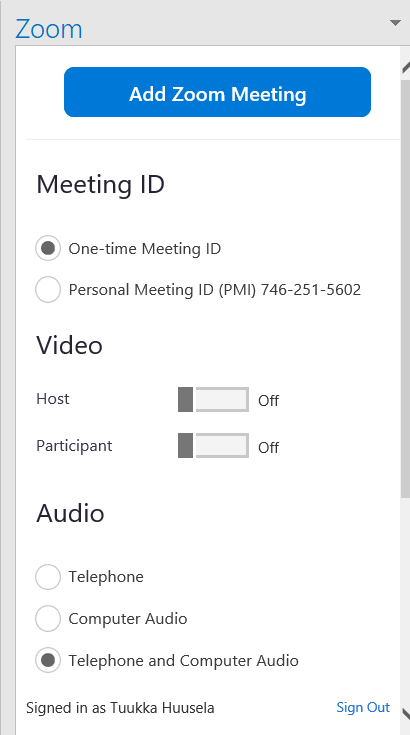
NOTE! The Outlook add-in can only create one-time Zoom meeting rooms or personal meeting rooms. The add-in cannot create recurring meeting rooms.
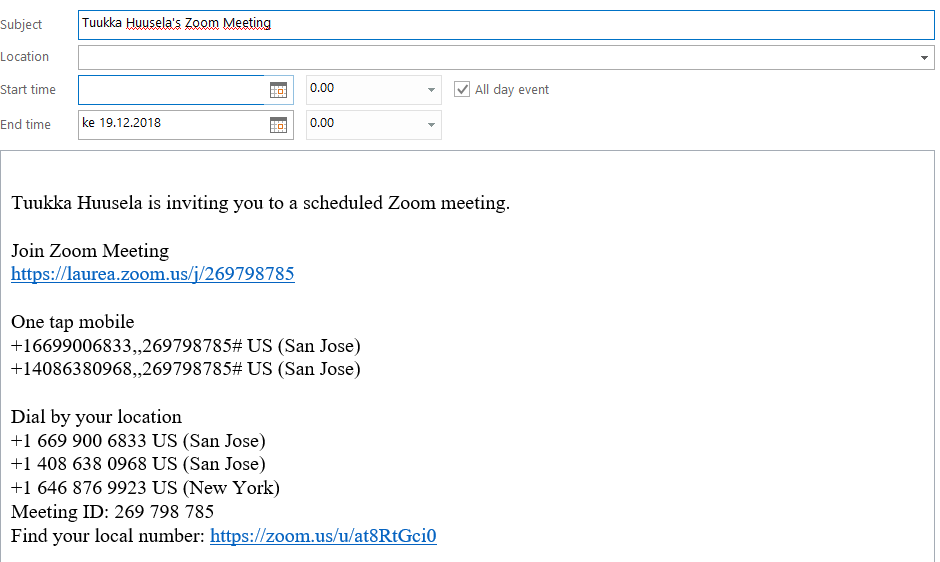
5. Press Add Zoom Meeting. You are now ready. The calendar entry will now look like this:
Alternative host / alternative moderator
Instructions on this topic on Zoom’s own pages can be found here.