
What is multifactor authentication?
Multifactor authentication is implemented with the Microsoft Authenticator app. If you cannot register Microsoft Authenticator using the instructions below or for any other reason, contact Laurea ServiceDesk.
Multifactor authentication protects your user account in situations where login credentials have been compromised, for example if someone else knows your username and password. Even if someone attempts to use your username and password, they cannot sign in to the account without the second factor — in other words, without approval in the mobile app. It also alerts the account owner to unauthorized activity when they receive an unexpected sign-in notification.
Good to know

When you change phones, keep the old phone until you have the Microsoft Authenticator working on the new one!
When you change your phone, Microsoft Authenticator must be reconfigured on the new phone. This is easiest when you still have the old phone in use. Register multifactor authentication on the new phone following the instructions below. Confirm the sign-in on the old phone. Once you have confirmed that Authenticator works on the new phone, you can go to https://mysignins.microsoft.com/security-info to ensure that the new phone appears in the list. You can remove the old phone from the list once you are sure the new one works.
If you no longer have the old phone available, or the Authenticator does not receive approval notifications for some reason, MFA must be reset. This can be done in Laurea’s IAM portal. Instructions for registering and resetting MFA can be found below.
Instructions for MFA and Authenticator
Registering multifactor authentication in Authenticator
1. Start by opening a web browser on your computer and go to: https://mysignins.microsoft.com/security-info
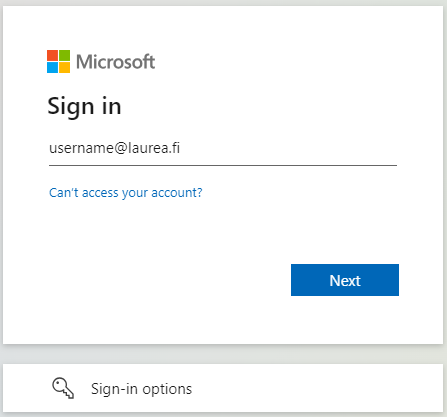
2. Sign in by entering your username in the form username@laurea.fi. Do not enter your email address. Click “Next”.
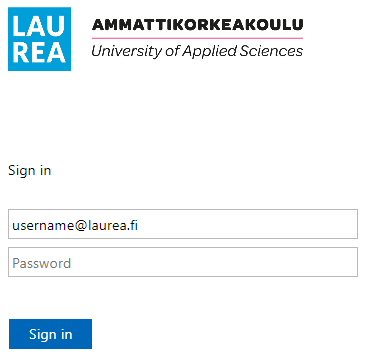
3. Then enter your Laurea password.
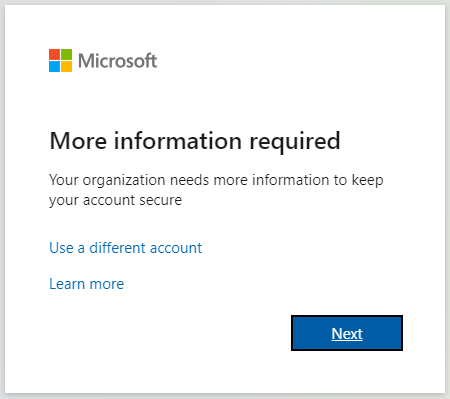
4. You will be asked for additional information to keep your account protected. Click “Next”.
5. Get the Microsoft Authenticator app from your phone’s app store for free. (Please allow the app to send notifications).
When you have the Microsoft Authenticator app ready, click “Next” on the computer.
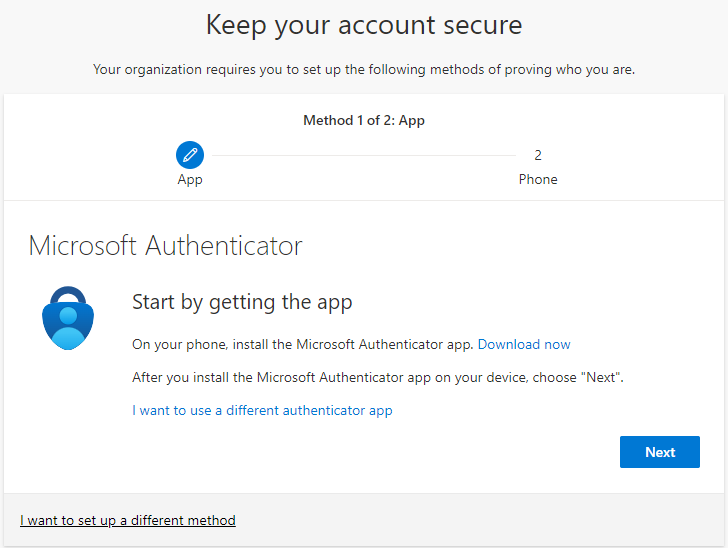
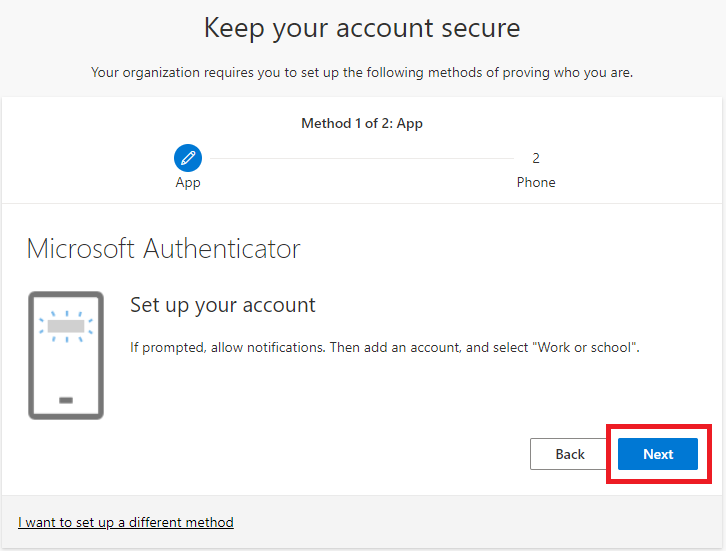
6. Select “Next”.
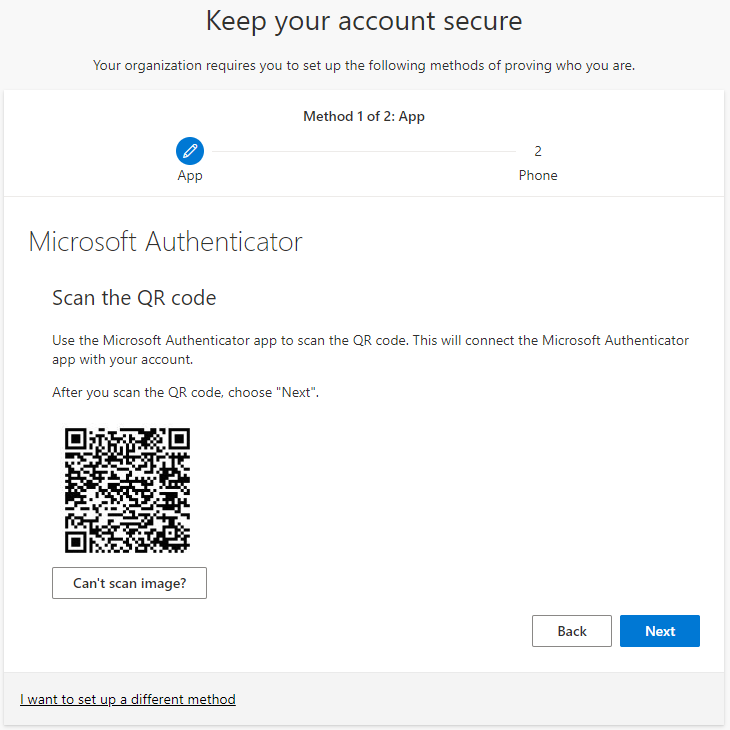
7. Next you will scan a QR code from your computer screen with the phone app. Do not navigate away from this window until you have completed steps 8-9.
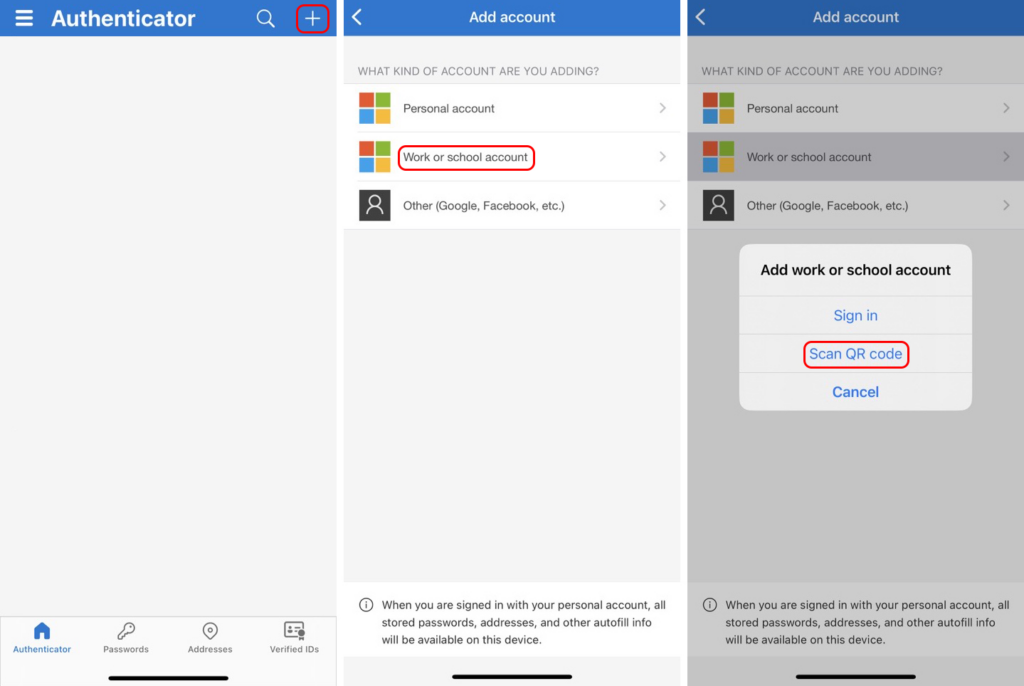
8. The phone views may vary depending on the device. In Microsoft Authenticator, tap the “+” in the top-right corner and choose Work or school account, then select the “Scan QR code” option.
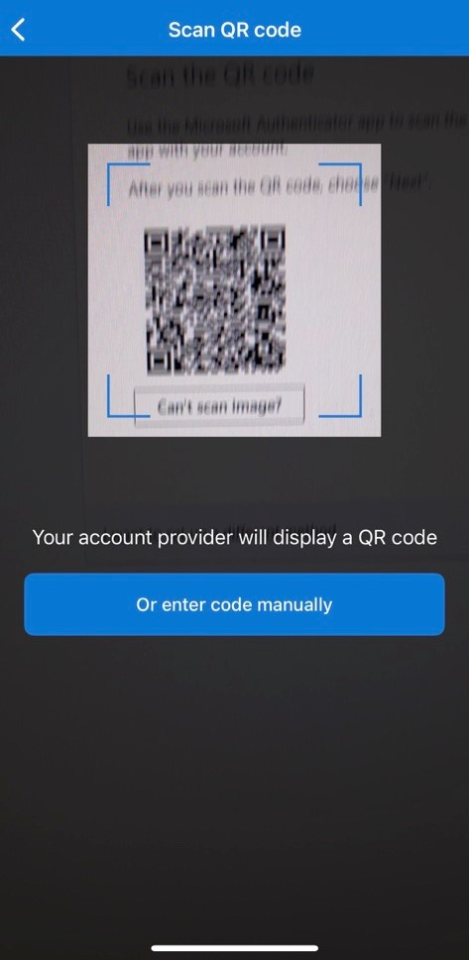
9. Scan the QR code displayed to you on your computer.
10. After scanning the QR code, click “Next” on the browser screen.
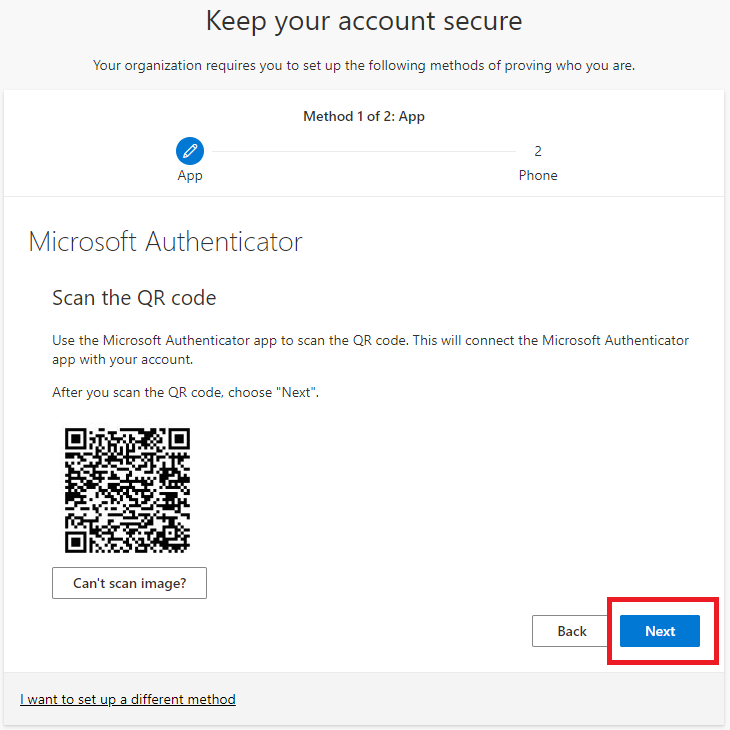
11. Next a view will open in the browser asking you to test the Authenticator.
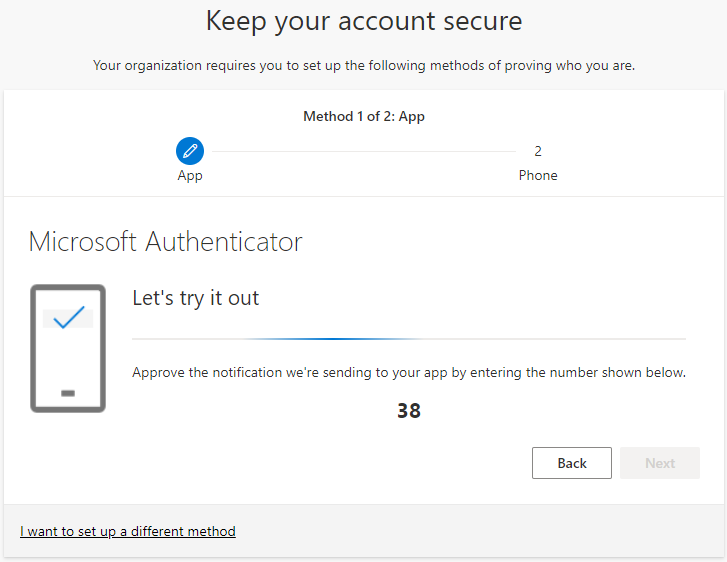
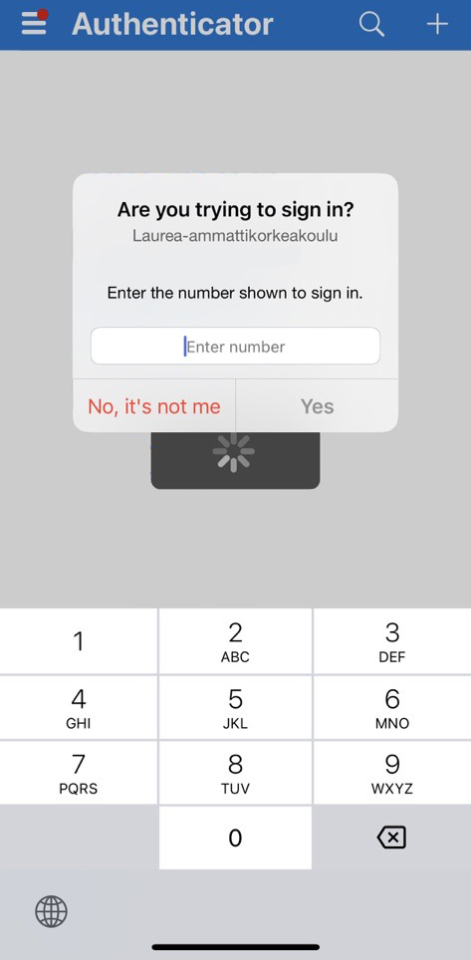
12. Enter the code shown on the computer screen into Authenticator on your phone and press “Yes”. You may need to wait a few seconds for this prompt.
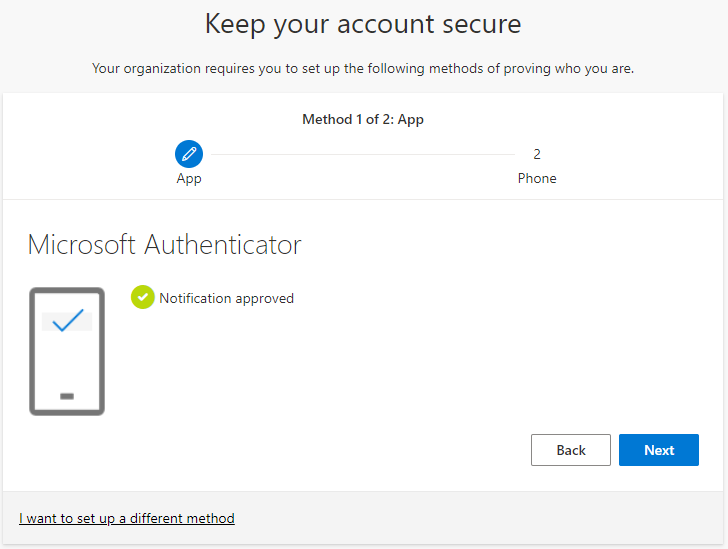
13. The notification is accepted once you have entered the correct code.
Instructions for resetting MFA
If for some reason you cannot use the multifactor authentication (MFA) you have set up, you can reset the authentication methods by logging in to the IAM portal via Suomi.fi authentication.
After logging in, select the Reset MFA button on the front page.
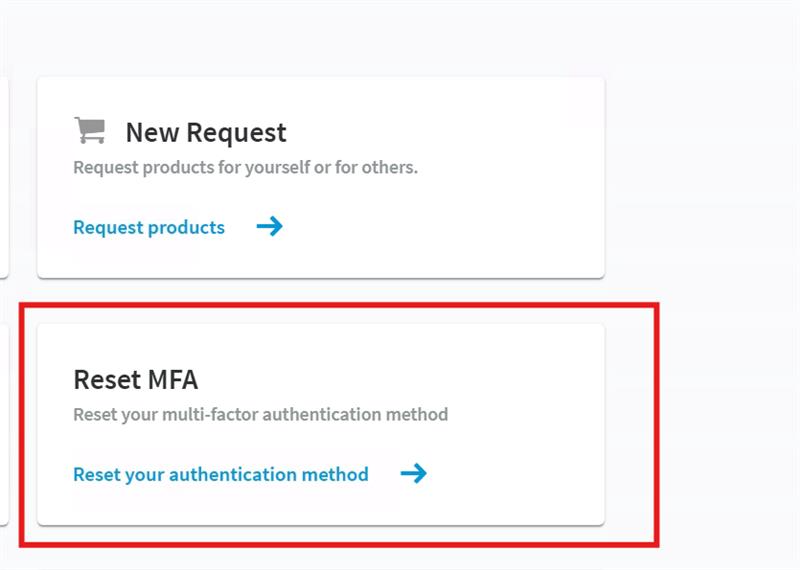
Then confirm that you are sure you want to remove all MFA authentication methods set on your Laurea account (Microsoft Authenticator, text message, etc.).
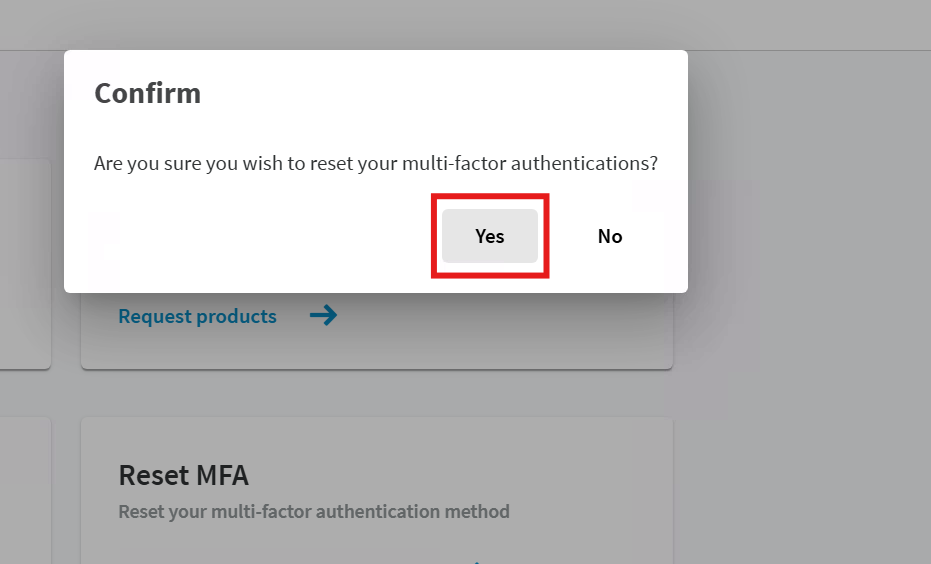
After this you can register MFA again by following the registration instructions above.
If for some reason you cannot reset two-factor authentication, contact Laurea ServiceDesk.
Common problems and solutions
I don’t receive any sign-in confirmation
- MFA must be reset in the IAM portal (see instructions above) and registered again
- If MFA still does not work after resetting, contact the ServiceDesk
I receive a sign-in confirmation that I do not recognize
If you cannot determine the cause, change your password immediately and contact the ServiceDesk!
Check whether there is any window open in your browser on the computer that is asking for sign-in confirmation
Check whether any app on other devices (phone) is requesting sign-in confirmation