
On this page
Before activating your user account
Activating your user account
Frequently asked questions
After activating your user account

Before you can use Laurea’s services, you must activate your Laurea user account.
With your user account you can access, for example, the following services:
- Pakki
- Canvas
- Microsoft 365
- Outlook
- Teams
Before activating your user account
Make sure you have one of the following authentication methods available:
- Finnish online banking credentials
- Mobile certificate
- Finnish Authenticator (international students outside the EU)
- eIDAS electronic identification (EU countries)
Read the terms of use before activating your accounts.
Activating your user account
Choose the option that applies to your situation from the choices below.
Option 1: I have Finnish online banking credentials or a mobile certificate
- Open https://iam.laurea.fi/
- Select the “Suomi.fi – Student” login.
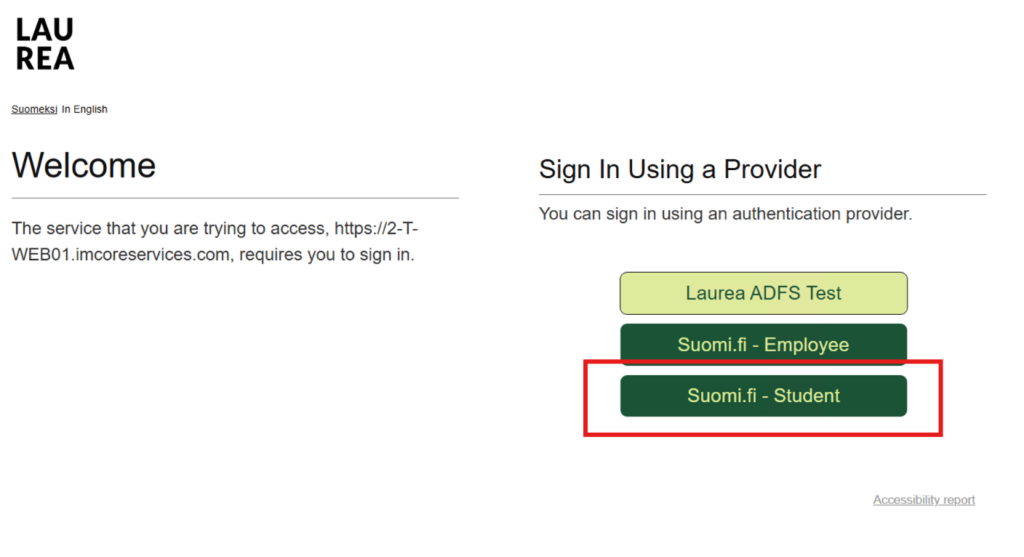
- Authenticate with online banking credentials or mobile certificate.
- After successful login you will be directed to accept the usage rules. Read and accept the usage rules.
- Check the password requirements.
- Set your password.
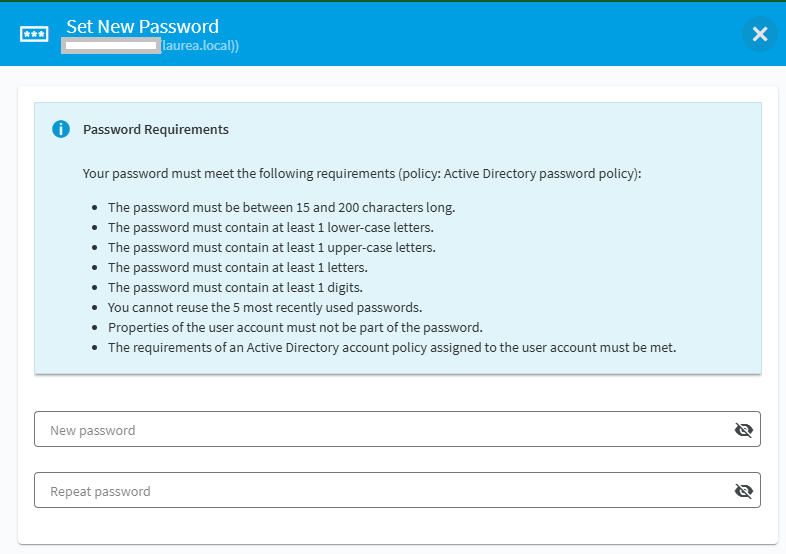
7. Save your user account information.
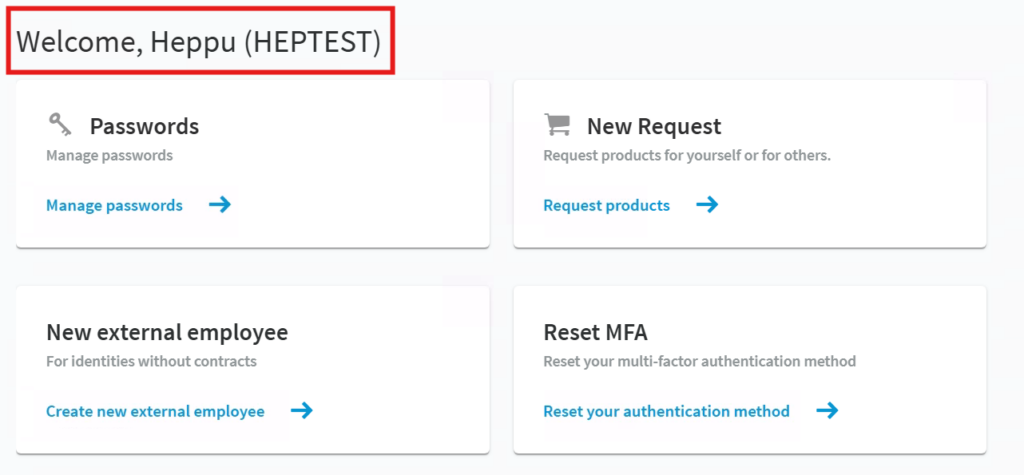
- After logging into the IAM portal you can see your user account on the homepage after the “Welcome” text and your first name
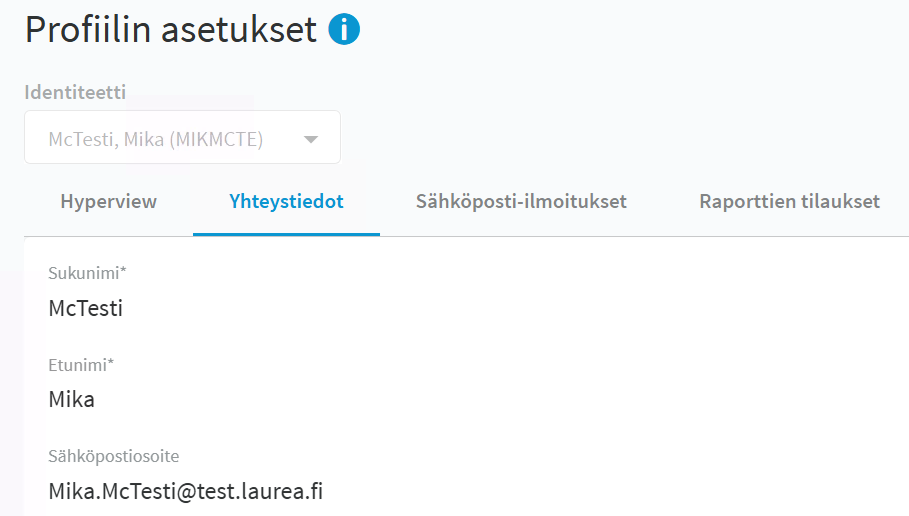
- Your email address can be found in your profile under the Contact information tab.
Important
When you log in to Laurea services, use:
ABC12345@laurea.fi
Do not use your student email address when signing in.
- Also remember to register multifactor authentication (MFA)
Option 2: I am an international student
Select this option if you do not have Finnish online banking credentials or a mobile certificate.
Before you start
Register Finnish Authenticator or use your country’s eIDAS authentication if possible.
Steps
- Open the IAM portal https://iam.laurea.fi
2. Select Foreign identification methods
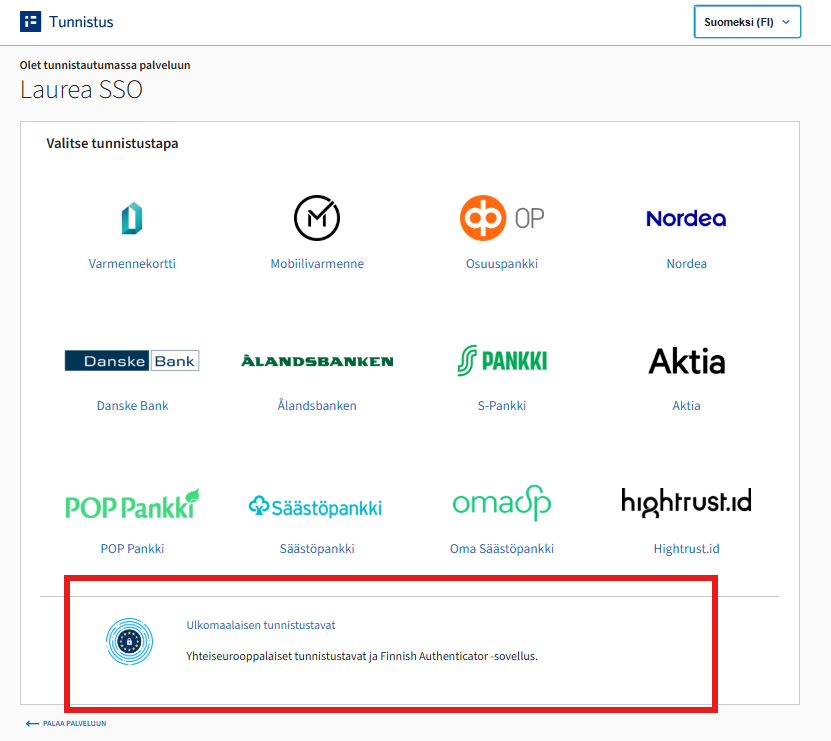
3. Choose:
- Finnish Authenticator, or
- your country’s eIDAS service
4. Complete identification
5. Check that your personal details are correct on the e-identification service’s page, then continue to the service
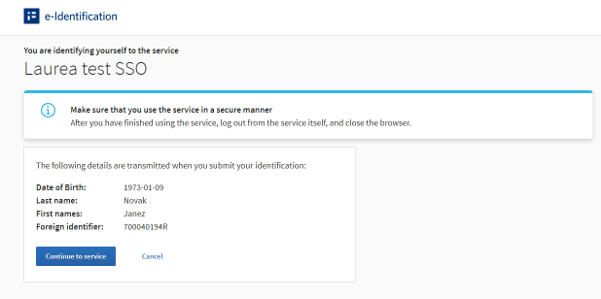
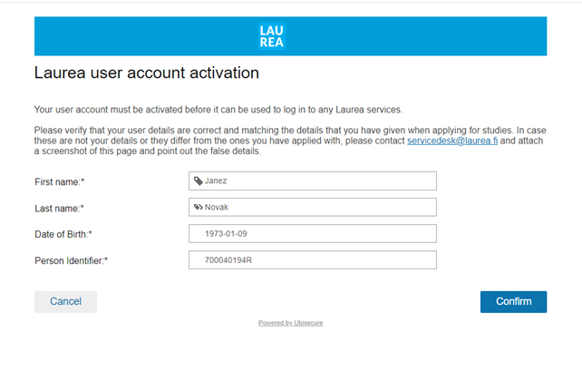
6. Check that your personal details are correct in the IAM service and that they match the information you used in your application to Laurea.
7. Your personal details will be shown once more together with your Laurea username.
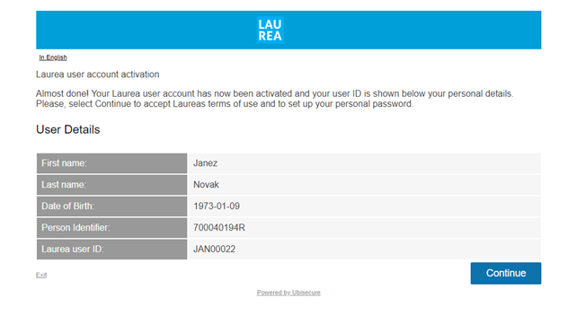
8. Accept Laurea’s Terms of Use.
9. Create your own password.
10. Save your username.
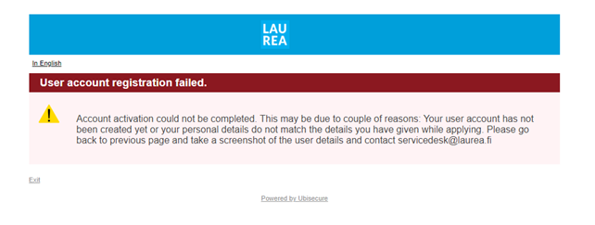
If you receive an error message, your user account may not yet have been created. The error may also be caused by the name you used in your application not matching the name in your passport or identity card. Check your acceptance email. It usually states how long processing your information will take before you can register and activate your user account. If you cannot activate your account after following the instructions, contact the ServiceDesk at servicedesk@laurea.fi.
Important
The name you use in the identification service must be exactly the same as the name you used to apply to study at Laurea.
If the names do not match, contact the ServiceDesk.
When logging in to Laurea’s services, use the username:
ABC12345@laurea.fi
Do not use your student email address to log in.
Also remember to register and enable multi-factor authentication (MFA).
Option 3: I cannot use any authentication service
Contact Student Services to obtain a one-time password.
Steps
- Receive your one-time password.
- Open the IAM portal.
- Select Log in with Laurea account (username and password).
- Log in using the one-time password.
- After this you will be directed to register multi-factor authentication (MFA).
- After registering MFA, return to the IAM portal.
- Read and accept the terms of use.
- Create a new password.
- Save your username and password in a secure place. Your username can be found in parentheses after your name.
Note. You need a username and password to log in to Laurea’s services.
The one-time password expires after seven (7) days.
Frequently asked questions
Are you looking for information on how to activate your account depending on the study you will attend? Below you will find answers for different types of education:
I am participating in an elective course
Activate your user account according to the schedule announced by email.
Activate your user account using option 1 or 2 as instructed.
I am an Open UAS student (individual courses/pathway studies)
You will receive an email when you can activate your Laurea user account using option 1 – according to the instructions.
Note. If you already have a valid Laurea user account, you do not need to activate it again.
I have been offered a place in degree-awarding education
Before activating your user account make sure that
- You have accepted your study place.
- You have enrolled for the academic year/term by the deadline.
- Activate your user account in time, as you will need it before the first session for the online orientation assignment.
- See more if needed from the new student’s checklist.
Activate your user account using option 1 as instructed.
If you have problems activating the account, try again the next day.
After activating your user account
Remember to register two-factor authentication (MFA).