
On this page
Secure printing
Installing the printer on your device
Releasing print jobs on a multifunction device
Scanning to your email
Copying
Print balance
Project prints
Printing FAQ
Printing
At Laurea you can print using the Konica Minolta multifunction printers available on all campuses. Printing works conveniently as FindMe printing, meaning you can send a job to the print queue and release it at any Laurea printer by logging in to the device.
Secure printing
Laurea uses secure printing. When printing, print jobs will not be released from the device until you authenticate and release them. Authentication is done using your username and password. Credentials can be saved to a contactless card; instructions for saving credentials to a contactless card can be found on the student intranet (login required). Jobs remain in the queue for 240 minutes and are then automatically deleted.
If the card is lost, the stored credentials must be overwritten for security reasons. Instructions for overwriting can be found on the student intranet (login required).
Installing the printer on your device
Windows, Mac and Chromebook
- Open the following page in your computer’s browser: Papercut Mobility Print Cloud – Setup
- Follow the instructions shown on the page. The page detects which device you are using. If the page gives instructions for the wrong device, you can select your device’s instructions at the bottom of the page.
iPhone, iPad and Android phone
- Open the page on your phone: https://print.laurea.fi:9164/setup or scan the QR code below:
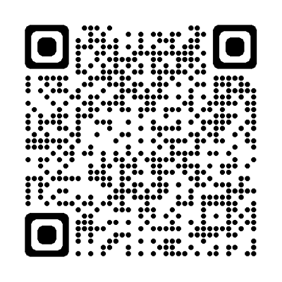
- Follow the instructions shown on the page. The page detects which device you are using. If the page gives instructions for the wrong device, you can select your device’s instructions at the bottom of the page.
You can find detailed device-specific instructions for installing the printer on the student intranet (login required).
Releasing print jobs on a multifunction printer
- Authenticate at the printer with a contactless card or enter your username and password using the touchscreen. After logging in, you will receive a notification of print jobs in the queue
- Confirm the login by pressing the OK button
- The jobs to be released can be found under the Release button in the main menu or under the APP menu, depending on the device model
- The menu lists all print jobs in the queue. You can print all at once by selecting “Select all” or print them individually
- Select the jobs you want and press the Start button to print
- Finally, log out of the device and remember to confirm the logout
Scanning to your email
- Authenticate at the printer with a contactless card or enter your username and password using the touchscreen
- Place the document to be scanned in the feeder or on the glass
- Select Scan
- Select E-mail Me
- Change settings if necessary and start the scan by selecting Start
- You will receive the scanned page to your email shortly
- Finally, log out of the device and remember to confirm the logout
Copying
- Authenticate at the printer with a contactless card or enter your username and password using the touchscreen
- Place the document to be copied in the feeder or on the glass
- Select Copy
- Select the number of copies and any other required settings and press the Start button to begin copying
- Finally, log out of the device and remember to confirm the logout
Print balance
Each student is provided with 42 € of print credit. Additional credit can be purchased from the student services.
Prices starting from:
- A4 page black and white 0.06 €
- A4 page in color 0.14 €
- Double-sided page 0.01 € discount per page
- A3 page black and white 0.12 €
- A3 page in color 0.28 €
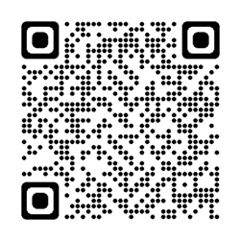
You can see your remaining print balance by logging in to the printer or by visiting https://print.laurea.fi:9192. You can also scan the QR code below with your phone’s camera:
Project prints
Prints related to project work are credited to students with prepaid print cards, which the responsible teacher collects from reception services.
To redeem the credit, log in at https://print.laurea.fi:9192 and enter the code found on the prepaid card on the Redeem Card tab.
Printing FAQ
Printing FAQ
How do I log in to a multifunction device?
Log in to the device using your username without the @laurea.fi suffix.
Where can I print?
Students and staff can print to all Konica Minolta multifunction printers. Staff can also print to smaller network printers.
Can I print from my laptop or mobile device?
Yes, printing is possible from the following devices -> iPhone, iPad, Mac, Android Phone, Windows and Chromebook.
How do I add the printer?
a) For Windows, Mac & Chromebook users, add the printer via the link Mobility Print Cloud – Setup
b) For iPhone, iPad and Android Phone users: https://print.laurea.fi:9164/setup
Is printing free?
No. Laurea provides students with 42 € of print credit and it is possible to purchase more from the student services. Pricing is as follows ->
- A4 page black and white 0.06 €
- A4 page in color 0.14 €
- Double-sided page 0.01 € discount per page
- A3 page black and white 0.12 €
- A3 page in color 0.28 €
What does secure printing mean and how does it work?
A print job does not print automatically; it must be released from the device. You log in to the device with your username and password. Print credit is charged only for released print jobs.
I didn’t release my print job; will I be charged?
No, you are only charged for released jobs.
How long are print jobs stored?
Print jobs remain in the queue for 240 minutes and are then automatically deleted. You will not be charged.
Do I need to be on the campus network to print?
- Students can print from any network.
- Mac users can print from any network using Mobility Print Cloud – Setup
Can I print from home and release the job later?
Yes, print jobs remain in the queue for 240 minutes.
Who can print?
Students and staff. Printing is tied to the user’s Laurea identity, i.e., the username. Students who have Laurea user accounts automatically receive 42 € of print credit.
I was charged erroneously due to a printer malfunction; what do I do?
You can request a refund from the student services.
What should I do if the printer has a paper jam, is out of toner, or out of paper?
Ask for help from Reception services or the campus hosts. Do not attempt to clear the jam or add paper yourself.
Can I save my credentials to any contactless card?
Yes, if the card reader can read the card and offers to save the username and password. Instructions for saving credentials to a contactless card can be found on the student intranet (login required).
Where can I see my print balance?
By logging in to the printer or by visiting https://print.laurea.fi:9192/
I am graduating and still have print balance. Can I get a refund of the remaining balance?
No, remaining balance is not paid out to the student.
Why can’t I log in to the printer with my credentials?
The password must not contain the characters å, ä, or ö; the printer does not recognize them.
I added the printer to my Windows machine but cannot print?
Make sure you installed the printer using the correct link.
a) For Windows, Mac & Chromebook users, add the printer via Mobility Print Cloud – Setup
b) For iPhone, iPad and Android Phone users: https://print.laurea.fi:9164/setup
Is scanning to email charged?
No, we only charge for printed papers.
Why doesn’t https://print.laurea.fi:9164/setup open on iPhone or iPad?
The print queue installation only works in Safari. If the page reports permission errors, clear the browser cache according to these instructions and try again: Delete your Safari history, cache, and cookies on iPhone – Apple Support
What should I do if the card is lost?
The credentials stored on a card used for printing must be overwritten if the card is lost. Instructions can be found on the student intranet (login required).