
Why online exam proctoring?
The solution enabling proctored online exams is part of Laurea’s digital strategy and aims to allow exams to be taken flexibly and securely off campus alongside traditional on‑campus exams. Exams that require presence have caused challenges for blended and online studies that are taught across Finland.
The written exam is taken on the Canvas learning platform using the Proctorio proctoring tool. You can take the exam on a computer using the Google Chrome browser, to which you must install the Proctorio extension before the exam (the extension installation can be found in the workspace as a Proctorio tab when Proctorio has been installed to the workspace/exam). Proctorio activates when you log in to the exam and stops functioning when you exit the exam.
During the exam, the Proctorio program monitors your movements and sends video and other data to the teacher for review. Proctorio flags parts of the video where suspicious activity occurs. The teacher can review the video/other data after the exam and decide on any follow‑up actions if they consider them necessary. Only the course teacher handles the recordings.
Preparing for the exam
You must have the following available:
- Check your computer and internet technical requirements on Proctorio’s page: https://proctorio.com/support/requirements
- A laptop or desktop computer (a phone or tablet is not acceptable)
- A webcam and microphone on the computer. Headsets are not allowed.
- A working and stable internet connection
- if the Wi‑Fi connection is poor, use an Ethernet cable
- Ensure you have only one monitor connected. Multiple monitors may interfere with exam monitoring. Disconnect extra monitors from your computer for the duration of the exam.
- Google Chrome browser (other Chromium‑based browsers, such as Edge and Brave, also work) with the Proctorio extension. Install Chrome here and the Proctorio extension here
- Make sure the browser is updated to the latest version.
- Clear the browser cache. Instructions for clearing the cache.
- Check that your browser allows third‑party cookies; otherwise the Proctorio extension or parts of the exam may not load and you may not be able to take the exam. More detailed instructions on checking browser settings in Canvas student help
- If you have a Mac computer, make sure in your system settings that the browser you are using has permission for screen recording (System Preferences > Security & Privacy > Privacy > Screen Recording). If your Mac does not allow changes, first click the lock icon at the bottom left of the same window to enable changes. Instructional video on Firefox
- Proctorio will request permission to use the camera and microphone via the browser. If these permission prompts do not appear, you can set the permissions in your browser settings. Google Chrome’s instructions are available here.
- A quiet exam location with no other people or pets
- The room should have good lighting so the camera works
- A photo ID, driver’s license or passport for identification if required (the teacher will inform you if identity will be checked)
NOTE! The criteria listed above are prerequisites for participating in the exam. Without these you may have difficulties participating in an online proctored exam.
Other important notes before the exam:
- Use the restroom before the exam, as you cannot leave the exam session.
- The exam is taken without assistants or aids: no other students in the same room, no phones, tablets or other technical aids.
- If you have a certificate of reading and writing difficulties, show it to your teacher before the exam and agree on arrangements such as extended time. If you have other special needs, contact the teacher before the exam.
Starting the exam
- Open Google Chrome with the Proctorio extension installed
- Close all other programs and browser tabs on your computer
- Including Grammarly, Pinterest, AdBlock Plus and blockers
- Log in to the Canvas platform https://canvas.laurea.fi with your Laurea credentials (your username and password)
- If the exam requests an access code, you either do not have the Proctorio extension installed, it is not enabled, or your Google Chrome is not updated to a recent enough version. Check the extension and update your browser. If this does not help, clear Chrome’s cookies and restart the browser. If it still does not work, try using Microsoft Edge, which also has a Proctorio extension. More troubleshooting guidance can be found on the Frequently Asked Questions page.
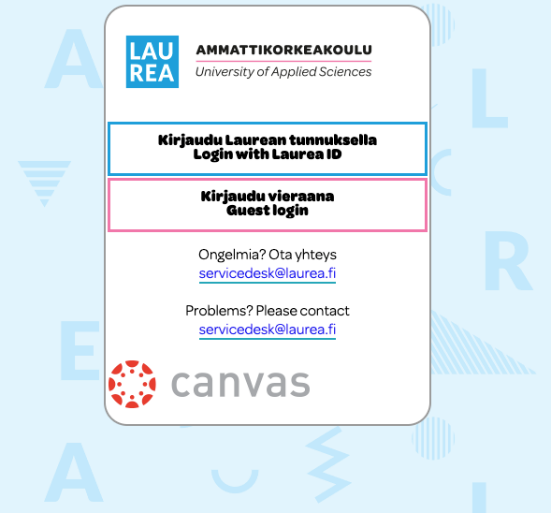
- From the left menu choose Courses and go to the course workspace for the course unit and open the exam during the exam time.
- Start the exam by selecting Take quiz/Suorita kysely
- If your browser does not have the extension, you will see the warning shown below:

- By selecting Click here, you can add the Proctorio extension to your browser.
- After that, the Proctorio icon should appear next to the address bar at the top of the browser, after which you can return to the exam and start it.

- When you open the exam, a text explains what is forbidden and what Proctorio monitors on your computer. Start the pre‑test by pressing the pretest button.
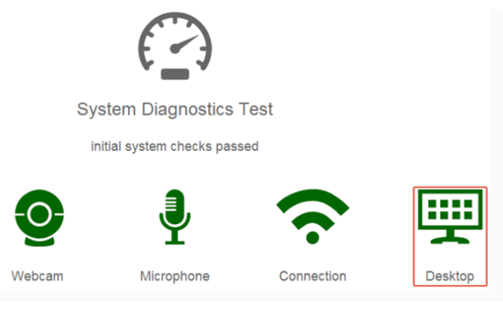
- First Proctorio tests that your webcam, microphone, internet connection and screen sharing (desktop) work
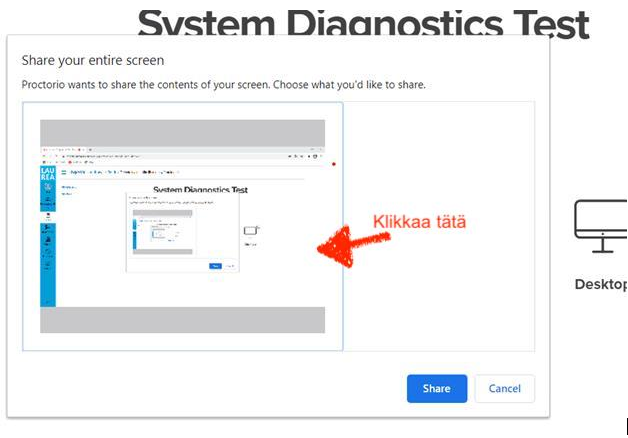
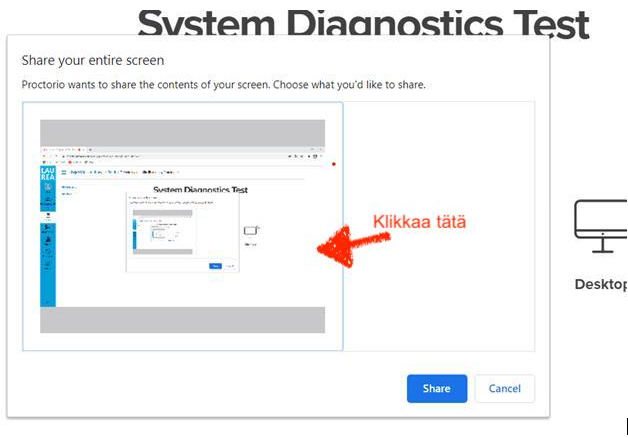
- Screen sharing (desktop) is activated by selecting/clicking the screen share box with the mouse. In the picture below screen sharing is activated when it has blue borders and the Share button at the bottom has changed from grey to blue
- When the technical test has passed, Proctorio will ask you to show your ID to the camera and it will take a photo of it.
- Finally Proctorio will take a photo of your face. The room lighting should be good, sit upright facing the camera and look directly at it.
- After this you can proceed to the actual exam.
Monitoring during the exam
Proctorio monitors camera video, audio via the microphone and the view of your screen. It can not access other parts of your computer or read your files.
Proctorio records the following as prohibited behaviours:
- Opening other programs, browsers or browser windows on your computer (unless the use of other programs has been explicitly allowed, such as Excel for tasks that require it)
- Saving or downloading files and printing during the exam
- Using more than one monitor
- Turning your gaze or head away from the computer screen
- Excessive speaking (e.g., to another person) and noises (e.g., phone notification sounds)
- Other people in the room
Proctorio may warn you about undesired behaviour, but even if it does not interrupt the exam, your exam will be recorded until you exit the exam. If you open other programs, browsers or browser windows, Proctorio may end the exam and you will not be able to return to it (unless the use of other programs is explicitly allowed in the exam).
Finishing the exam
When you have answered the exam questions, select the Submit quiz button. You can then exit the exam and close Canvas. Proctorio will stop operating when you leave the exam.
Exam cheating
- After the exam, the teacher reviews Proctorio’s flagged notes indicating suspected cheating in the video recording.
- If it is determined that cheating occurred during the exam, the teacher will contact the student.
- Laurea treats exam cheating very seriously.
Actions in case of cheating
In cases of exam cheating the invigilator removes the student from the exam session and reports the matter to the examiner and the unit director. Cheating always results in failing the exam and loss of the exam attempt.
According to the degree regulations, a person found guilty of cheating may be punished either with a written warning or with temporary expulsion for a fixed period of up to one year. Before deciding on a sanction, the act or omission giving rise to the sanction must be identified, the necessary investigation obtained, and the student given an opportunity to be heard. The written warning is decided by the university of applied sciences’ President and decisions on temporary expulsion are made by the Laurea Board (L 932/2014, 39 §).
Data protection
Proctorio is a secure program specialised in proctoring online exams. The collection and storage of data comply with the EU GDPR data protection regulation. The servers are located within Europe. Only the teachers responsible for the exam and, if necessary, Laurea Service Desk support staff can view the online exam video recordings. In the event of a suspected cheating incident, the video recording is used in Laurea’s internal investigation. All data collected by Proctorio, including video recordings and photos, are deleted automatically 6 months after the exam. Deletion is final and no data can be restored afterwards.
Although a browser extension is installed for the exam, Proctorio does not have the ability to take full control of your computer; the permissions requested by the extension are described during installation. You can also read them here. Proctorio’s security has been extensively evaluated at Laurea and found to be at an adequate level. User data/recordings are encrypted both during transfer and while stored, so even Proctorio cannot access them. More information about Proctorio is available on their pages.
Frequently asked questions and common problems
Proctorio asks for a password when you try to join the exam
- Make sure you are using Chrome to take the Proctorio exam.
- Navigate once away from the exam by clicking the course start page (Canvas left menu) and then back to the same exam.
- Make sure your browser is updated to the latest version.
- Clear Chrome’s cookies and cache.
- Remove and reinstall the Proctorio extension in Chrome.
- Disable other extensions and keep only Proctorio active.
- Ensure Proctorio permissions have been granted for each website in the Proctorio extension settings.
Proctorio freezes when you try to share your screen
As shown in the image, first select the image of your screen and then click the “Share” button.
Error message “Waiting for Canvas”
- Check that your internet connection is stable.
- Ensure you do not have other tabs open in the browser.
- Try switching to another network if possible (remember to check that the network is stable).
- Make sure the browser is up to date.
- Clear Chrome’s cookies, cache, site settings and hosted app data and then try to open the exam again.
- Allow third‑party cookies; guidance in Canvas: Enabling third party cookies in browser
- Check that you do not have other programs or applications running in the background; if so, close them.
- Try restarting your computer and router (the router should be turned off for at least one minute).
- Download the Edge browser and the Proctorio extension for it (https://microsoftedge.microsoft.com/addons/detail/proctorio/pjocddipjlkokifpnnbmjemienmelhak).
Do browser extensions interfere with Proctorio?
Some extensions may interfere with Proctorio’s operation. Examples include Grammarly, Pinterest, AdBlock Plus and blockers. Disable extra browser extensions when taking a Proctorio exam.
Proctorio exam freezes or ejects you during the exam
Clear the browser cookies and cache, restart the browser and try to rejoin the exam. If the teacher has enabled returning to the exam, you can continue the exam.
If you cannot rejoin the exam, contact the course teacher.
My internet connection is unstable or drops
If the internet connection is unstable it may cause disconnections from Proctorio’s servers and Proctorio may not function correctly. If Wi‑Fi is poor, Proctorio recommends using a wired internet connection (Ethernet cable).
You can also try the following:
- ensure you are not downloading large files and that no other program or application is using the internet connection
- move closer to the router
- clear the browser cookies and cache
- restart the router/modem
You get the error “HTTP Error 400 The size of the request headers is too long”
- clear Chrome’s cookies/cache or use another browser (Edge or Brave)
- if you have an old computer, Proctorio may complain about too little RAM (minimum available RAM on Windows is 2 GB)
- a VPN may block Proctorio, so disable it
A computer managed by another organization prevents Proctorio from starting
Contact your organisation’s IT services and ask about lifting a possible block.
Another option is to use a different computer, for example your personal computer, to take the exam.
If another problem occurs or the steps above do not solve the issue, contact Proctorio support chat, call the Service Desk at (09) 8868 7112 or email servicedesk@laurea.fi.