
When working in Canvas, it is important that you use the latest updated browser so that all functionalities work correctly. Canvas generally recommends using Chrome or Firefox.
Accepting the course invitation
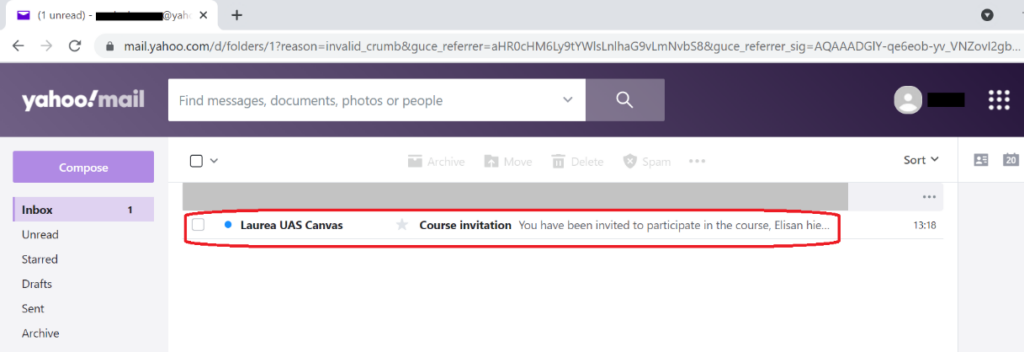
1. A course invitation is sent to your email
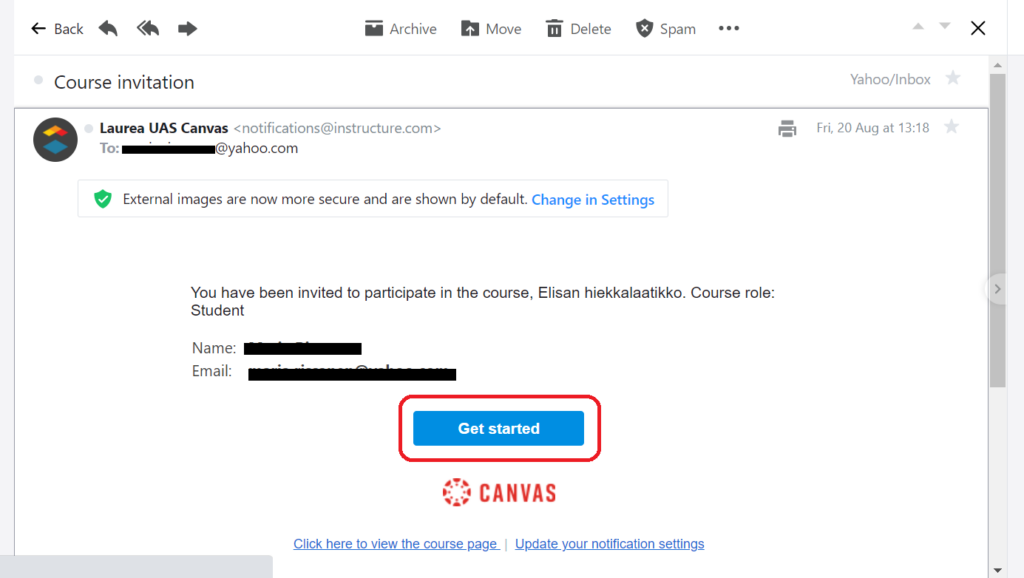
2. Open the email invitation. Proceed by clicking the blue Start button.
3. By pressing the Start button you will be taken to the Canvas view.
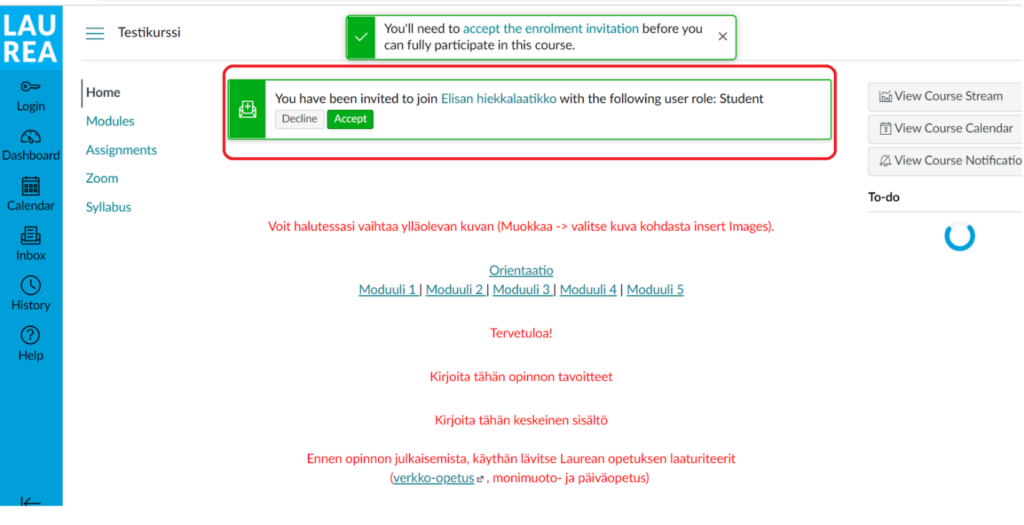
4. In Canvas you will see a green bar at the top of the page where you can accept the course invitation. Press the green Accept button. You can browse the course content without enrolling, but to participate in the course you must accept the enrolment invitation.

5. After this you will be given the option to log in to Canvas with existing credentials or create a new user account.
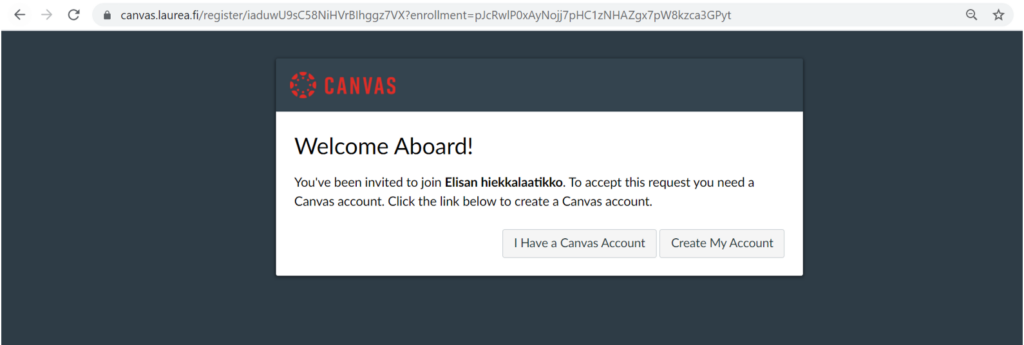
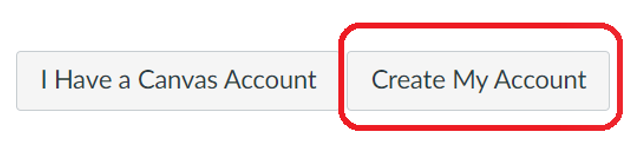
- If you do not already have any Canvas credentials, choose the option Create My Account.
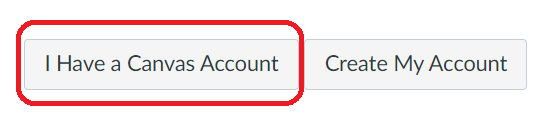
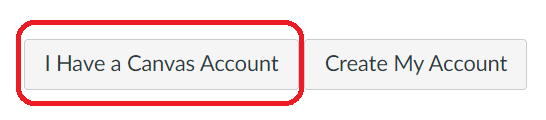
- If you already have Canvas credentials, choose the option I Have a Canvas Account. Go to the section Logging in with an existing account in the instructions. You can log in to Canvas with guest credentials or Laurea credentials.
Note that if you have previously participated in a Laurea Canvas course, you should already have credentials.
Creating a Canvas account
1. If you do not yet have Canvas credentials, create them by clicking the Create My Account button.
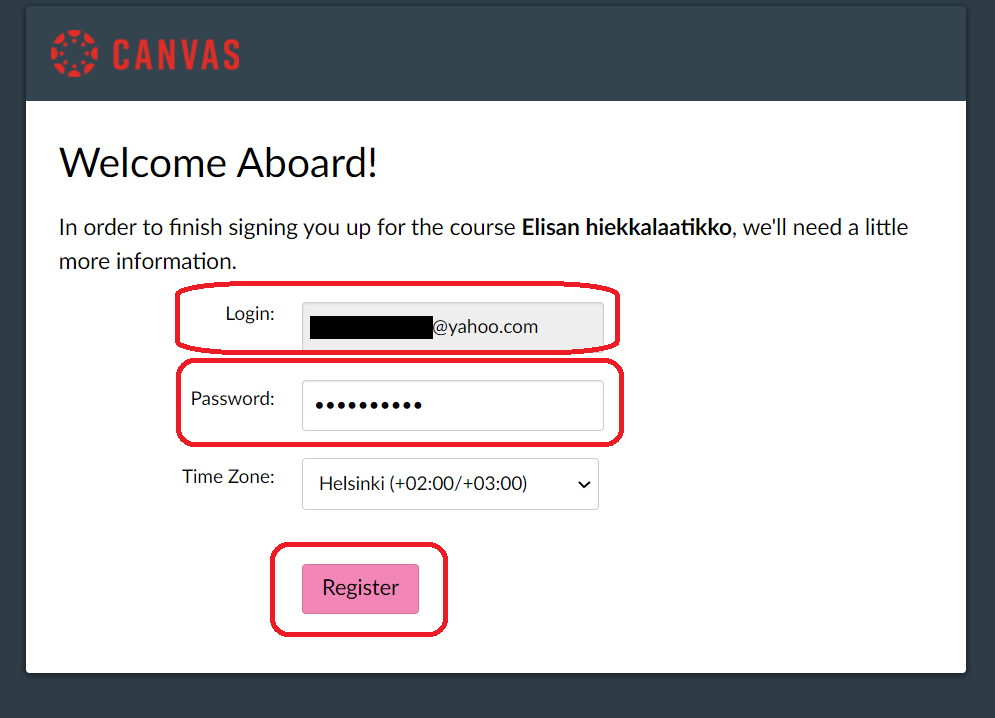
2. Enter in the Login field the email address where the course invitation was sent and create a secure password for yourself. Then click the Register button.
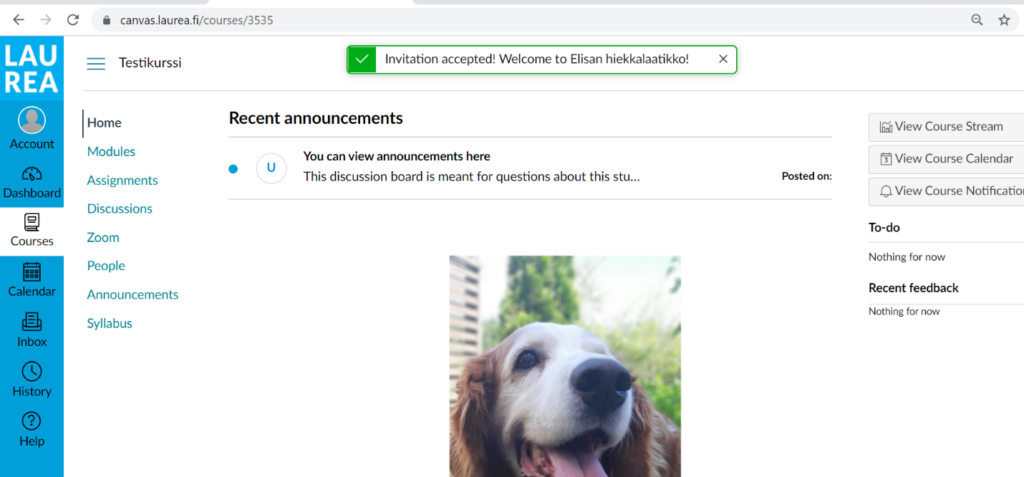
3. You will then access the Canvas course view and can begin the course.
Logging in with an existing account
Logging in to Canvas as a guest
1. If you already have guest Canvas credentials, choose I Have a Canvas Account.
2. Choose the option Log in as a guest.
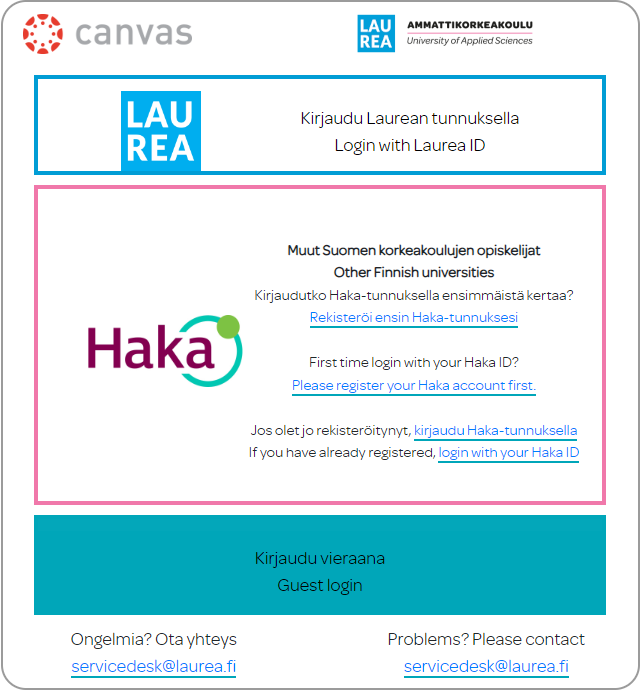
3. Enter your email address and password in the fields. Then select Log in.
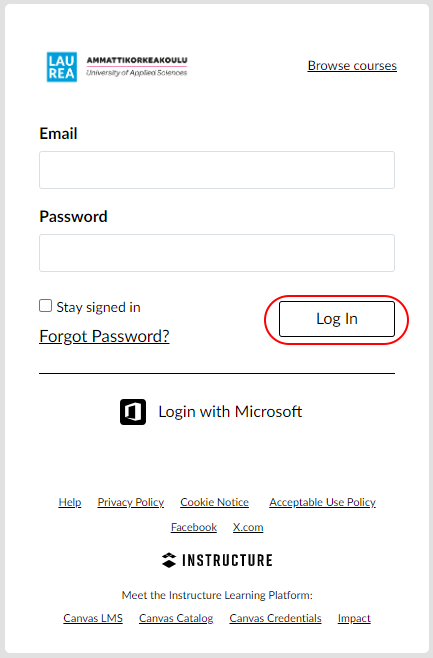
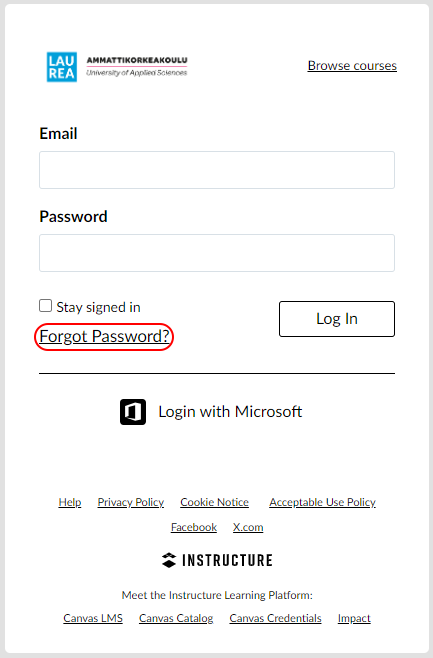
If you have forgotten your password, click the Forgot your password? button. Enter your email address in the field and click the Request password button.
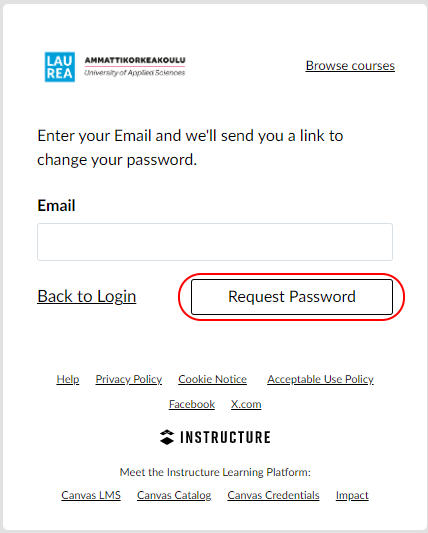
You will receive an email with a link where you can change your password. Also remember to check your spam folder. After changing the password you can log in to Canvas as a guest with your new password.
Logging in with Laurea credentials
1. If you already have Laurea Canvas credentials, choose the option I Have a Canvas Account.
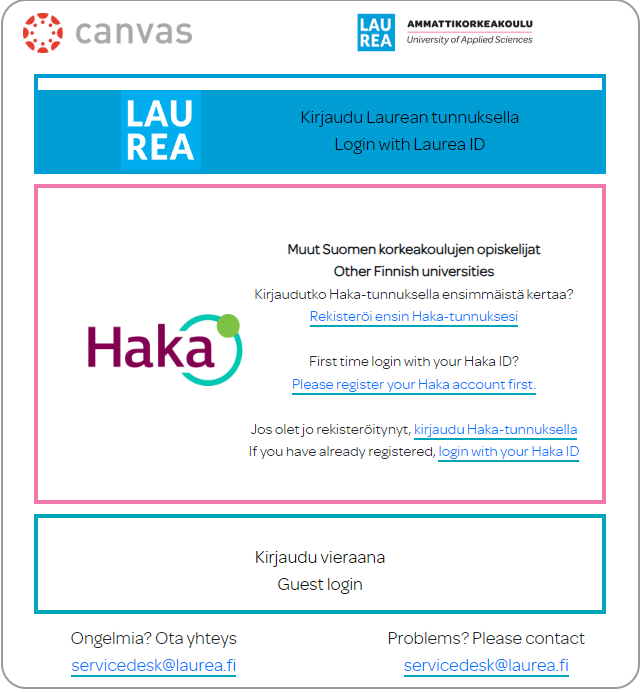
2. Choose the option Log in with Laurea credentials.
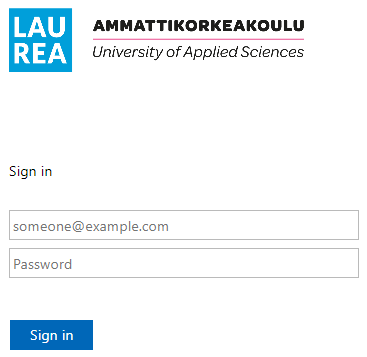
3. Enter your Laurea username and password in the fields and press the Log in button.
If you experience difficulties logging in, clear your browser cache and cookies and then try logging in again.
For more information and support for accepting a course invitation and logging into Canvas, contact Laurea’s ServiceDesk.